
Android Kiosk Mode: What It Is and What to Plan Before Deployment
Plan Android kiosk mode as lock task or one KIOSK app on a company-owned dedicated device, and separate that plan from screen pinning before enrollment.
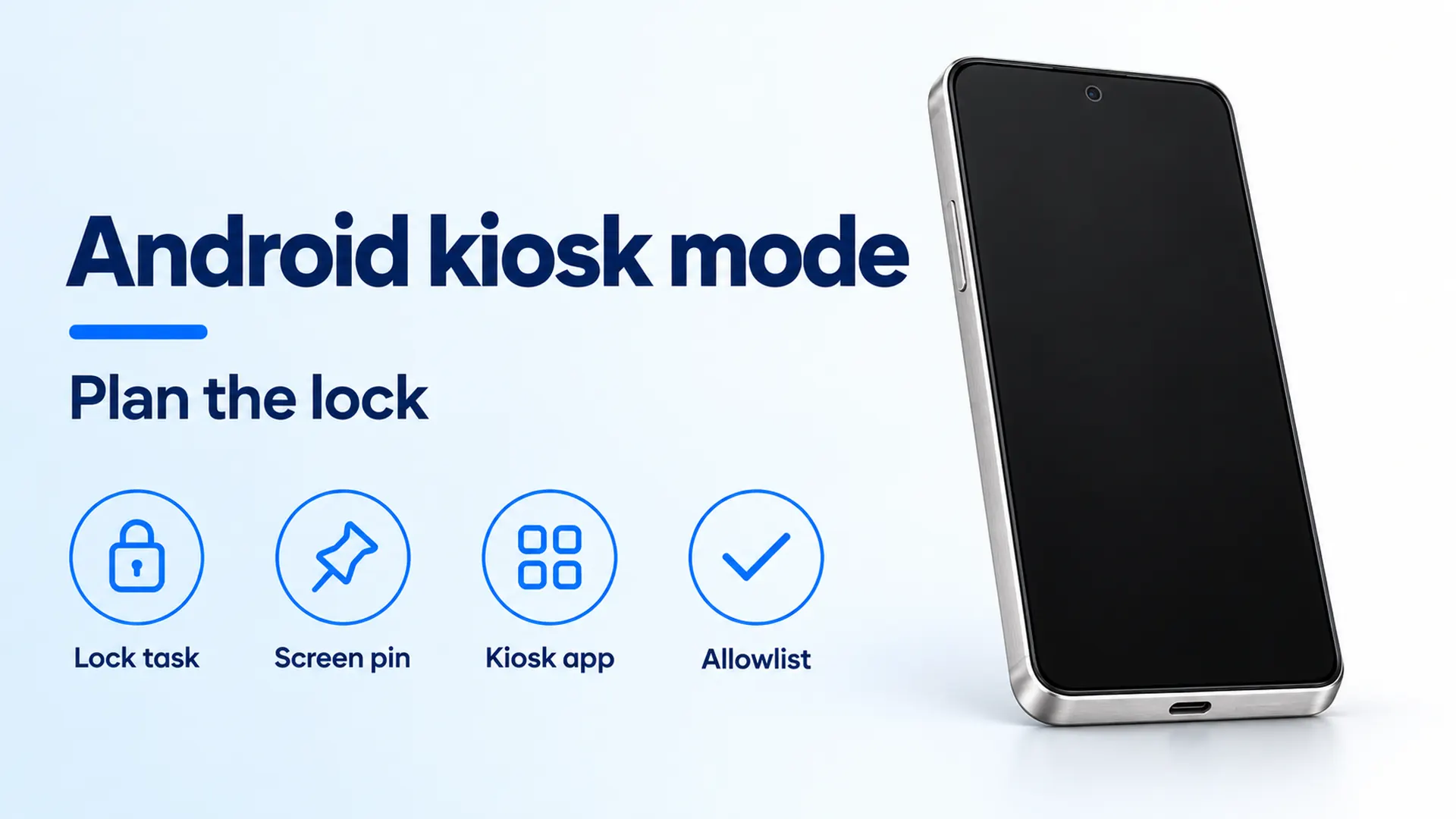
Lock task, screen pinning, the single kiosk app, and the allowlist are four separate checks. The phone is an example handset, not a named model.
A visitor who can leave the app leaves the counter in downtime on a screen that was supposed to finish one job. Android kiosk mode, in the dedicated-device documents cited below, is a company-owned device held to an allowlisted app or a small set of apps, with a staff path that ends that lock on the Android version you actually have.
Start from the Enterprise Android collection and write down the job, who owns the handset, and who is allowed to leave the app.
Android kiosk mode here means a company-owned dedicated device held to one job. The dedicated-device overview, updated 2026-03-05 UTC, defines dedicated devices as fully managed devices for a specific purpose, typically locked to a single app or a set of apps. The lock task guide from that same date names the lock lock task mode: device users typically cannot see notifications, open non-allowlisted apps, or return home unless the home screen is allowlisted. Android Help’s screen-pinning page keeps one app in view until the person unpins it. The Android Management API policy examples, updated 2025-03-05 UTC, set one app’s installType to KIOSK so that app launches full screen when the device boots. A work profile on a personal phone is a different management case.
- Lock task mode runs on Android 5.0 or later. Who can allowlist apps changes again at Android 8.0 and Android 9.0.
- On Android 9.0 or later, a device policy controller can start another app’s activity in lock task mode. On earlier versions the app has to start its own activity.
- A device can have one app with installType KIOSK. Linked apps use a different install type.
- Screen pinning is a Settings path the person at the phone can leave. An allowlist miss on the developer path drops the activity into that same pinning mode.
Figure 1. The glass does not show whether the device is in lock task mode, screen pinning, or an ordinary full-screen app. The photograph has no model name and no policy.
Screen pinning still lets the person leave
Android Help, retrieved October 17, 2026, prints the consumer path under the title “Pin & unpin screens.” You pin an app’s screen to keep it in view until you unpin it. The page’s example is handing the phone to a friend: with the screen pinned, the friend can use only that app, and you unpin it to use your other apps again. On a Pixel phone, the same page says some of these steps work only on Android 11 and up.
The turn-on steps on that page are: open the phone’s Settings app, tap Security or Security & location, then Advanced, then App pinning. If you cannot find it, the page sends you to the device manufacturer. Turn on App pinning. When app pinning is on, you need the PIN, pattern, or password before you can unpin.
The pin steps on that page, after app pinning is on: go to the screen you want to pin, then swipe up to the middle of the screen and hold. If that does not open Overview, the page points you to the Android 8.1 and below steps. For 3-button navigation, tap Overview. At the top of the image, tap the app’s icon, then tap Pin. The Android 8.1 and below steps on the same page are: go to the screen, tap Overview, swipe up to show Pin at the bottom right of the selected screen, then tap Pin.
The unpin steps stay on that page and follow the navigation mode. Gesture navigation: swipe up and hold. 2-button navigation: touch and hold Back and Home. 3-button navigation: touch and hold Back and Overview. If you are asked for a PIN, pattern, or password, enter it.
The lock task guide, a different page, adds one developer outcome. Its sample calls startLockTask() on Activity only after isLockTaskPermitted() on DevicePolicyManager returns true for that package. The comment in that sample says that calling startLockTask() when the package is not allowlisted puts the activity into screen pinning mode. Treat a demo that the holder can leave as pinning until the management side shows an allowlist.
Lock task mode is an allowlist
The lock task guide, last updated 2026-03-05 UTC, is written for enterprise mobility management developers and solutions integrators. It says Android can run tasks in an immersive, kiosk-like fashion called lock task mode, for a kiosk application or a launcher that presents a collection of apps. Only apps allowlisted by a device policy controller can run while the system is in lock task mode. The guide’s own examples are a single package that is both the kiosk and a mini controller allowlisting itself, or a controller inside an enterprise mobility management solution that launches the customer’s apps.
The allowlist call on that page is setLockTaskPackages() on DevicePolicyManager. The sample passes two package names, com.example.kiosk and com.example.player. Those strings are sample names in the guide, not products you should search for. A controller reads the current allowlist with getLockTaskPackages(). Another app checks one package with isLockTaskPermitted().
How the activity starts depends on the version, and the steps stay on that guide:
- Android 9.0 (API level 28) or higher: the controller can start another app’s activity. If the activity is already in the foreground or background, relaunch it. The sample builds
ActivityOptions.makeBasic(), callssetLockTaskEnabled(true), and passes those options tostartActivity()with the launch intent fromgetLaunchIntentForPackage(). - Earlier Android versions: the app starts its own activities with
Activity.startLockTask(). The activity has to be in the foreground. The guide suggests theonResume()method of an Activity or Fragment, and it tells you to confirmisLockTaskPermitted()first. - The app manifest can set
android:lockTaskModetoif_whitelistedso the system runs that activity in lock task mode when the package is allowlisted.
Do not start lock task mode while the device is locked. The guide says the user can then be unable to unlock the device. It tells the controller to use KeyguardManager to see the lock state, and to start lock task mode from a lifecycle callback such as onResume() that runs after unlocking.
An app already in lock task mode can start new activities as long as the activity does not start a new task, except tasks that launch an allowlisted app.
Rule of thumb. If the handset is below 9, the kiosk app has to start lock task mode itself. The lock task guide allows a device policy controller to start another app’s activity only on Android 9.0 or later.
Table 1 on that guide maps who can allowlist apps:
Scroll horizontally to see all columns.
| Android version on the lock task guide | Who the controller administers | Note printed on that row |
|---|---|---|
| Android 5.0 (API level 21) or higher | Fully managed device | The row has no extra note |
| Android 8.0 (API level 26) or higher | Affiliated secondary user | The secondary user must be affiliated with the primary user |
| Android 9.0 (API level 28) or higher | Secondary user | The row has no extra note |
The dedicated-device overview, also updated 2026-03-05 UTC, says these APIs are called by an app that is the admin of a fully managed device. Fully managed deployments on that page are company-owned devices used exclusively for work.
Keep dedicated devices off a personal-phone plan
The Android Enterprise overview, updated 2025-08-28 UTC, separates three workplace cases. A work profile on an employee-owned device, from Android 5.1, stores work apps in a self-contained space and leaves the personal profile outside the organization’s view. A work profile on a mixed-use company-owned device still gives the organization device-wide controls such as Wi-Fi settings and blocking USB file transfers, plus restrictions on the personal profile. Full management is for company-owned devices used only for work, on Android 5.0 or later, including device-level policies that work profiles do not get.
Dedicated devices sit in that last case. The overview calls them a subset of fully managed devices, formerly corporate-owned single-use (COSU), for a specific purpose. It names employee-facing factory and industrial use, and customer-facing signage and kiosk use. It says dedicated devices are typically locked to a single app or set of apps, and that Android 6.0 or later offers granular control of the lock screen, status bar, keyboard, and other key features so users do not enable other apps or other actions.
The Android Enterprise ownership guide is the page for choosing among those models. A personal phone that still needs private apps does not start as a dedicated device.
The dedicated-device overview lists three ways to manage the device. Develop your own device policy controller and combine it with a custom home app. Use the Android Management API. Or use a third-party enterprise mobility management solution that supports lock task mode and the other dedicated-device features. The MDM and EMM comparison is the checklist for a vendor demonstration of that support. A console label is not the allowlist call above.
The same overview says that if you will support a third-party product, you build an end-to-end test plan with that product. While a developer is still building a controller, the page points to the Test DPC app and to setting the app as admin of a fully managed device with the Android Debug Bridge. Those developer setup routes still leave enrollment in place on the devices you will put in front of customers.
Give one app the KIOSK install type
The Android Management API dedicated-device examples, last updated 2025-03-05 UTC, describe kiosk mode on that API. A designated kiosk app launches automatically when the device boots, runs full screen, and is pinned to the home screen so users do not leave the app. You mark it by setting installType to KIOSK inside applications. The sample package name is com.example.app, with defaultPermissionPolicy set to GRANT.
That page warns that statusBarDisabled and lockTaskAllowed are deprecated. To disable the status bar and approve an app for lock task mode, it tells you to use installType KIOSK, or to set kioskCustomLauncherEnabled to true. To show the status bar again after the device was in kiosk mode, change installType to a value other than KIOSK.
A device can have only one designated kiosk app. If that app links to other apps, add those packages under applications with an installType that is not KIOSK and not BLOCKED. The sample uses FORCE_INSTALLED for com.example.app_to_be_linked.
Web pages use a web app. The page says a web app turns a page into an Android app, and you install it by package name. Set that package’s installType to KIOSK. Web apps require Google Chrome, so the sample also adds com.android.chrome as FORCE_INSTALLED, with a managed configuration that sets URLBlocklist to ["*"] and URLAllowlist to ["web.app.url"]. The URL string in the sample is a placeholder printed on the page.
If users need one or more apps from the home screen, the same page sets kioskCustomLauncherEnabled to true. For a public kiosk it also sets keyguardDisabled to true, which the page describes as keeping the device unlocked. You can instead develop your own custom launcher. That launcher path is separate from the single KIOSK app path.
The recommended minimal-access snippet on that page sets safeBootDisabled, screenCaptureDisabled, factoryResetDisabled, and cameraDisabled to true. It also sets systemUpdate.type to WINDOWED, with startMinutes 120 and endMinutes 240, and the comment says that is a daily maintenance window between 2am and 4am. Copying that snippet disables the camera. A check-in flow that must take a photo needs a different camera value before you adopt the rest of the snippet.
Scroll horizontally to see all columns.
| Choice | What the cited page requires | Dominant failure mode | Prevention |
|---|---|---|---|
| Screen pinning | The holder unpins from Android Help with the gesture for that navigation mode, then the PIN, pattern, or password | The public user leaves the app | Keep pinning off the dedicated-device plan |
startLockTask() without an allowlist |
The lock task sample says the activity enters screen pinning | The screen looks locked and the holder can still leave | Call setLockTaskPackages() first and require isLockTaskPermitted() |
Two apps both set to KIOSK |
The policy page allows one designated kiosk app | The second package is not a second kiosk app | One KIOSK value, and FORCE_INSTALLED for a linked app |
| Web kiosk without Chrome | Web apps on that page require Google Chrome | The page does not launch | KIOSK on the web app and FORCE_INSTALLED on Chrome, plus the URL lists |
| Minimal-access example copied onto a camera job | That snippet sets cameraDisabled to true |
Approved photo capture is blocked | Change the camera field before you reuse the snippet |
setLockTaskFeatures() that omits global actions |
Flags you omit are disabled. Global actions stay available only when that method has not been called | The user typically cannot power the device off | Pass LOCK_TASK_FEATURE_GLOBAL_ACTIONS when staff must power off |
Enroll with the method printed for that setup
The dedicated-device overview prints a short provisioning sequence of its own. Factory reset the device. Then enroll it. The page recommends a QR code that contains a provisioning config, which an IT admin scans. If you cannot use a QR code, that page points to other methods such as NFC or entering an identifier. Leave the tap-by-tap detail on the enrollment guide below. Do not fold it back into this short list.
The Android Management API enrollment guide, updated 2026-08-04 UTC, is the page that prints the methods and the version floors. Full management there is for company-owned devices used only for work, on Android 5.1 or later. Locking the device to a single app or a small set of apps, for a dedicated purpose, is the dedicated subset. Enrollment tokens for those devices must set allowPersonalUsage to PERSONAL_USAGE_DISALLOWED_USERLESS. The note under that section says PERSONAL_USAGE_DISALLOWED requires a work-email sign-in, and PERSONAL_USAGE_DISALLOWED_USERLESS sets up an anonymous, userless account.
For company-owned work-only setup, the same page tells you to create an enrollment token with allowPersonalUsage set to PERSONAL_USAGE_DISALLOWED or PERSONAL_USAGE_DISALLOWED_USERLESS, then use one of these methods. It marks the sign-in URL as not suitable for dedicated devices. The other four are zero-touch enrollment, QR code, NFC, and DPC identifier.
Each method’s steps stay on that page:
- QR code, Android 7.0 or later. On a new or factory-reset device, the user, typically an IT admin, taps the screen six times in the same spot. The device prompts for a QR code. The user scans the code from the management console.
- NFC, Android 6.0 or later. The device must have NFC enabled. This method supports full device management provisioning and cannot be used for company-owned, personally enabled provisioning on Android 11. You build an NFC programmer app that holds the enrollment token, initial policies, Wi-Fi configuration, and the other provisioning details. Installing that app on an Android device makes that device the programmer. The page sends the rest of the NFC parameter list to the Play EMM API documentation.
- DPC identifier, when Android Device Policy cannot be added with QR code or NFC. On a new or factory-reset device, follow the setup wizard, enter Wi-Fi details, and when prompted to sign in enter
afw#setup, which downloads Android Device Policy. Then scan a QR code or enter an enrollment token. - Zero-touch, Android 8.0 or later, and Pixel 7.1 or later. Devices bought from an authorized zero-touch reseller can provision themselves on first boot if a configuration is assigned, through the zero-touch portal or the EMM console. On first boot the device downloads Android Device Policy. Portal users select Android Device Policy as the device policy controller for each configuration.
You need an enrollment token for each device, and the same token can be reused across devices. The call is enterprises.enrollmentTokens.create. Tokens expire after one hour by default. You can set a custom duration up to approximately 10,000 years. Figure 1 on that page is a different duration: a token that enrolls and applies “policy1”, expiring after 1800 seconds (30 minutes).
Worked example. The figure’s expiry is printed as 1800 seconds (30 minutes). Duration = 1800 / 60, which is 30 minutes. The default on the same page is one hour, so 60 minus 30 is 30 minutes shorter than the default. Use the duration you set on the token. A scan after that clock ends needs a new token.
The Android Enterprise overview says every device managed through the EMM console must install Android Device Policy during setup, and that Managed Google Play is how the solution manages apps. A token with no policyName is the guide’s separate case, “Enroll a device without a policy.” Dedicated kiosk behavior comes from the policy you attach to the token.
Figure 2. This is the handset you identify before a factory reset and enrollment. The photograph does not show a QR code, a token, or a management console.
Set the system UI on the version that has the feature
While lock task mode is running, the lock task guide lists four interface changes. The status bar is blank, with notifications and system information hidden. The Home and Overview buttons are hidden. Other apps cannot launch new activities. The lock screen, if one is set, is disabled.
On Android 9.0 or higher the controller can turn selected pieces back on with setLockTaskFeatures() on DevicePolicyManager. Features you leave out of the flags are disabled. The enabled features persist between launches. If the device is already in lock task mode, a change shows immediately. When the device exits lock task mode, the interface returns to the state set by the existing device policies.
Table 2 on that guide is the flag list:
LOCK_TASK_FEATURE_HOMEshows the Home button. Enable it for custom launchers. Tapping Home has no action unless you allowlist the default Android launcher.LOCK_TASK_FEATURE_OVERVIEWshows the Overview button and opens Recents. If you enable Overview, you also enable Home.LOCK_TASK_FEATURE_GLOBAL_ACTIONSenables the dialog from a long press of the power button. This is the only feature enabled whensetLockTaskFeatures()has not been called. The guide says a user typically cannot power off the device if you disable this dialog.LOCK_TASK_FEATURE_NOTIFICATIONSenables notifications for all apps: status-bar icons, heads-up notifications, and the notification shade. Enabling it also requires Home. Tapping notification actions and buttons that open new panels does not work in lock task mode.LOCK_TASK_FEATURE_SYSTEM_INFOenables the status-bar area for connectivity, battery, and sound and vibrate options.LOCK_TASK_FEATURE_KEYGUARDenables a lock screen that is set on the device. The guide says this is typically not suitable for public users, including information kiosks and digital signage.LOCK_TASK_FEATURE_NONEdisables all of the features above.
The sample that enables Home and Overview says that call implicitly disables the other features. Read that as the power-button dialog going away unless LOCK_TASK_FEATURE_GLOBAL_ACTIONS is in the same call.
Other apps can still draw windows in front of the locked app. The lock task guide’s block, printed inside onLockTaskModeEntering(), is addUserRestriction() with DISALLOW_CREATE_WINDOWS on UserManager. The guide says the controller can remove that restriction when the device exits lock task mode. Toasts, dialogs, and overlays are the windows that restriction is there to stop.
The Android Enterprise feature list, updated 2026-07-10 UTC, is a separate table for what an EMM console exposes. It does not replace the guide above. These rows are marked for the dedicated-device column:
- 5.9 Lock task mode management, Android 6.0 or later. IT admins can lock an app or a set of apps to the screen and ensure users cannot exit. The console silently allows an arbitrary set of apps to install and lock. The work-profile columns and the fully managed column are not marked on this row.
- 5.15 Advanced lock task mode management, Android 9.0 or later, dedicated column only. Admins silently allow a single app to install and lock. They turn Home, Overview, global actions, notifications, system info / status bar, and keyguard on or off. The list says this system-UI subfeature is turned on by default when 5.15.1 is implemented. They can also turn off system error dialogs.
- 4.27 Advanced dedicated device features, Android 6.0 or later, dedicated column only. Admins can turn off the keyguard (
keyguardDisabled), turn off the status bar and block notifications and Quick Settings (statusBarDisabled), force the screen to stay on while plugged in (stayOnPluggedModes), prevent toasts and application overlays (createWindowsDisabled), and allow apps to skip first-use hints (skip_first_use_hints). - 2.8 Security policies for dedicated devices, Android 6.0 or later. The list says no other actions are allowed for a locked-down dedicated device, and booting into safe mode must be off by default through
safeBootDisabled.
Put the deprecation warning next to 4.27.2, not instead of it. The feature list still names statusBarDisabled. The policy examples page, updated 2025-03-05 UTC, says statusBarDisabled and lockTaskAllowed are deprecated and names installType KIOSK or kioskCustomLauncherEnabled as the replacement for disabling the status bar and approving lock task. Ask the console which field it writes. Do not assume the older name and the KIOSK install type are the same switch.
stayOnPluggedModes is a screen policy while the device is plugged in. A cable, a dock, or an external display is a different question. Use the Android compatibility collection for that hardware check. That collection does not say whether lock task mode is on.
Worked example. The minimal-access update window uses startMinutes 120 and endMinutes 240. Window = 240 - 120, which is 120 minutes. The page’s comment labels that span 2am to 4am. The 120 minutes are the example window, not an uptime measurement from a kiosk.
Figure 3. A cable answers the plugged-in question for stayOnPluggedModes. It does not show a charger rating, a brand, or a lock-task flag.
Leave lock task mode with the call that matches the version
Stopping is also on the lock task guide, and the Android version changes the call.
On Android 6.0 (API level 23) or later, the controller removes the package from the allowlist with setLockTaskPackages(), omitting that package. When the allowlist updates, the app returns to the previous task in the stack.
On Android 5.0 and 5.1, removing the package from the allowlist does not stop lock task mode. The guide says that if you need to exit on those versions, the app has to support the exit itself, through Activity.stopLockTask().
stopLockTask() works only for the activity that previously called startLockTask().
The controller can watch entries and exits for an app in the same user by overriding onLockTaskModeEntering() and onLockTaskModeExiting() on DeviceAdminReceiver. The entering callback receives the package name. The exiting callback does not receive the app. If you launched another app into lock task mode, the guide says you track that status in your own app. The check it prints uses ActivityManager: on API level 23 or later, lockTaskModeState equals LOCK_TASK_MODE_LOCKED. The comment says screen pinning does not count. On API levels from Lollipop up to, but not including, 23, the older isInLockTaskMode is the call, and the guide marks it deprecated in API level 23.
A pilot record can store the model, the Android version, the management product, the enrollment method, the allowPersonalUsage value, the policy name, the package set to KIOSK or the allowlist from getLockTaskPackages(), and whether lockTaskModeState reported LOCK_TASK_MODE_LOCKED after a relaunch. A screen that the holder can unpin fails the lock-task check on API 23 or later even when the app fills the glass.
The costs that show up before any rollout are the ones these pages already time or block. A token set to the figure’s 1800 seconds is dead at 30 minutes, and the QR tap sequence has to start over with a new token. A setLockTaskFeatures() call that leaves out global actions takes away the power-button dialog the guide describes as the usual way to power off. An Android 5.0 or 5.1 unit does not leave lock task mode when you only edit the allowlist. A minimal-access policy that disables the camera blocks the photo step you still need. Write the version and the field name next to each of those results so the next change does not “fix” the wrong page.
Sources and verification
Checked October 17, 2026. Each claim above stays on the page cited for it.
- Lock task mode, last updated 2026-03-05 UTC. Allowlist, version table, start and stop calls, and system-UI flags.
- Dedicated devices overview, last updated 2026-03-05 UTC. Fully managed admin, the three management routes, and the factory-reset then enroll sequence.
- Example policies: dedicated devices, last updated 2025-03-05 UTC.
KIOSKinstall type, linked apps, web apps, custom launcher, and the minimal-access snippet. - Android Enterprise overview, last updated 2025-08-28 UTC. Work profiles, fully managed devices, and dedicated devices as a subset.
- Enroll and provision a device, last updated 2026-08-04 UTC. Token personal-use values, method steps, and token duration.
- Android Enterprise feature list, last updated 2026-07-10 UTC. Dedicated-column rows for lock task, advanced lock task, and dedicated-device security.
- Pin and unpin screens. The Settings path, the Android 8.1 steps, and the Pixel Android 11 note.
Related articles
Android Enterprise Explained: Work Profiles, Full Management and Dedicated Devices
Choose an Android Enterprise management model by ownership and work needs. Understand work profiles, company-owned options, policy scope and pilot acceptance.
Read article
MDM vs. EMM for Android: What Your Team Actually Needs
MDM is device policy and EMM adds app management. Judge an Android console by the management set, the five-minute reset, and the 270-day offline limit.
Read article
Wireless Android Auto Adapter: 5 GHz Wi-Fi and Boot Speed
Separate adapter cold boot from ignition power and phone reconnection, and learn why Android Auto's 5 GHz Wi-Fi requirement promises no startup time.
Read article