
Android Auto Keeps Disconnecting: A Fix Order That Saves Time
When Android Auto keeps disconnecting, name what left the car display, then change one thing in Park: the cable under 1 meter, or the 5 GHz wireless path.
Four parked checks when Android Auto keeps disconnecting: the whole session, one app, a cable under 1 meter, and 5 GHz Wi-Fi. The console photo is an example, not a particular car.
An Android Auto disconnect costs you the map and the audio on the car display at the same time. When Android Auto keeps disconnecting, write down whether the whole session, one app, or only the wireless path disappeared, then change one thing with the car in Park. The cable length, the 5 GHz wireless requirement, and the second-car reset below are the wording on Google’s Android Auto help pages fetched on 17 October 2026.
When Android Auto keeps disconnecting, name what left the display before you change a setting. A whole session that used to work is the case Google’s troubleshooting page treats as a cable problem: use a high-quality USB cable under 3 feet (1 meter), with no hub or extension, and replace the cable if the session has stopped. Wireless projection, on the requirements page fetched the same day, needs 5 GHz Wi-Fi, Android 11.0, an active data plan, and a compatible car or stereo. One app stopping while Android Auto stays on the screen is a different branch, and Forget all cars is the second-car step, not the first move. Do this in Park.
Figure 1. Example of the parked starting point: the phone is still there, the cable is out, and nothing has been reset yet. It is not a photograph of a failed car or a certified cable.
Scroll horizontally to see all columns.
| Input or item | Value on the fetched page | Why it matters |
|---|---|---|
| Session that used to work | Replace the USB cable. Under 3 feet (1 meter). No hub or extension | Troubleshooting page, 17 October 2026, calls cable replacement the likely fix |
| Wired phone | Android 11.0 or higher, active data plan, compatible car, high-quality USB cable. Not Android (Go edition) | Requirements page. A USB socket alone is not support |
| Wireless phone | 5 GHz Wi-Fi, Android 11.0, active data plan, compatible car or stereo | A phone without 5 GHz is outside wireless projection |
| Setup | Car in Park, infotainment on. Wireless setup also keeps Bluetooth, Wi-Fi, and Location Services on | Setup page. The first wireless link is a Bluetooth pair |
| Second car | Unplug, then Forget all cars, then plug in again | That control clears every saved car |
| Country list | United States is listed. Most features will not work outside the list | A dropout off the list is a coverage limit |
What actually left the screen
The useful split is what is still painted on the car display. If the display has returned to the car’s own home screen, the projection session ended. If Android Auto is still up and another function still responds, the session did not end. A missing song and a vanished interface do not share a first check.
Google’s troubleshooting page does not publish a separate procedure for a single app. The sorting rule is the thing you can see. Write the mode (wired, wireless, or a wireless adapter), the phone model, the software version, and the vehicle or receiver. For a wired drop, add the cable and the port you used.
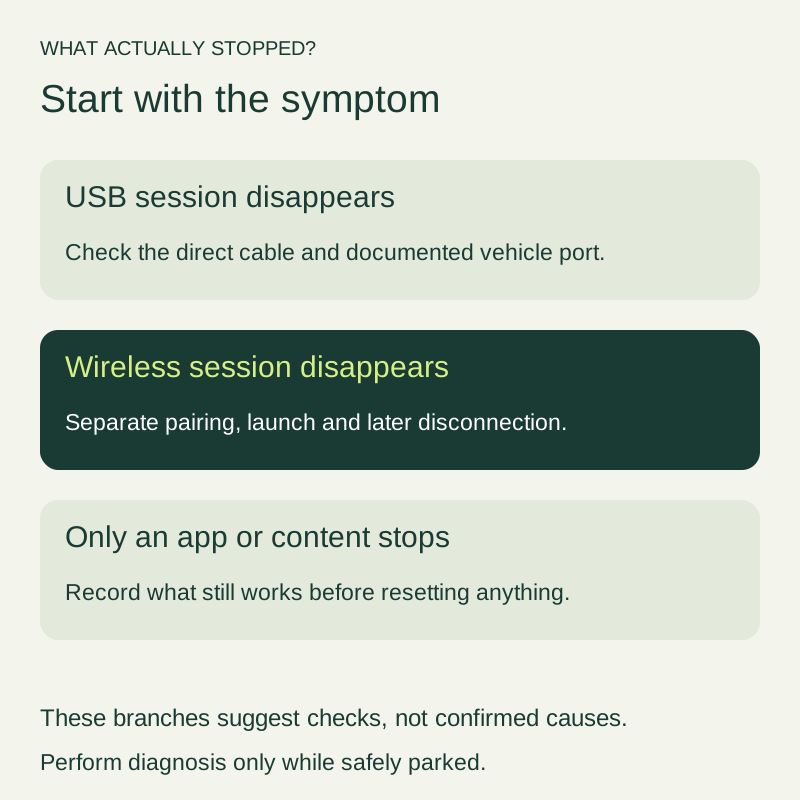
Figure 2. Pick the branch from the symptom on the display. Each branch names the next check. None of them certifies a broken part.
The cable check, before any reset
If the cable is 1 meter or longer, or a hub or an extension is in the path, fit a direct cable under 1 meter before you open Previously connected cars. That threshold is Google’s troubleshooting instruction, fetched 17 October 2026: under 3 feet (1 meter), no USB hubs, no cable extensions. The same page says that if Android Auto had worked and no longer works, replacing the USB cable will likely fix it. Try the cable that came with the phone first. Google’s examples are a Pixel cable with a Pixel phone, and a Samsung USB cable with a Samsung Galaxy phone.
The data-pair, the USB-IF listing, and the port the vehicle manual assigns are on the Android Auto cable guide. This page does not repeat that length derivation. A charging icon only shows that power arrived. If charging stops in the same moment as the session, continue with the slow-charging checks after the cable swap is written down.
Leave the phone, the port, and the saved cars unchanged during that swap. One parked attempt, one new cable. If the plug will not seat, look for a case lip. Do not scrape inside the port, and do not bend the plug until it holds.
A car that has never connected
A combination that has never opened Android Auto is a compatibility question, not an intermittent dropout. The troubleshooting page says Android Auto will not work on all cars equipped with a USB port, and it tells you to confirm the car, or an aftermarket unit, against the compatibility list. The requirements page adds the phone side: Android 11.0 (Red Velvet Cake) or higher, an active data plan, and a high-quality USB cable for the wired path. Android (Go edition) is excluded.
The setup page tells you to put the car in Park, turn the infotainment system on, plug the vehicle USB port first, then the phone, and follow the on-screen steps. The phone may ask to update Android Auto before setup continues. Finish that while parked. The compatibility checklist is where the phone, cable, and port stay written down for the next attempt.
Wireless: setup failure, or a session that dies later
Wireless projection on the requirements page needs a phone with 5 GHz Wi-Fi, Android 11.0, an active data plan, and a compatible car or stereo. Google says to ask the phone maker whether that phone has 5 GHz Wi-Fi. In the EU, the same page says a phone must meet additional regulatory requirements to use 5 GHz Wi-Fi in the car, and that Pixel 3 and newer Google phones meet that line. The page names those requirements and does not quote the regulation. The United States is on the country list published with the requirements. Most features will not work outside the listed countries, so a dropout there is not a cable finding.
If the phone has no 5 GHz Wi-Fi, wireless Android Auto is outside the requirement on that page. Wired projection does not use the 5 GHz line. Use the wired checks above when the car has a projection USB port. The 2.4 GHz and 5 GHz car-link page is the next page once the phone is known to have 5 GHz and the session still drops on wireless only.
The setup page separates the first wireless connection from later use. The first connection pairs the phone and the car with Bluetooth. For that setup, keep Bluetooth, Wi-Fi, and Location Services on, with the car in Park and the infotainment system on. After pairing, Android Auto should start within a few seconds. If it does not, follow the prompts, or tap Android Auto on the car display. Holding the steering-wheel voice button is the pairing shortcut on that page. If the menu does not appear, the page sends you to the car maker’s instructions.
A session that starts and then leaves the display is a later drop, not a failed first pair. When the car also supports wired projection, a direct wired session is the comparison that keeps the phone in the record. A stable wired session leaves the wireless path as the open item. A wireless adapter is another product. Record it, and test the car’s own wired port when that port exists. The adapter guide is the page for that box. The wired and wireless comparison is the page for choosing the mode after both paths have a parked result.
If a second phone is saved in the same car, the priority between them is not on the three Google pages fetched here. Use the two-phone priority checks before you delete the other driver’s pairing.
One app stopped, and Android Auto did not
When the Android Auto interface stays up and another control still answers, describe the app and the action that failed. Audio that breaks up while the map remains is that branch. The next page is the wireless audio stutter order. Do not clear every saved car because one service went quiet.
The setup page also asks that the phone be in range of the mobile network, with service showing. The requirements page asks for an active data plan on both the wired and wireless lists. No service means the published requirement is not met. A recent plan or SIM change belongs on the eSIM support check, as its own comparison, not as proof that the cable failed.
One change per parked stop
Scroll horizontally to see all columns.
| What you see | Dominant failure mode | Prevention |
|---|---|---|
| The session used to work on a cable, then the whole display drops | Cable path: length, a hub, an extension, or a cord that no longer carries the session | Direct cable under 1 meter, phone’s own cable first, same port. No reset in that stop |
| Android Auto has never opened on this USB port | The car or the port is outside projection support. Google says a USB port is not enough | Confirm the car on the compatibility list and use the port in the vehicle manual |
| Wireless never starts | Phone outside the 5 GHz requirement, or Bluetooth, Wi-Fi, or Location Services off during setup | Confirm 5 GHz with the phone maker. Repeat setup in Park with those three services on |
| Wireless starts, then the whole session ends | A later drop on the wireless path | Compare a direct wired session while parked. Record an adapter if one is in the path |
| Android Auto stays up and one app or the audio stops | The projection session is still there. The failed piece is the app or the audio stream | Use that app’s own help, or the audio-stutter order. Do not Forget all cars first |
| Only a second car fails to connect | Saved-car list, which Forget all cars clears entirely | Follow the troubleshooting path, then set the affected cars up again |
A stop that changes three things assigns the result to none of them.
Unassigned causes = changes made in the same parked stop
Worked example: a cable swap, Forget all cars, and a head-unit restart in one stop are 3 changes × 1 stop = 3 unassigned causes. The display may come back. The note still cannot name the change that did it. Three stops, one change each, give three results you can hand to the car maker or the phone maker.
Parked minutes = stops × minutes allowed per stop
Worked example with a stated allowance, not a timed average: 3 × 5 = 15 minutes. Five minutes covers shifting to Park, writing the symptom, making one change, and waiting to see whether the session returns.
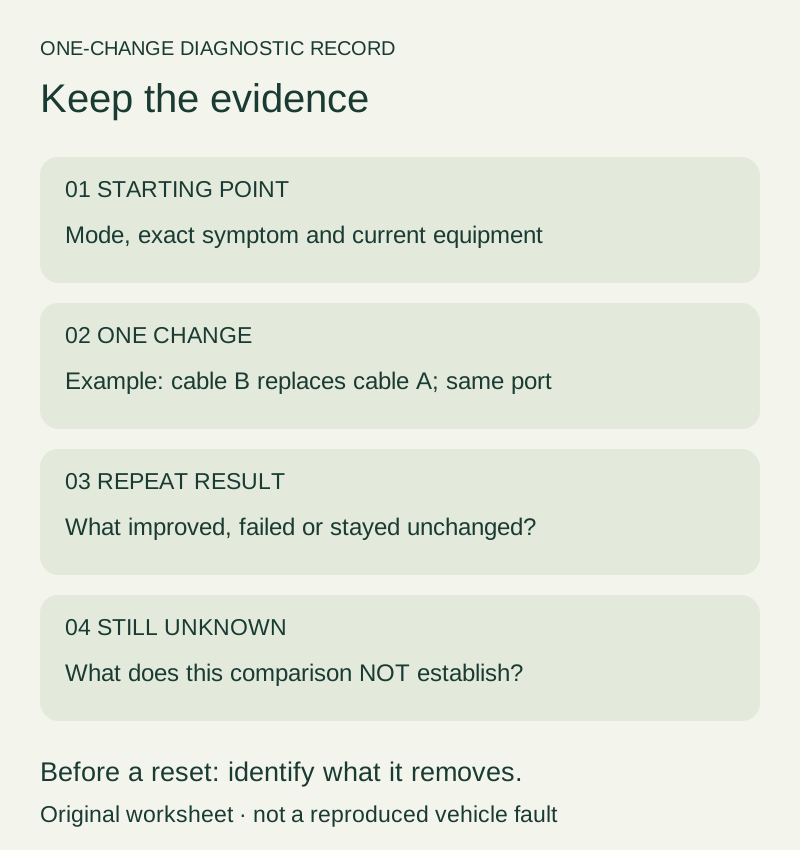
Figure 3. Keep the starting point and change one variable. A result narrows the branch. It does not certify a component.
Restart and firmware stay in their own stop
Google’s troubleshooting page tells you to confirm Android Auto is turned on in the infotainment system, then restart that system. For an aftermarket receiver it names Pioneer and Kenwood as examples and tells you to check that maker’s site for a firmware update. Match the package on the head-unit firmware steps before you repeat the connection. Do not combine a cable swap and a firmware install in the same stop.
The phone path for trouble with a second car, on that same page, is: unplug the phone, then Settings, Connected devices, Connection preferences, Android Auto, Previously connected cars, the top-right menu, Forget all cars, then plug in again. Menus differ by phone. The page also says to confirm the car is compatible and that Android Auto is turned on. Forget all cars removes every saved car, so it is the wrong first move for a single car whose cable has not been swapped yet.
This disconnect order sits under Android accessories. The hidden cost of skipping the order is the 15 minutes above, spent in a way you cannot interpret, plus another cable or adapter bought before the branch is known. The Google pages fetched on 17 October 2026 do not publish a price or a success rate for that cable.
Sources and verification
- Google: Android Auto troubleshooting, fetched 17 October 2026. Cable replacement when a working session stops, under 3 feet (1 meter), no hubs or extensions, phone-supplied cable examples, infotainment restart, Pioneer and Kenwood firmware examples, Forget all cars path. Android Auto will not work on all cars equipped with a USB port.
- Google: Android Auto requirements, fetched 17 October 2026. Wired Android 11.0 or higher, active data plan, high-quality USB cable, Android (Go edition) exclusion. Wireless 5 GHz Wi-Fi, Android 11.0, EU 5 GHz note, Pixel 3 and newer on Google phones, country list including the United States.
- Google: Set up Android Auto, fetched 17 October 2026. Park, plug order, Bluetooth pairing, Bluetooth plus Wi-Fi plus Location Services during wireless setup, start within a few seconds, mobile service in range.
The 15 minute line uses the stated 3 × 5 minute allowance. The requirements page names extra EU 5 GHz rules and does not quote them. Updated October 2026.
Related articles
Android Auto Developer Mode: Enable, Exit and Understand Its Limits
Find Android Auto's version panel, unlock and exit its developer menu, and check the limits of Unknown sources, resolution and wireless settings.
Read articleTwo Phones in One Car: Android Auto Priority and Switching Checks
Find which device selects your Android Auto phone, separate call priority from projection, and check startup and switching with two phones.
Read article
Wireless Android Auto Adapter: 5 GHz Wi-Fi and Boot Speed
Separate adapter cold boot from ignition power and phone reconnection, and learn why Android Auto's 5 GHz Wi-Fi requirement promises no startup time.
Read article