
Why Is My Android Phone Charging Slowly? A Practical Check Order
Separate a charge limit, heat protection, a bad cable seat, and a wireless alignment problem before you replace the adapter.
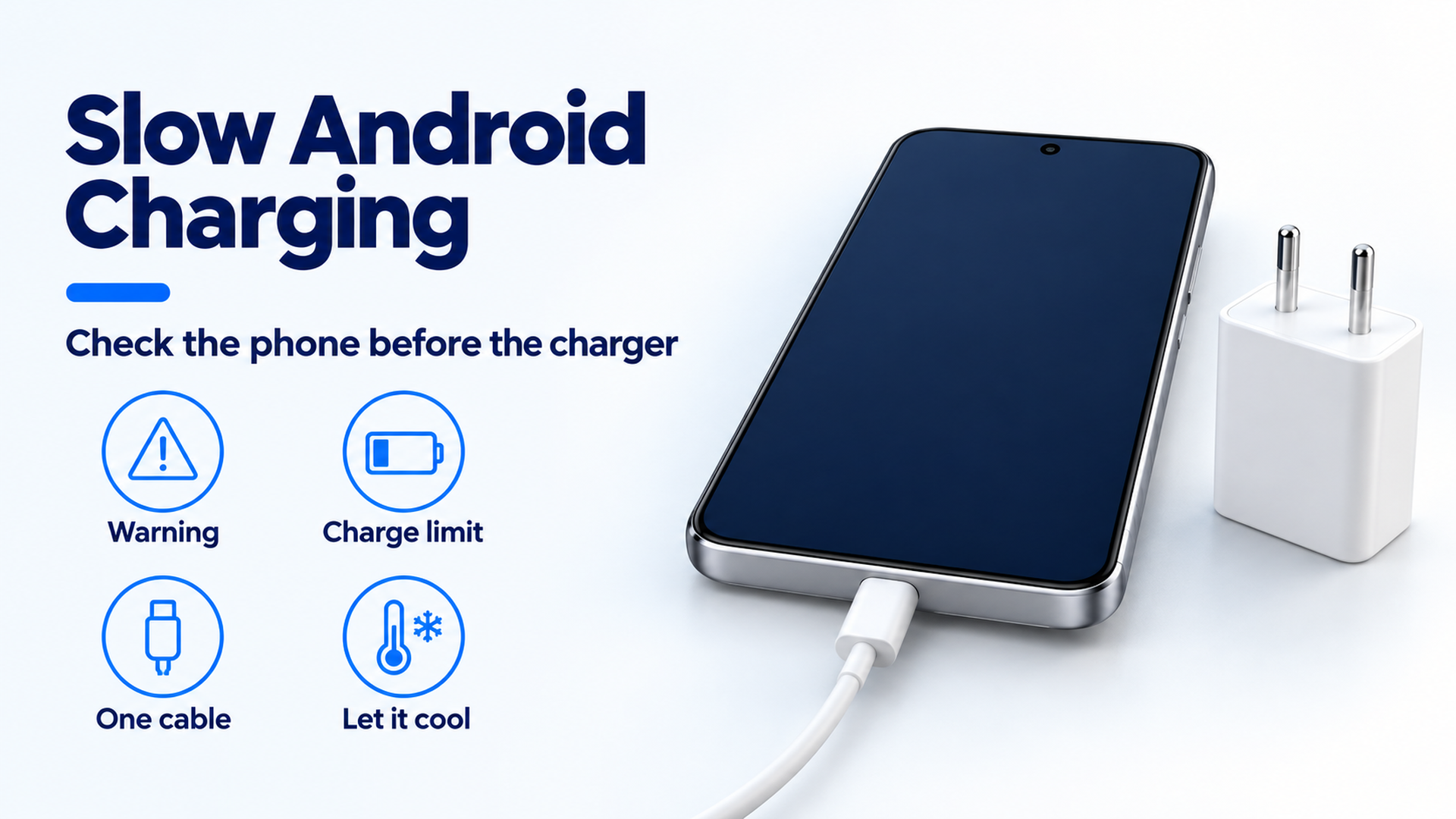
Example check order for a slow Android charge. The handset is generic. The poster is not a measurement from a phone.
A slow charge costs you the battery level you expected at unplug, and swapping in a larger adapter first can waste a working charger. If your Android phone is charging slowly, read the on-screen message, the charge-limit setting, and whether the phone is hot, then change one cable or one adapter. Write down each result so the next step is one replacement or a repair visit.
If your Android phone is charging slowly, split an intentional charge limit from a hot phone, a poor connection, and a wireless-only problem before you buy anything. A slow percentage can be a charge limit, heat protection, a cable that does not seat, or a pad that misses the coil. On a Pixel it can also be Adaptive Charging, or the separate setting that stops at 80%. Start with the message on this phone and the battery setting for this model. Then compare one cable and one adapter the phone maker documents, changing only one part. The Android charging guides are the section this check sits in. Open that section after you know which branch you are on.
Match the symptom to one failure mode
Name the symptom before you open a shopping tab. A phone with no charging indicator is a different case from a phone that pauses on a setting, and a phone that only misbehaves on a pad is a different case from a phone that misbehaves on every cable.
Scroll horizontally to see all columns.
| What you observe | Dominant failure mode | Prevention |
|---|---|---|
| No icon on a Pixel that was fully drained and left off for a long time | The battery can sit with no icon, vibration, or display for up to 25 minutes while it accepts charge | Leave a documented wired setup connected through that window before you treat the phone as dead |
| “Unplug charger” or “Liquid or debris in USB port” on a Pixel | Heat, liquid, or debris in the USB-C port or on the cable | Unplug from the wall, let it cool, dry at room temperature, and do not put anything into the port |
| Charging stops at a repeatable percentage | A charge-limit or battery-protection setting | Read the setting and the notification before you replace hardware |
| Slow only while the phone is hot, then ordinary after it cools | Temperature protection. Samsung states that charging may pause or slow when the device is too hot. That page does not print a degree cutoff | Get the phone out of the sun, stop heavy use, and compare equipment only after it has cooled |
| Slow only on a wireless pad | Alignment, a case, metal or a magnet on the back, or Adaptive Charging past 80% on a Pixel | Remove the case and metal objects, reseat the phone, and read the adaptive-charging notice |
| Slow with one cable or adapter, ordinary with another | That accessory is damaged or outside what the phone supports | Substitute one part against a known-compatible pair |
| A Galaxy fast-charge setting stays idle only on a PC or a plain USB port | Samsung states that fast charging may not work from a PC or a standard USB device | Compare a wall adapter the phone maker documents. Keep the PC port as its own case |
The five-minute accessory compatibility check is the place to record the phone model, the adapter, and the cable before you judge the combination. Do not treat two different models as the same test because the boxes print similar watt figures.
Use three rules of thumb before you buy
Rule of thumb. If a Pixel is over 80% and Adaptive Charging is active on a wireless charger, leave that slow tail alone. Google’s wireless-charging page states that slow charging over 80% is expected in that case, and that the phone is still aiming to finish before you wake.
Rule of thumb. If a Pixel 3 or later, on Android 11 or later, shows “Protecting your battery” after hours of charging in high temperatures or after several days on the charger, the phone is holding the level at about 70% to 80% on purpose. Use Charge to full, or restart, only when you need 100%. The same page says the limit comes back the next time those conditions return.
Rule of thumb. If the slow session follows one cable, and the same adapter with a second documented cable charges in the ordinary way, stop using that first cable. A higher watt label on a new adapter does not repair a cable that fails this one-variable check.
Pixel menus below are the paths Google prints. Samsung states that menu names, settings, and screen layouts vary by model and software. A path from one brand is not evidence that another brand hid a feature.
Clear a warning before you time the charge
If the phone shows a moisture, debris, or heat warning, that warning is the job. Speed comparisons come after it is gone.
On a Pixel, the messages are “Unplug charger” and “Liquid or debris in USB port.” Google’s sequence is specific. Unplug the adapter from the wall, let the phone sit for a few minutes, then disconnect the cable. The cable can be very warm. If you were using USB-C headphones, remove those too. Check the port and the cable for moisture or debris. Do not put anything into them. A wet phone should be powered off and left on a flat surface to dry at room temperature. Debris, with the port faced downward, is cleared by gently tapping the phone against your hand. If the port looks burned, melted, or corroded, stop and use Google’s warranty or authorized-repair path. If the cable looks damaged, stop using it. If “Liquid or debris in USB port” is still on screen after two hours, or “Unplug charger” returns, Google tells you to contact them. If the phone is too hot to touch, use a different device to do that.
Samsung’s US and India troubleshooting pages agree on the causes and disagree on the cleaning motion, so use the page for your region. Both say high temperature, the accessories, the charging settings, or debris in the port can make a Galaxy look slow or unwilling to charge. Both say charging can stop or slow when the phone is too hot, and that you should wait until it cools. Both say a moisture warning can stop charging to protect the phone, including on a water-resistant Galaxy, until the port is dry. The US page says to inspect with a flashlight and remove dust without metal objects or liquids. The India page, last updated 15 July 2026, says to blow air gently into the port. Do not combine those into a third method.
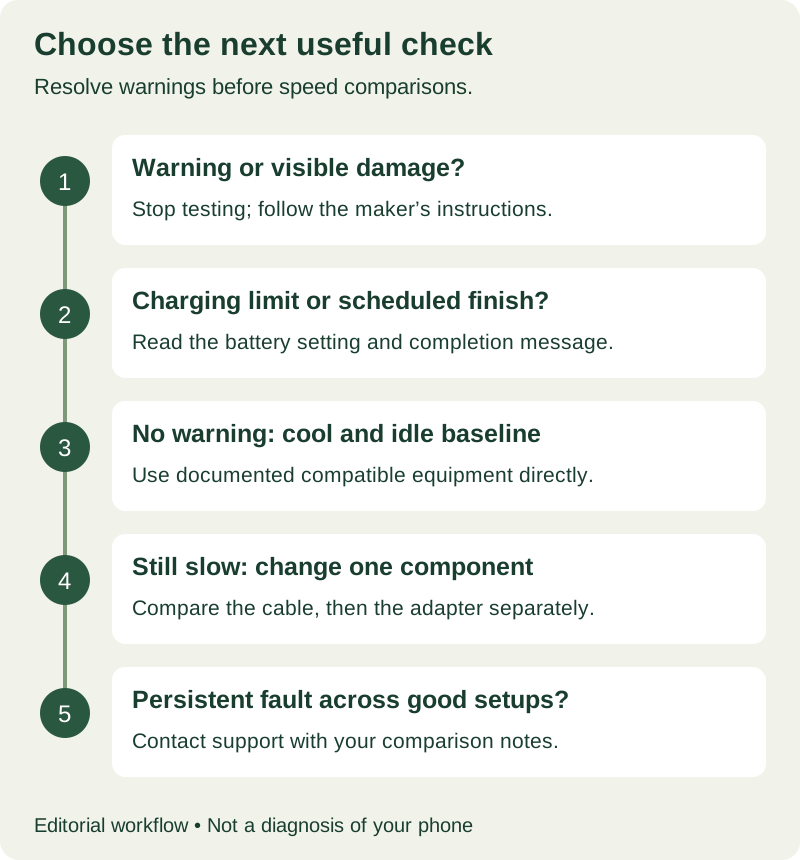
Figure 1. Take the branch that matches the message. Equipment swaps wait until a warning is cleared.
Read the charge limit before you blame the cable
Open the battery settings and write down what is already on. Change it only if you need a different outcome today.
On Pixel phones, Charging optimization is under Settings, Battery, Battery health. Adaptive Charging learns your routine so the phone spends less time sitting at 100%, which Google says can strain the battery. The feature needs about 14 days of habit data. If your routine changes, as it does when you travel, Adaptive Charging may stay off. When it is on, a notification shows the time the battery will be full. Pixel 4 turns it on between 9 PM and 4 AM when an alarm is set for 3 AM to 10 AM. Pixel 4a and later, including Fold, can also turn it on when a long session looks likely.
Limit to 80% is a separate choice on Pixel 6a and later. Google describes it as the option when you usually finish the day with charge left. Turn it off when you need the full 100%. Even with the limit on, a Pixel still needs a full charge every 10th cycle, then at least 30 minutes on the charger after the screen shows 100%, so the capacity reading stays accurate. A surprise trip to 100% on that cycle is the calibration behavior, not a broken cap.
A third Pixel behavior is easy to mix up with both of those. On Pixel 3 and later, including Fold, with Android 11 or later, the phone can limit charging to about 70% to 80% during long hot sessions or after several days plugged in. The notification says “Protecting your battery,” and Settings shows “Charging optimized to protect your battery.” It turns itself off when the conditions end. Charge to full, or a restart, overrides it once. The next long hot session can turn it on again.
On a Galaxy, Battery protection can stop the charge early or cap the maximum, depending on the option you selected. Samsung’s fix is to pick another option or turn the feature off. Fast charging has its own switch on phones that support it. Starting with the Galaxy S23 series, Fast charging and Super fast charging are one Fast charging setting. If that switch is off, the phone is doing what the setting says.
Cool the phone, then time one wired baseline
Samsung’s slow-charging pages list high device temperature among the causes, and they say charging may pause or the speed may drop until the phone cools. They do not print a Celsius cutoff. How warm the case feels is not that measurement.
For the comparison itself, move the phone out of direct sun, stop navigation and other heavy use, and wait until a heat warning has cleared. If the heat showed up on a pad, use what to change when a phone runs hot on a wireless pad. Pixel drying is room temperature on a flat surface with the phone powered off. Samsung’s moisture note is a soft cloth, a gentle shake, and cool air in a ventilated spot. Google’s Pixel battery information page adds a charging condition for Pixel phones: a cool place, about 25°C (78°F), with a compatible USB-C PD or PPS charger. That sentence is a recommended condition. It is not a degree at which every Android phone must slow down.
When the phone is cool and idle, charge from a wall outlet with a cable and adapter the maker documents for that model. Take docks, hubs, and car sockets out of this first run. Google’s Pixel won’t-charge page says to try another cable or another power adapter, to confirm the cable is seated at both ends, and to check the port for dust or lint. Change one of those at a time. If you change the outlet, the adapter, the cable, the case, and the setting together, a better result does not tell you which change did the work.
A laptop’s USB-C wall adapter can be that second adapter when it meets the class the phone maker names. A charge taken from the laptop’s own USB port is a different arrangement. Samsung states that fast charging may not work when a Galaxy is connected to a PC or a standard USB device. Whether a laptop USB-C wall charger is a fair stand-in walks through that split.
Judge the adapter class with the maker’s numbers
Power on a charger label is the product of voltage and current:
Power = voltage × current
Worked example. USB-IF states that, before USB PD Revision 3.1, USB PD was limited to 100W using a solution based on 20V on USB Type-C cables rated at 5A. Multiply those two published figures:
20 V × 5 A = 100 W
The product is the 100W ceiling in that same sentence. It describes that USB PD arrangement on cables rated at 5A. It is not the charge rate of your phone, and it is not a reason to expect 100W from a handset that never requests 20V.
The same USB-IF page, announcing USB PD Revision 3.1 in 2021, says the update enables up to 240W over a full-featured USB Type-C cable and connector. It pairs three fixed voltages with three ceilings: 28V up to 140W, 36V up to 180W, and 48V up to 240W. An adjustable mode can request intermediate voltages between 15V and the highest fixed voltage the charger offers. The page also says each device should take only the power it requires. A phone that does not negotiate those voltages does not receive those ceilings.
Google’s page for a Pixel that will not charge names two adapter classes for the best battery experience and charging speeds on Pixel phones: a Google 30 W USB-C power adapter or another PPS adapter rated for 30 W or more, and other USB PD adapters rated for 15 W or more. Actual charging speeds may vary by Pixel phone. Those two ratings stay on that Pixel page. They are not a Galaxy requirement, and they are not a wattmeter reading. On the same won’t-charge page, a “Check charging accessory” notification means the cable or USB power adapter may be damaged or not supported, which can make the phone charge very slowly or not at all. Google’s Charging optimization page adds a separate warning: use the power adapter that came with the phone, because other power adapters and chargers can charge slowly or not at all, and they can damage the phone or the battery.
Samsung does not print a watt class on the slow-charging pages saved for this article. It does say that chargers and cables can look alike and still differ in charging quality, and that incompatible or damaged accessories can slow charging, interrupt it, or stop it. The US page says “incompatible.” The India page says “non-genuine.” Both tell you to use a Samsung charger and cable made for that Galaxy, and to try a second one of that kind before a service visit.
Read how USB PD differs from PPS when the adapter label uses those names, and how to compare an adapter’s watt figure with what the phone can use before you treat the largest number on the box as the phone’s rate. A smaller brick, including a GaN design, is a size and material choice. What a GaN label does and does not change matters only after the charge-limit and one-cable checks are done.
Change one part, then write the result
Use two cables and two adapters only if you already have documented alternatives. Borrowing a known-compatible set is enough. This is not a shopping list.
Scroll horizontally to see all columns.
| Trial | Adapter | Cable | What a difference means |
|---|---|---|---|
| A | Known-compatible | Known-compatible | Whether the phone behaves in the baseline |
| B | Known-compatible | Suspect | Whether the slow session follows this cable |
| C | Suspect | Known-compatible | Whether the slow session follows this adapter |
| D | Everyday adapter | Everyday cable | Whether the setup you actually use is acceptable once A, B, and C are known |
If B is slow and A is not, you have a reason to retire that cable or inspect how it seats. You do not have a measurement of which conductor failed. If C is slow but stable, compare the adapter with the class the phone maker names before you call the adapter defective. A charger with a captive cable is one assembly. Do not pretend you separated the cable from the brick.
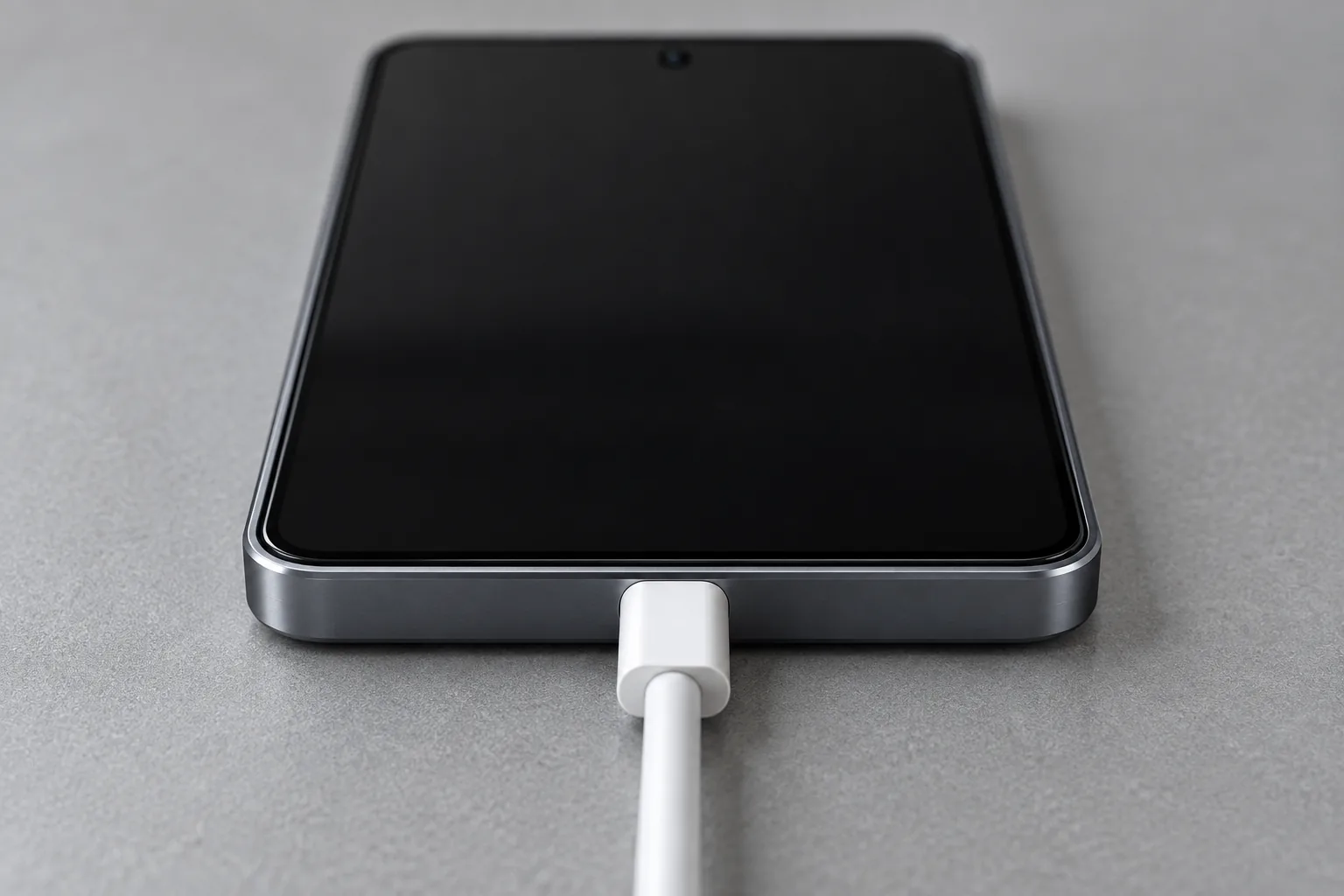
Figure 2. Example of a centered USB-C seat on a generic handset. Use it to see what “fully seated, one port, nothing else on that edge” looks like. It is not a photo of your phone, and it shows no charge rate.
Pick one clock interval you can repeat, and start each trial in a similar battery range with similar screen use. You do not need to run the battery to zero. Google’s Charging optimization page says you do not need to teach the gauge by going from full to zero or from zero to full. For each run, record the adapter, the cable or the captive assembly, the start and end percentage, the elapsed time, the charging setting that was on, any warning, and whether another device shared the adapter.
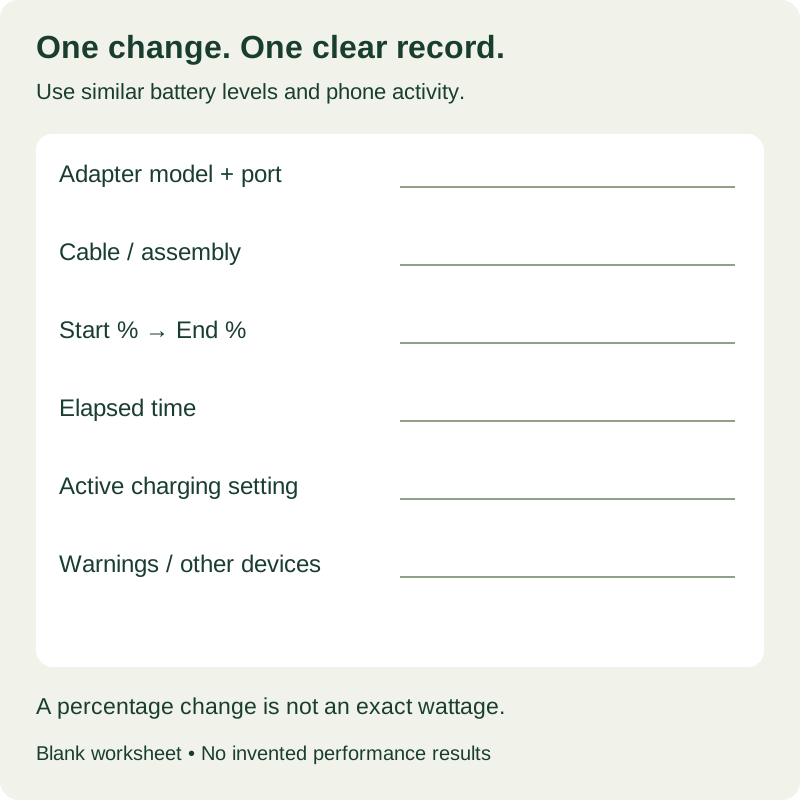
Figure 3. A blank record, not sample performance. A small gap in percentage is not a wattage.
If the trials look alike, call the comparison inconclusive and repeat it later under the same conditions if the difference still matters. One extra percentage point on a single run is not a reason to replace the setup. If the direct wall baseline is fine and a dock, a car socket, or a shared brick is not, the extra piece is the branch to inspect. Shared-port behavior belongs in the wattage guide above, read against the allocation chart the adapter maker printed, not against a universal split.
Treat the wireless pad as its own branch
Record the pad, the pad’s own adapter and cable, the case, and where the phone sits. Changing the wall adapter in the middle of a pad test makes the result useless.
Google’s Pixel wireless page says to let the phone cool, keep it out of direct sun and away from other heat sources, remove the case, keep chargers from blocking airflow, and leave the screen dark. After it cools, restart and look for background apps that drain power. Poor wireless or cellular coverage makes the phone use more power. The page’s tip is to try Airplane Mode when you must charge in a weak-coverage spot. Remove metallic or magnetic objects from the back, and Google names ring holders, Apple MagSafe accessories, and PopSockets as examples. Then align the phone on the pad. The slow-over-80% rule of thumb above is the exception that page calls out when Adaptive Charging is active.
Compare the pad with the wired baseline first. Then change one wireless variable, such as the case or the placement. Why a case changes wireless charging is the next page when the wired baseline is fine and the pad is not. A magnet on the back is a compatibility question for that phone, that pad, and that accessory. The presence of a magnet is not, by itself, a pass or a fail.
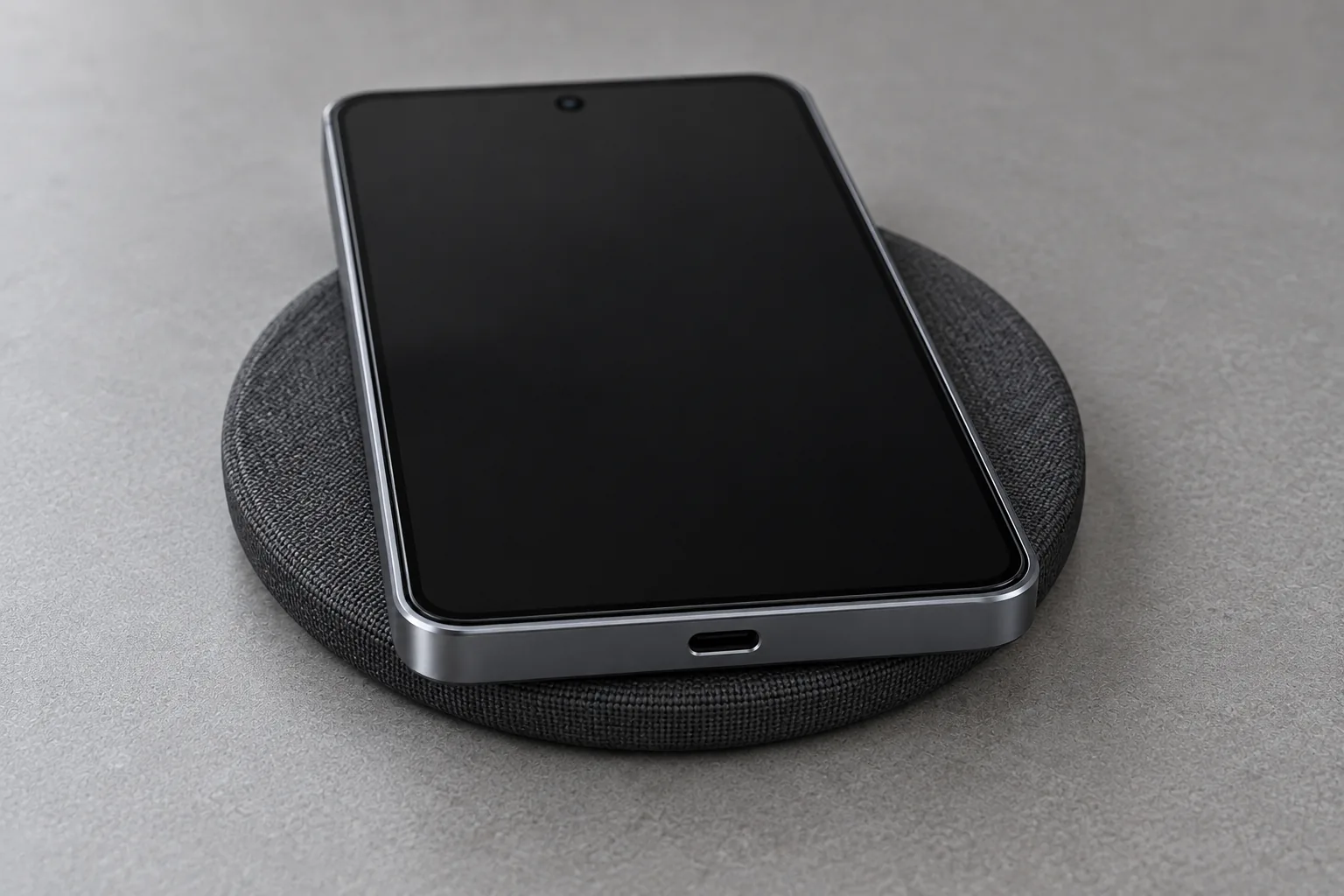
Figure 4. Example of a phone on a pad with the case and attachments removed, which is the alignment check on Google’s Pixel wireless page. The pad shows no power rating.
Count the cost of replacing several parts at once
The loss in a botched diagnosis is time on a dead-end purchase and a comparison you can no longer read. A new adapter does not clear an 80% limit, a “Protecting your battery” notice, a moisture warning, or lint that keeps the plug from seating. Replacing the cable, the adapter, and the case in one trip spends those parts and hides which one mattered.
The cheaper path is the logged swap in the table above. If trial A is acceptable, keep that pair and stop shopping. If only the dock, the car socket, the PC port, or the pad fails, spend the next step on that piece. Samsung says a damaged charger or cable can block normal charging, and that damage from misuse, or a charger outside the warranty period, may require buying a replacement charger. Confirm the failure with a second documented charger before you buy.
Stop and use the maker’s repair path
This check order does not apply when the port is burned, melted, or corroded, or when the phone is too hot to hold. Stop the trials. Pixel’s warning page points those cases to warranty service or an authorized repair partner, and it says a returning “Unplug charger” message, or a liquid-or-debris message that lasts two hours or more, should go to Google support.
A Pixel that was fully drained and unused for a long time can show no icon, no vibration, and no display for up to 25 minutes. If it is still silent after that, Google’s won’t-charge page points you to repair rather than another cable. Battery replacement is a separate question from one slow session. Google says a Pixel 3 through Pixel 8 Pro, and Pixel Fold, should retain up to 80% of initial capacity for about 800 charge cycles, and a Pixel 8a or later for about 1000, after which replacement is recommended. Capacity here means the fuel-gauge estimate of how much charge the cell holds. Google’s own partial-cycle example on that page: using the phone from 100% to 50% and charging back to 100% counts as 0.5 cycles. Battery health marked Normal or Reduced is available on Pixel 8a and later, and Google says it is not on Pixel Tablet. Read that screen for those models. A single slow session does not give you the cycle count.
Samsung says that if a second compatible charger and cable still fail, or if usage time has dropped sharply, the next step is a service center. Bring the phone model, the software version, the exact warning text, when the behavior started, and which trials passed. Leave passwords out.
A normal restart, and the maker’s own software update, belong after the physical checks if the problem started around an update. A factory reset is not an early step. It changes too many variables and removes data without explaining the symptom. An update does not repair a damaged port.
Frequently asked questions
Does a charge that stops near 80% mean the battery failed?
No. Check the charge-limit and battery-protection settings named above for your Pixel or Galaxy model. If no setting and no protection message explain the stop, move on to heat and the one-cable comparison.
Will a higher-watt charger fix slow charging?
Only when trial C shows the slow session follows the adapter, and that adapter sits outside the class the phone maker documents. A larger printed number leaves a charge limit, a hot phone, and a loose plug unchanged.
Does one slow session mean the battery should be replaced?
No. Use the cycle count and Battery health screen for the Pixel models named above, or Samsung’s service path when a second documented charger still fails and usage time has fallen.
Why is wireless charging slow when the cable works?
Run the wireless branch above. On a Pixel, also check whether Adaptive Charging is active above 80%, which Google’s wireless page treats as expected.
Sources and verification
- Google, Charging optimization on Pixel, fetched 17 October 2026. Adaptive Charging, Limit to 80% on Pixel 6a and later, the 10th-cycle full charge, the about 70% to 80% protection on Pixel 3 and later with Android 11 or later, and the note that other adapters can charge slowly or cause damage.
- Google, “Unplug charger” or “Liquid or debris”, fetched 17 October 2026. Warning sequence, room-temperature drying, no objects in the port, and when to stop for repair.
- Google, Fix a Pixel that will not charge or turn on, fetched 17 October 2026. The 30 W PPS and 15 W PD adapter classes, the up-to-25-minute silent recovery, and the “Check charging accessory” notification.
- Google, Fix slow wireless charging on Pixel, fetched 17 October 2026. Heat, case, alignment, coverage, and slow charging over 80% while Adaptive Charging is active.
- Google, Pixel battery information, fetched 17 October 2026. About 25°C (78°F) charging tip, about 800 and about 1000 cycle figures, the 0.5-cycle example, and Battery health on Pixel 8a and later.
- Samsung US, Galaxy charging slowly or not at all, fetched 17 October 2026. Temperature, settings, debris without metal or liquids, Battery protection, the S23 fast-charging menu, and PC or standard USB ports.
- Samsung India, Galaxy charging slowly or not at all, fetched 17 October 2026. Last update date printed on the page: 15 July 2026. Same causes, with gentle blown air as the debris step.
- USB-IF, USB Charger (USB Power Delivery), fetched 17 October 2026. The pre-3.1 100W / 20V / 5A statement and the Revision 3.1 fixed-voltage ceilings.
Checked 18 October 2026 against those saved pages. Figures above are the ones those pages print. They are scoped to the models and cable classes the pages name.
Related articles
Can You Use a Laptop USB-C Charger With an Android Phone?
A laptop USB-C wall charger and the laptop USB-C port are different supplies. Compare Dell's 15 W port ceiling, Lenovo 20 V input, PPS, and the 60 W cable logo.
Read article
What Is a GaN Charger and Does It Work With Android?
GaN is the semiconductor in the adapter. PPS is a USB PD 3.0 feature. A 60 W or 240 W mark on a USB-C cable is a cable logo, not the charger rating.
Read article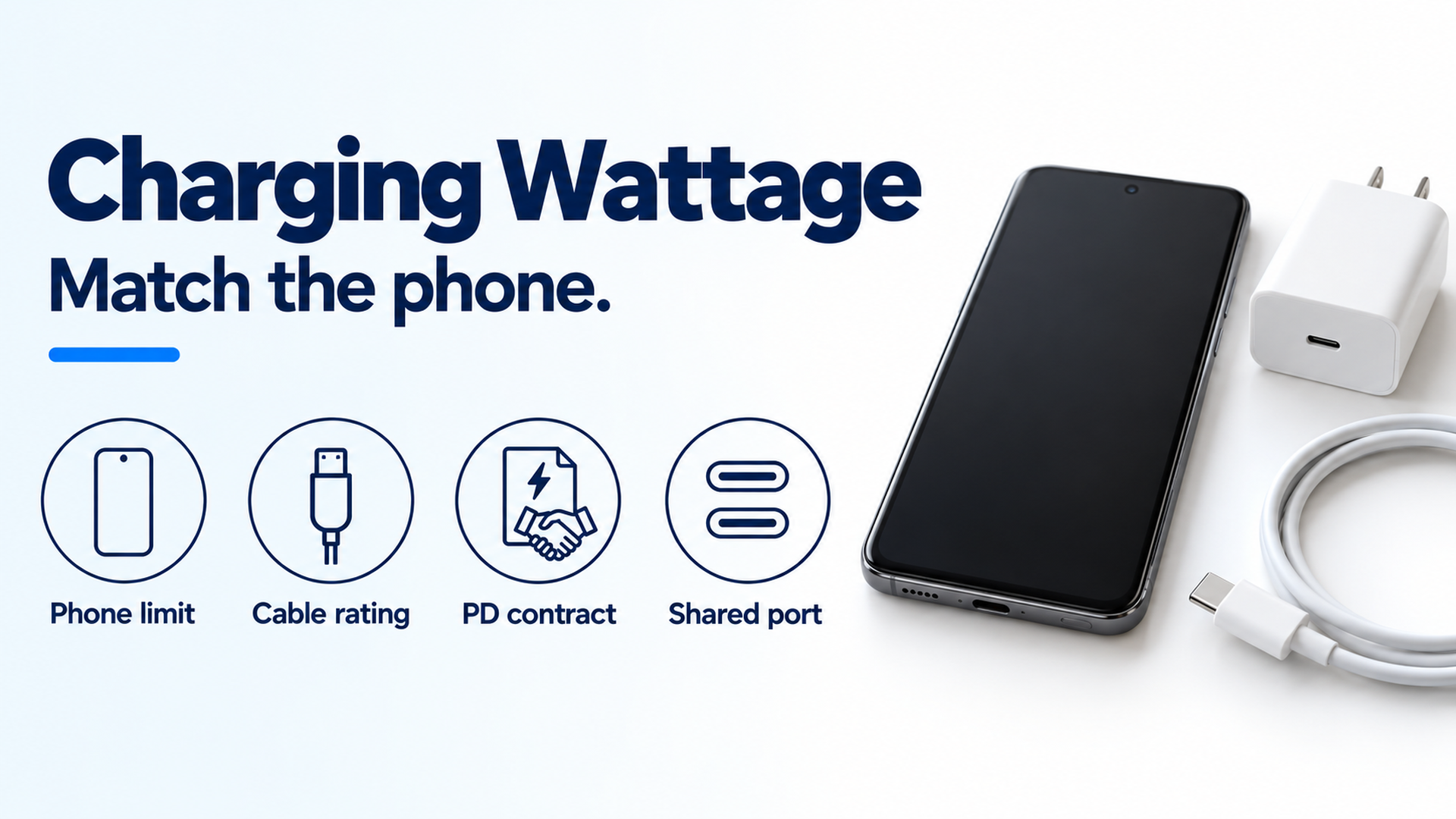
How Many Watts Does Your Android Phone Actually Need?
Match an Android phone to a charger by the phone's published wired rate, the adapter's voltage and current pairs, and the cable, not by the largest watt number on the box.
Read article