
What Is Samsung DeX: Setup, Modes & Model Limits
Samsung DeX opens a multi-window desktop from compatible Galaxy phones and tablets on HDMI or Miracast, while DeX for PC ends on One UI 7 and later.
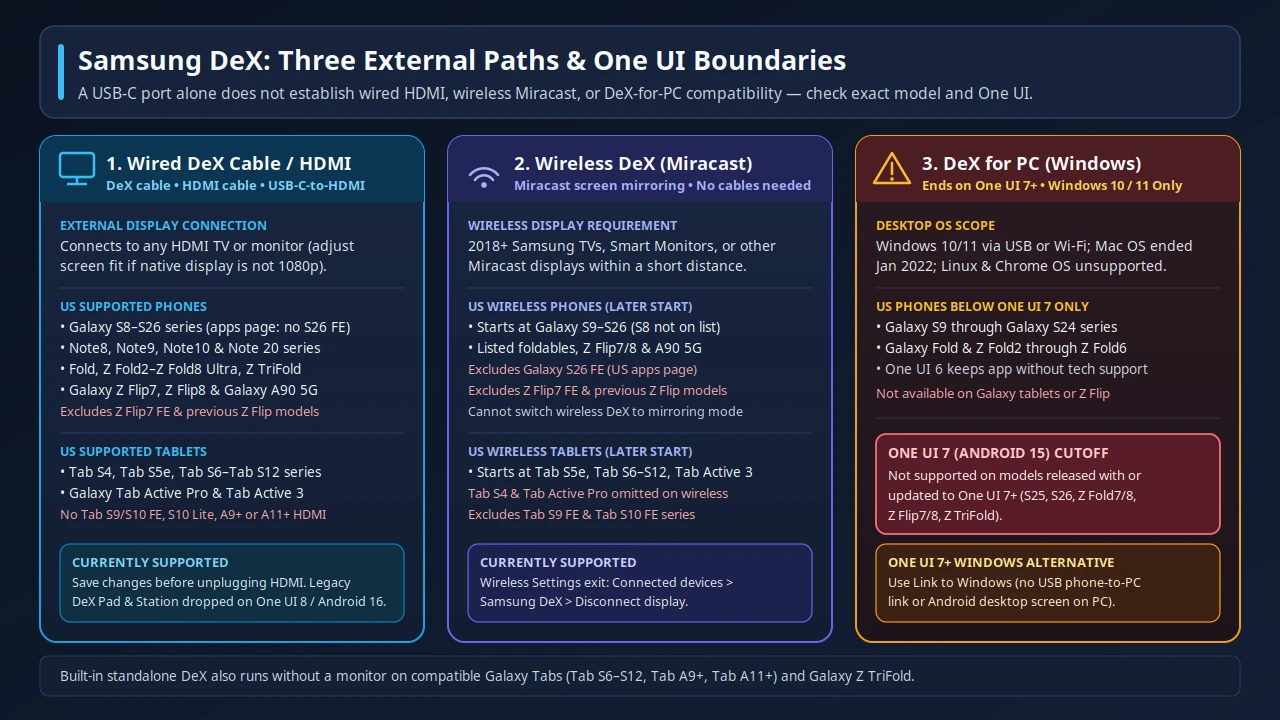
Samsung DeX splits into wired HDMI, wireless Miracast, and legacy Windows DeX for PC, where DeX for PC is not supported on One UI 7 or later.
Samsung DeX is Samsung’s desktop workspace that extends a compatible Galaxy phone or Galaxy Tab into a multi-window desktop experience when connected to an external TV, monitor, or supported PC, and it also runs built in on select Galaxy tablets without an external monitor. Built on Android N’s Multi-Window mode (API level 24 and higher), Samsung DeX needs no proprietary Samsung APIs to launch apps, as it is enabled by default.
A USB-C port, fast charging, and an external keyboard do not put a device on the wired HDMI, wireless Miracast, or DeX-for-PC compatibility list, because a USB-C port that only charges fails a wired monitor when the phone never puts video on its high-speed lanes. Before choosing an adapter or cable, check generic video-out hardware rules in Android USB-C video output and compare cross-brand handset wiring in the USB-C DisplayPort Alt Mode Android phone support list.
Which Galaxy phones and tablets support each Samsung DeX path?
Samsung’s US support pages separate Samsung DeX compatibility into wired HDMI or DeX cable connections, wireless Miracast connections, DeX on PC, and built-in standalone tablet mode:
Scroll horizontally to see all columns.
| DeX mode | US phone lines | US tablet lines | Key model & OS boundaries |
|---|---|---|---|
| Wired DeX cable or HDMI | Galaxy S8 series, S9 series, S10 series, S20 series, S21 series, S22 series, S23 series, S24 series, S25 series, and S26 series; Note8, Note9, Note10 series, and Note 20 series; Fold, Z Fold2, Z Fold3, Z Fold4, Z Fold5, Z Fold6, Z Fold7, Z Flip7, Z TriFold, Z Fold8, Z Fold8 Ultra, and Z Flip8; A90 5G | Tab S4, Tab S5e, Tab Active Pro, Tab S6, Tab S7 series, Tab S8 series, Tab S9 series, Tab S10 series, Tab S11 series, Tab S12 series, and Tab Active 3 | Excludes Z Flip7 FE and previous Z Flip models from a DeX cable, HDMI cable, DeX on PC, and wireless DeX; the US apps page excludes the S26 FE from HDMI and wireless DeX; the screen page excludes the Tab S10 FE series and Tab S9 FE series from HDMI; the FAQ names Tab S9 FE, Tab S9 FE+, Tab S10 FE, Tab S10 FE+, and Tab S10 Lite |
| Wireless DeX (Miracast) | Galaxy S9 series, S10 series, S20 series, S21 series, S22 series, S23 series, S24 series, S25 series, and S26 series; Fold, Z Fold2, Z Fold3, Z Fold4, Z Fold5, Z Fold6, Z Fold7, Z Flip7, Z TriFold, Z Fold8, Z Fold8 Ultra, and Z Flip8; A90 5G | Tab S5e, Tab S6, Tab S7 series, Tab S8 series, Tab S9 series, Tab S10 series, Tab S11 series, Tab S12 series, and Tab Active 3 | Starts at the S9 series and Tab S5e, so it omits the S8 series, Tab S4, and Tab Active Pro; the Tab S4 does not support wireless DeX; excludes the S26 FE, Z Flip7 FE, previous Z Flip models, the Tab S10 FE series, and the Tab S9 FE series |
| DeX for PC (Windows 10 and 11) | Galaxy S9 series, S10 series, S20 series, S21 series, S22 series, S23 series, and S24 series; Fold, Z Fold2, Z Fold3, Z Fold4, Z Fold5, and Z Fold6 | Not available on Galaxy tablets | Not supported on Android 15 with One UI 7 or later; Mac OS support ended as of January 2022, an already installed copy can still be used, and there will be no customer support or updates and you will not be able to download DeX for Mac OS; Linux and Chrome OS are not supported |
| Built-in standalone DeX | Galaxy Z TriFold | Tab S6, Tab S7 series, Tab S8 series, Tab S9 series, Tab S10 series, Tab S11 series, Tab S12 series, Tab A9+, and Tab A11+ | Runs on the device screen without a monitor; the Galaxy Tab S10 Lite is not compatible with standalone DeX |
Check the exact model suffix rather than relying on Samsung’s black-screen troubleshooting summary, which states that DeX is only available on select Samsung phones, including the S8 and up, and Samsung tablets, including the Tab S4 and up, and that it is not available on the Galaxy Z Flip. The US screen page’s HDMI and wireless tablet lines name Tab A11+, while the US apps page says Tab S9 FE, Tab A9 Plus, Tab S10 Lite, Tab S10 FE, and Tab A11 Plus are not compatible with an HDMI cable or wireless DeX with a TV or monitor, so Tab A11 Plus stays off the compatible line in the table.
Keep regional Samsung pages separate from those US lists because models and settings vary by purchase location. Samsung’s Hong Kong DeX page states its information is for Hong Kong products only and names Galaxy S9, S10, S20, S21, S22, S22+ and S22 Ultra, plus Galaxy Tab S4, S5e, S6, S7, and S8 series, while Samsung’s Australia page applies to Australian products only and names Galaxy S9 through S25 Edge plus Z Flip7 and Z Fold7.
How does Samsung DeX setup work over wired HDMI versus wireless Miracast?
For wired Samsung DeX setup, connect the USB-C end of a DeX cable, compatible HDMI cable, or standard USB-C to HDMI adapter to the phone or tablet and the other end to the TV or monitor HDMI port, then tap Start to allow Full Desktop mode the first time. If the first-run prompt does not appear, swipe down with two fingers to open Quick settings and select the DeX icon, or, when the display starts screen mirroring, open the Notification panel, tap the Samsung DeX notification, and then tap Samsung DeX.
A DeX Pad holds the phone flat and a DeX Station props it upright, wired accessories such as a wired keyboard can connect to either dock, remove a phone case before connecting because it may cause connection issues, some phones and tablets will not fit because of their size, and the page says to use a DeX cable with those devices instead, and DeX Pad and DeX Station is not supported on Android 16 and One UI 8. When your setup runs Samsung DeX on an external monitor and copies files to an NVMe SSD at the same time through a multiport dock, check how high-speed USB-C pairs split in USB-C hubs for Android with PD passthrough and exFAT storage.
For wireless Samsung DeX, use a 2018 or later Samsung TV, a Samsung Smart Monitor, or any other device that supports Miracast screen mirroring, and the wireless connection is supported with TVs that support Android smartphone screen mirroring (Miracast) only; keep the phone or tablet and the TV or monitor within a short distance to prevent stuttering and lagging, and on compatible phones and tablets with the One UI 3.1 update you can use DeX on a Smart TV or Smart Monitor with no cables or DeX accessories and operate up to 5 apps at once on the TV. Open Quick Settings, tap Wireless DeX (or open Settings > Device Connections > Samsung DeX > Connect wirelessly), select the Smart TV or display, and tap Start now. Once wireless DeX is connected, you cannot switch to mirroring mode or cast the screen with Smart View, and remote access to DeX from a Samsung TV may not work well if the phone screen is turned off.
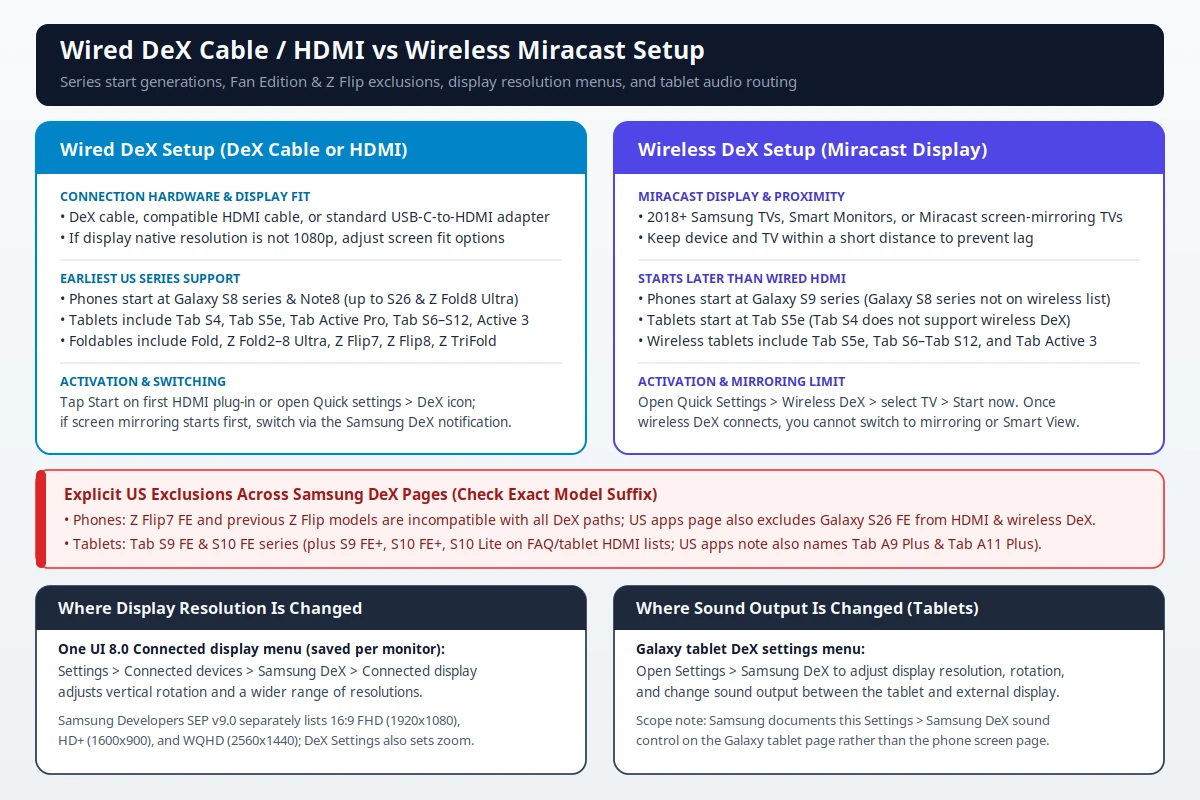
Display resolution, text scaling, audio, and peripherals follow distinct menu paths inside DeX mode:
- Screen fit and One UI 8.0 resolution: If an external display’s native resolution is not
1080p, adjust the TV or monitor screen fit options or disable picture enhancements. On One UI 8.0,Settings > Connected devices > Samsung DeX > Connected displayadds vertical monitor rotation and a wider range of resolutions saved separately for each connected display, whereas Samsung Developers’ SEP v9.0 baseline separately lists 16:9FHD (1920x1080),HD+ (1600x900), andWQHD (2560x1440). - Zoom and connected-tablet sound: Inside DeX mode,
Settings > Samsung DeXadjustsScreen zoomorFont size, and on Samsung’s Galaxy tablet DeX page that sameSettings > Samsung DeXmenu changes sound output between the tablet and the external display. - Touchpad, keyboard, and mouse: Touchscreen displays are not supported when using DeX, and a touchpad connected to a PC can perform basic operations, but some gestures, such as pinching with two fingers to zoom in, will not work. Pair a Bluetooth keyboard or mouse under
Settings,Connections,Bluetooth, then the device underAvailable devices, thenPair, or plug a wired USB keyboard or mouse into the DeX Pad, DeX Station, or the mobile device; you may need an OTG adapter to plug a USB-A device into the USB-C port.
Why does DeX for PC stop at One UI 7 on Windows?
On eligible phones below One UI 7, DeX on PC installs on Windows 10 and Windows 11 computers and connects with the phone’s USB-C charging cable (or a USB-C-to-USB-A cable) or wirelessly to run up to 5 mobile apps at once. Support for Samsung DeX for Mac OS ended as of January 2022, you can still use Samsung DeX if it is already installed, but there will be no customer support or updates, and you will not be able to download DeX for Mac OS, while PCs running Linux or Chrome OS are not supported and USB tethering cannot be used with Samsung DeX. When charging over a PC cable, Samsung lists PC USB output at 5V, 0.5A on USB 2.0 and 5V, 0.9A on USB 3.0, so battery charge may still drop gradually if active DeX apps draw more power than the PC port supplies.
Samsung ended DeX for PC support on Galaxy devices released with or updated to Android 15 and One UI 7 or later—including the Galaxy S25 series, S26 series, Z Fold7, Z Fold8, Z Fold8 Ultra, Z Flip7, Z Flip8, and Z TriFold—while keeping DeX for PC available on One UI 6 without technical support. For One UI 7 and later on Windows, Samsung directs users to Link to Windows to wirelessly make calls, reply to texts, and access certain apps, noting that Link to Windows does not support Full Screen Mode in an app window, a USB phone-to-PC connection, or the Android desktop screen on the PC monitor.
How does standalone tablet DeX work, and what runtime limits apply?
Compatible Galaxy tablets (Tab S6 through Tab S12 series, Tab A9+, and Tab A11+) and Galaxy Z TriFold run built-in DeX directly on their own screens without an external monitor. Classic DeX, on tablets running One UI 7.1 and earlier, loads the DeX interface automatically, and Samsung’s troubleshooting guide says that if you are using DeX on a Galaxy tablet you must change it to Classic mode in order to cast to an external display, at Settings, Connected devices, Samsung DeX, then Classic. On Galaxy Z TriFold and tablets running One UI 8 and higher, New DeX opens apps in pop-up view when you swipe down the multi-window handle.
Across external-display and tablet sessions, Samsung documents strict window and workspace limits:
- Five-app and four-workspace caps: Desktop Mode limits the number of open apps to five at a time, and if you exceed this limit the app that was opened the longest ago is automatically minimized; the US apps page says you can create up to 4 workspaces and that launching a 6th app minimizes the first app you opened; the workspaces article says you can create up to four workspaces, and that adding a desktop is only on Galaxy Tabs and Z TriFold running Android 16 with One UI 8.0 or higher.
- Single-screen apps and no widgets: Generally, an app runs on only one screen rather than on both the external display and mobile screen simultaneously, and Samsung DeX does not currently support widgets.
- One UI 8.0 window and backup changes: Starting in One UI 8.0, reopened DeX apps reset to default window size and position, edge-dragging an app to the opposite screen is replaced by the
Moremenu (Snap left,Snap right, orSend to other display), and Smart Switch settings restoration for DeX is unsupported in Android 16 until the next OS update.
How do you exit Samsung DeX safely without mixing up Android shortcuts?
Apps running when you open or close Samsung DeX will be closed, and DeX restarts if you unplug the HDMI cable, so save all changes in open apps before starting or ending a session. The cable, Pad, wireless, and DeX for PC sections on the US screen page say to exit by selecting the Apps icon in the bottom left corner of the DeX screen, then Exit DeX; Classic DeX on tablets running One UI 7.1 and earlier uses that same Apps then Exit DeX path; the exit article says that Apps icon then Exit DeX option is only available on tablets running Android 15 with One UI 7.1 and lower.
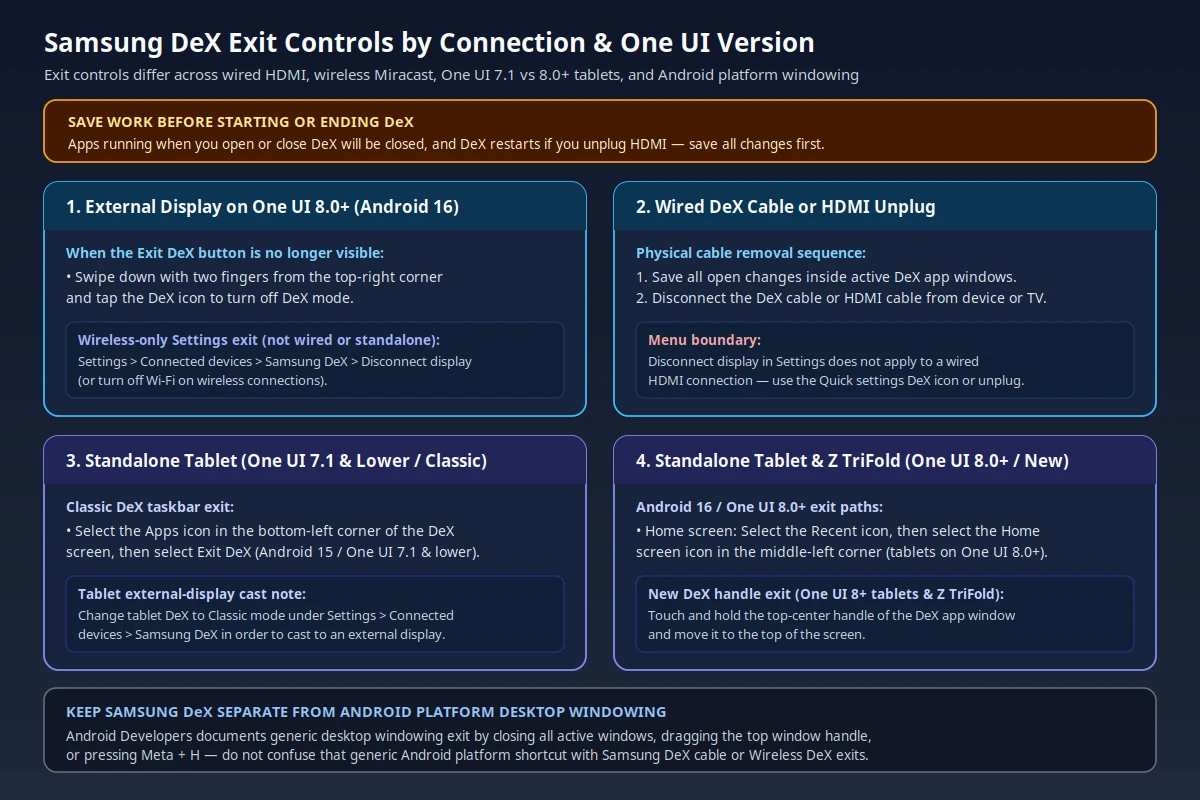
When the Exit DeX button is no longer visible on Android 16 with One UI 8.0 or later, swipe down with two fingers from the top-right corner and tap the DeX icon, physically unplug the DeX or HDMI cable on wired setups, or on wireless sessions open Settings > Connected devices > Samsung DeX > Disconnect display (or turn off Wi-Fi), as Disconnect display does not apply to wired HDMI or standalone tablets. On standalone tablets running Android 16 with One UI 8.0 and higher, select Recent and then the Home screen icon in the middle-left corner, or in New DeX touch and hold the top-center handle of the app window and move it to the top of the screen.
Keep Samsung’s One UI DeX controls separate from generic Android platform desktop windowing documented by Android Developers. In Android’s connected-displays guide, connecting a phone leaves the phone’s state unchanged and starts a blank desktop session on the connected display, and the device and the display act as two individual systems, while connecting a tablet extends the desktop session across both displays so windows, content, and the cursor can move between them; Android’s desktop-windowing guide says users exit by closing all active windows, by dragging the window handle to the top of the screen, or with Meta + H, which also runs apps full screen again.
Pre-setup Samsung DeX checklist
Run through this pre-connection checklist before starting Samsung DeX setup:
- Match the exact model and suffix: Confirm your handset or tablet appears on Samsung’s US wired HDMI or wireless Miracast list rather than assuming USB-C supports DeX, checking explicit exclusions for
Z Flip7 FE, earlierZ Flipmodels,S26 FE,Tab S9 FE/Tab S10 FEseries,Tab S10 Lite, and wirelessS8orTab S4. - Leave DeX for PC off One UI 7 and later: DeX for PC is not supported on models running Android 15 with One UI 7 or later, it is not available on Galaxy tablets, PCs running Linux or Chrome OS are not supported, and Mac OS support ended as of January 2022, though an already installed copy can still be used with no customer support, updates, or new download; Link to Windows does not support Full Screen Mode in an app window, a USB connection between phone and PC, or the Android desktop screen on the PC screen.
- Check display mode and resolution: A DeX cable or other compatible HDMI cable connects to any TV or monitor with an HDMI port, and if that display’s native resolution is not
1080p, adjust the screen fit options or disable picture enhancements; on One UI 8.0, Connected display supports a wider range of resolutions, and wireless DeX uses a 2018 or later Samsung TV, Samsung Smart Monitor, or any other device that supports Miracast screen mirroring, kept within a short distance to prevent stuttering and lagging. - Save open work before disconnecting: Save all files in active apps before tapping the
DeXicon, selecting wirelessDisconnect display, or unplugging the HDMI cable.
For related Android hardware compatibility checks and display setup walkthroughs, browse Device Guides.
Frequently asked questions
Does every Samsung Galaxy phone or tablet with USB-C support Samsung DeX?
No. Samsung excludes Galaxy Z Flip7 FE and previous Z Flip models across DeX paths, excludes Galaxy S26 FE from HDMI and wireless DeX on the US apps page, and excludes Tab S9 FE series, Tab S10 FE series, and Tab S10 Lite from HDMI output, while charge-only USB-C ports never carry video on high-speed lanes.
Why did Samsung DeX for PC stop working after updating to One UI 7?
Samsung ended DeX for PC support on Galaxy phones released with or updated to Android 15 and One UI 7 or later, pointing Windows 10 and Windows 11 users to Link to Windows instead, while wired HDMI and wireless Miracast external-display DeX remain supported on listed models.
How many apps can run at the same time in Samsung DeX?
Samsung DeX limits active open apps on the desktop to five at once and automatically minimizes the app opened longest ago when you launch a sixth app.
Sources
- Samsung Support US — Use the Samsung DeX screen
- Samsung Support US — Samsung DeX frequently asked questions
- Samsung Support US — Use apps in Samsung DeX
- Samsung Support US — How to exit Samsung DeX mode
- Samsung Support US — Create and manage workspaces in Samsung DeX
- Samsung Support US — Use Samsung DeX on your Galaxy tablet
- Samsung Support US — Samsung DeX screen is black or blank on an external display
- Samsung US — Samsung DeX apps and compatibility overview
- Samsung Support India — Changes to the way you connect Samsung Galaxy mobile devices to PCs
- Samsung Support Hong Kong — What is Samsung DeX
- Samsung Support Australia — What is Samsung DeX
- Samsung Developers — Samsung DeX overview and How Samsung DeX works (SEP v9.0)
- Android Developers — Support desktop windowing and Support connected displays
Related articles
Android Zero Touch Enrollment: DPC and Account Checks
Verify Android zero-touch enrollment reseller registration, DPC package names, configuration extras and portal account roles before provisioning corporate devices.
Read article
Samsung Knox Manage vs Android Enterprise Enrollment
Compare Samsung Knox Manage, Knox Mobile Enrollment and Android device owner terminology. Choose a management scope and check enrollment, accounts and reset requirements.
Read article
Wireless Android Auto Adapter: 5 GHz Wi-Fi and Boot Speed
Separate adapter cold boot from ignition power and phone reconnection, and learn why Android Auto's 5 GHz Wi-Fi requirement promises no startup time.
Read article