
USB-C Video Output on Android: How to Check Before Buying a Dock
Confirm the phone's documented video path, then separate DisplayPort lanes, a 60W or 240W cable logo, and a PPS charger before you buy a dock.
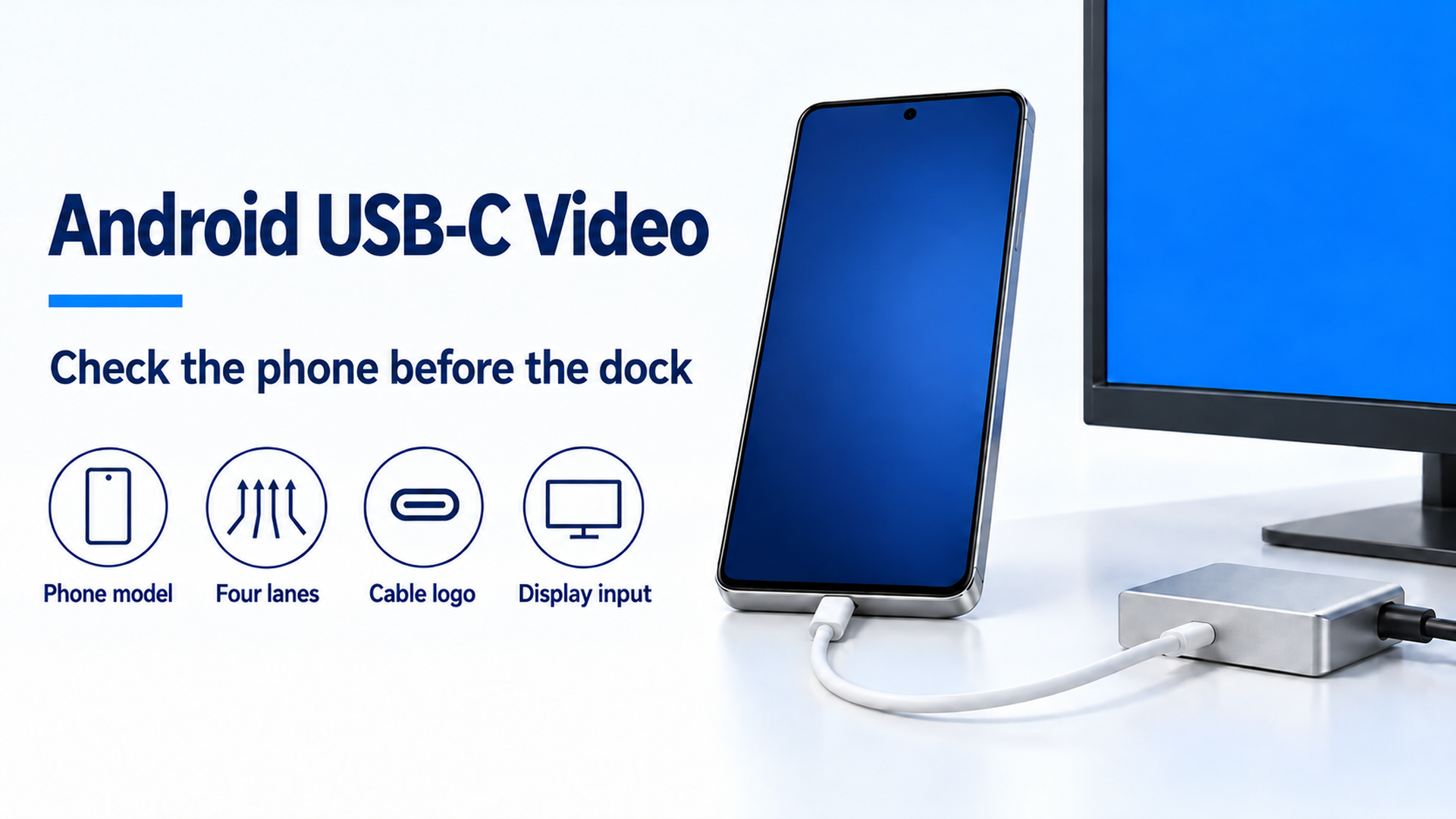
Example check order for Android USB-C video. The handset is generic. The poster is not a measurement from a phone.
Buying the dock before the phone’s own page confirms wired video wastes a return window on a monitor that stays blank. Check the exact model first, then the adapter, the cable logo, and the display input.
An Android phone drives a wired monitor when the maker documents that path for the exact model. A USB-C port, a fast charge, and a keyboard do not establish it. Google’s screen-projection page, fetched 18 October 2026, limits the cable steps to Pixel 8 and later: DisplayPort or HDMI into the display, USB-C into the phone, then Mirror display. Samsung’s US DeX page lists the series that accept a DeX cable, an HDMI cable, or a USB-C to HDMI adapter, and it names the Flip and FE models left out. VESA’s 22 September 2014 Alt Mode announcement maps the ordinary adapter: some or all of four SuperSpeed lanes carry DisplayPort, and an adapter can feed HDMI. Use those lane rates after the phone page says this model uses that path. The dated series table lives in USB-C DisplayPort Alt Mode on Android phones. Continue with the other Android compatibility guides.
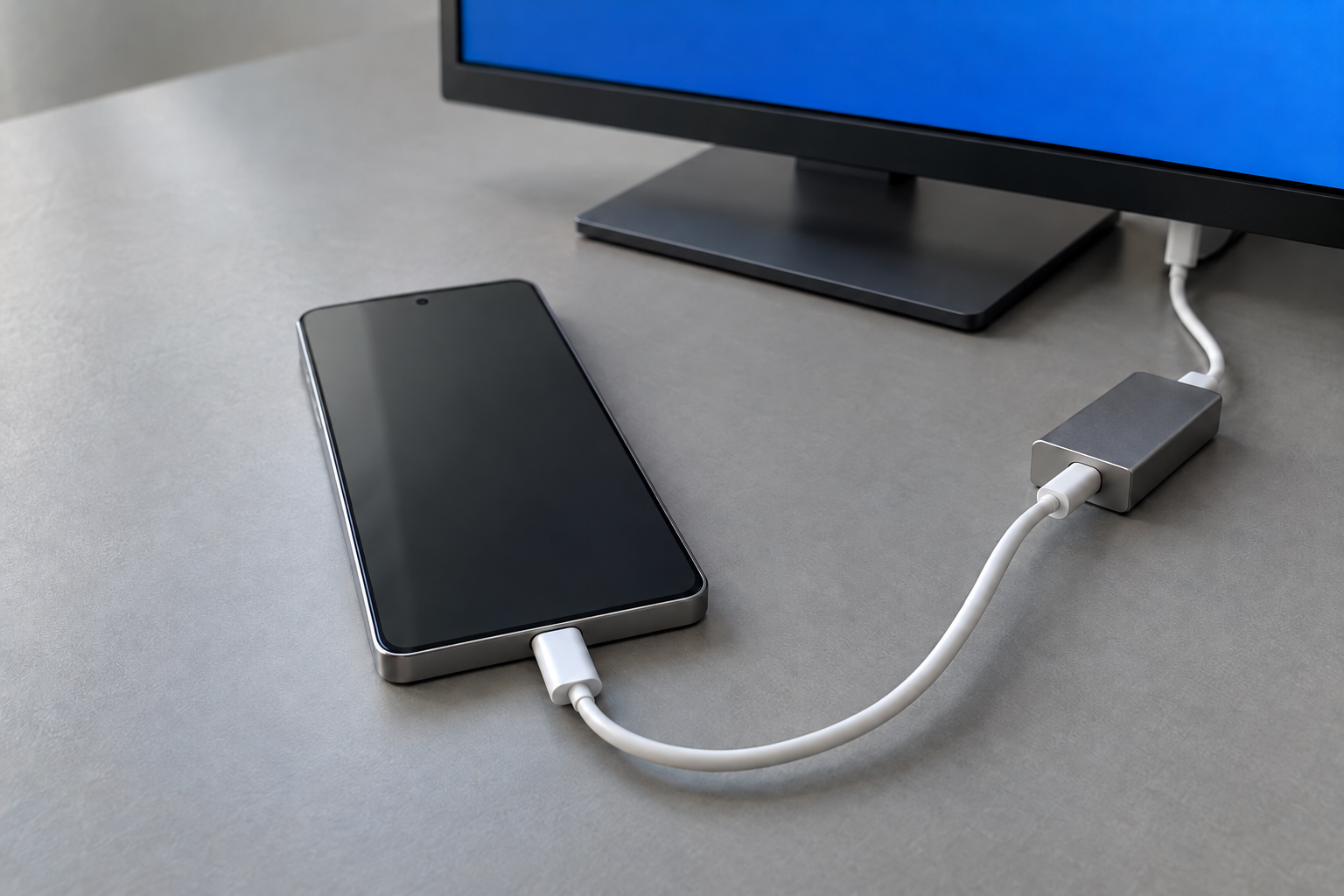
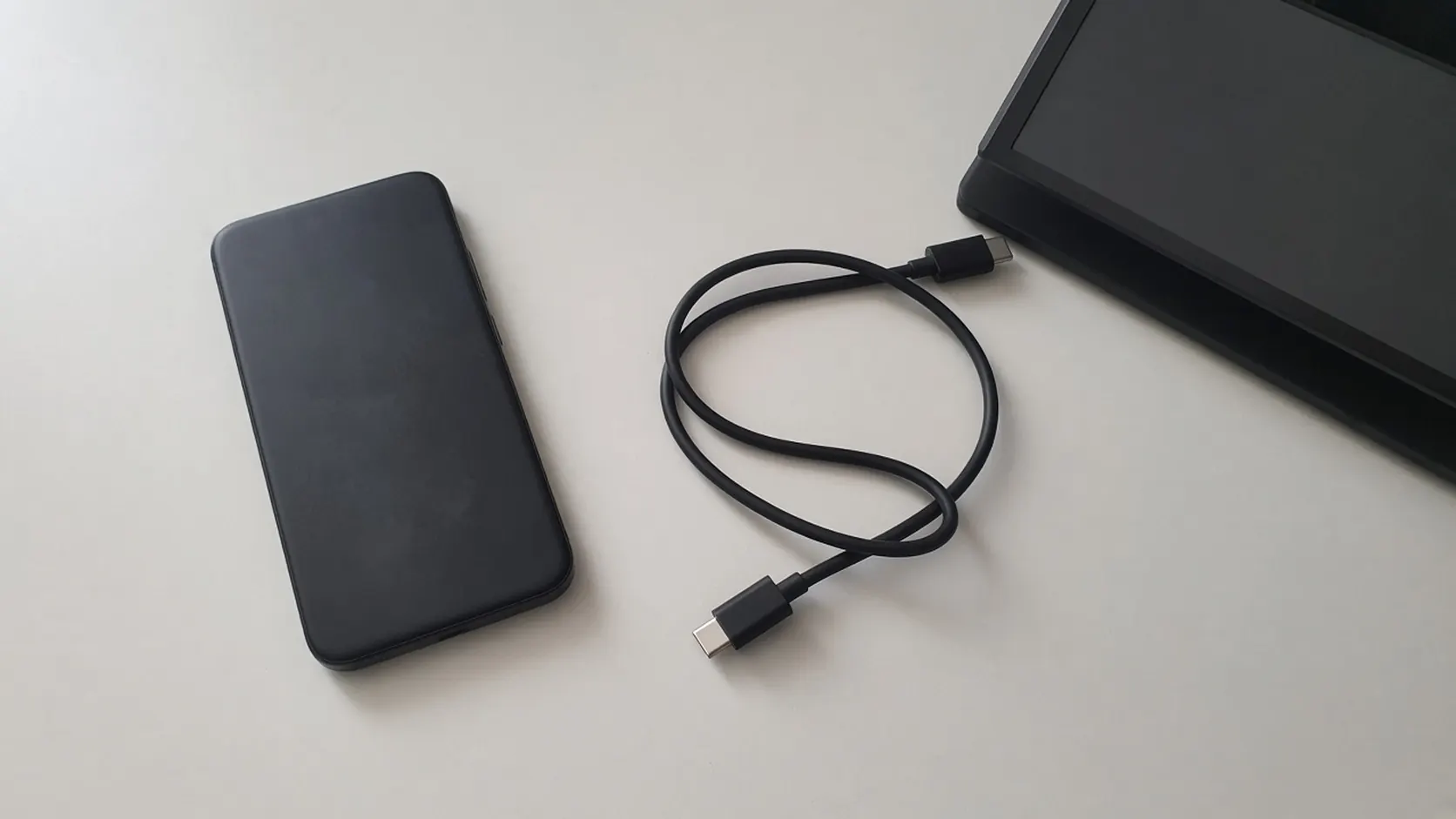
Figure 1. Example of the parts to write down: phone, one bottom USB-C cable, adapter, and display. The handset is generic, and the screen shows no menu.
Name the failure before you replace the dock
A dark monitor has several different causes. Replacing the dock first hides which one you had.
Scroll horizontally to see all columns.
| What you observe | Dominant failure mode | Prevention |
|---|---|---|
| The phone maker has no wired-display steps for this model | No documented video path to buy against | Stop at the support page. Ask the maker about this model before a dock purchase |
| A Pixel earlier than Pixel 8, using Google’s cable steps | Those steps are published for Pixel 8 and later | Keep the earlier Pixel on the method its own page names |
| The USB-C to USB-C cable shows only 60W or 240W | Those marks are USB-IF cable power logos | Read any separate data-rate logo, then still confirm the phone |
| The charger says PPS | PPS is the Programmable Power Supply feature of USB Power Delivery 3.0 | Treat it as a charging mode. It does not assign DisplayPort lanes, and it is not USB4 |
| A DisplayLink dock will not charge the phone | Synaptics’ Android page says the device cannot use USB and charge at the same time on that dock | Plan the session length, or use a path the phone maker says can stay powered |
| A Galaxy picture is soft when the display is not 1080p | Samsung’s troubleshooting page points at screen fit and picture enhancements | Adjust the display, then change one cable |
| Z Flip7 FE, an earlier Z Flip, or a Tab S9 FE or Tab S10 FE series tablet | Samsung’s DeX page excludes those models from the HDMI path | Match the exact model on that page before buying the cable |
The five-minute accessory compatibility check is the place to record the phone model, the adapter, and the cable before you judge the combination.
Use three rules of thumb before you buy
Rule of thumb. If the phone maker has no wired-display sentence for this exact model, leave the dock in the store. VESA’s example of four lanes at 5.4 Gbit/s describes a connection that already implements DisplayPort Alt Mode. A dock cannot assign those lanes to a phone that never enters the mode.
Rule of thumb. If the only mark on a USB-C to USB-C cable is 60W or 240W, read it as the USB-IF power logo. The USB-IF cable page says every USB-C to USB-C cable in its compliance program must carry a 60W or 240W power logo, and that a cable which is not USB 2.0 must also carry the data rate it supports. The logo guidelines add that USB 2.0 Type-C 60W and 240W cables deliver data at up to 480 Mbps, and that this data rate is not printed in the charging logo. A 480 Mbps cable is the wrong object for a DisplayPort picture.
Rule of thumb. If the dock’s video path is the DisplayLink Android app, use the cap that Synaptics prints for that app: one display up to 1920 × 1080. The same page says DisplayLink Ethernet is not supported, and that the Android device cannot charge while it is docked. A second video socket on the dock does not raise that published cap.
Count the lanes the announcement actually names
VESA’s 22 September 2014 announcement says DisplayPort Alt Mode repurposes some or all of the four SuperSpeed lanes, and uses other signaling in the USB Type-C connector for the AUX channel and hot-plug detection. The same electrical lanes can carry SuperSpeed USB at up to 10 Gbit/s per lane, or DisplayPort at up to 8.1 Gbit/s per lane as defined in DisplayPort 1.3. Early Alt Mode devices, the announcement says, were likely to use DisplayPort 1.2a at up to 5.4 Gbit/s per lane.
Lane aggregate (Gbit/s) = per-lane rate × lanes assigned to DisplayPort
Worked example. Take the four-lane case VESA ties to a named picture. Multiply the two figures in that sentence:
5.4 Gbit/s × 4 = 21.6 Gbit/s
VESA says those four lanes at 5.4 Gbit/s support up to 4096 × 2160 at 60 Hz with up to 30-bit color. The active pixels of that picture are:
4096 × 2160 × 60 × 30 = 15,925,248,000 bit/s = 15.925 Gbit/s
15.925 Gbit/s is under the 21.6 Gbit/s aggregate, which is why that picture fits inside the announcement’s four-lane example. The difference, 21.6 − 15.925 = 5.675 Gbit/s, is only the gap between those two figures. It is not a blanking interval, and it is not a rate measured on a phone.
The docking split in the same announcement uses the same formula with different inputs. Two lanes at the DisplayPort 1.3 rate are:
8.1 Gbit/s × 2 = 16.2 Gbit/s
VESA says that split leaves the other two lanes for SuperSpeed USB at up to 10 Gbit/s in each direction, and it names a 4K UHD monitor at 3840 × 2160. That sentence does not add a refresh rate, so this calculation stops at the lane product. When all four lanes carry DisplayPort, the announcement says USB 2.0 can still use separate pins, and it names a ceiling of 5K at 5120 × 2880, again without a refresh rate in that sentence.
A phone that does not enter Alt Mode assigns none of the four lanes:
0 × 5.4 Gbit/s = 0
The 2014 announcement also says one cable can carry up to 100 watts along with video and data. That 100 watt figure belongs to the announcement. It is not the charge rate of a handset, and it is earlier than the 240W cable logo.
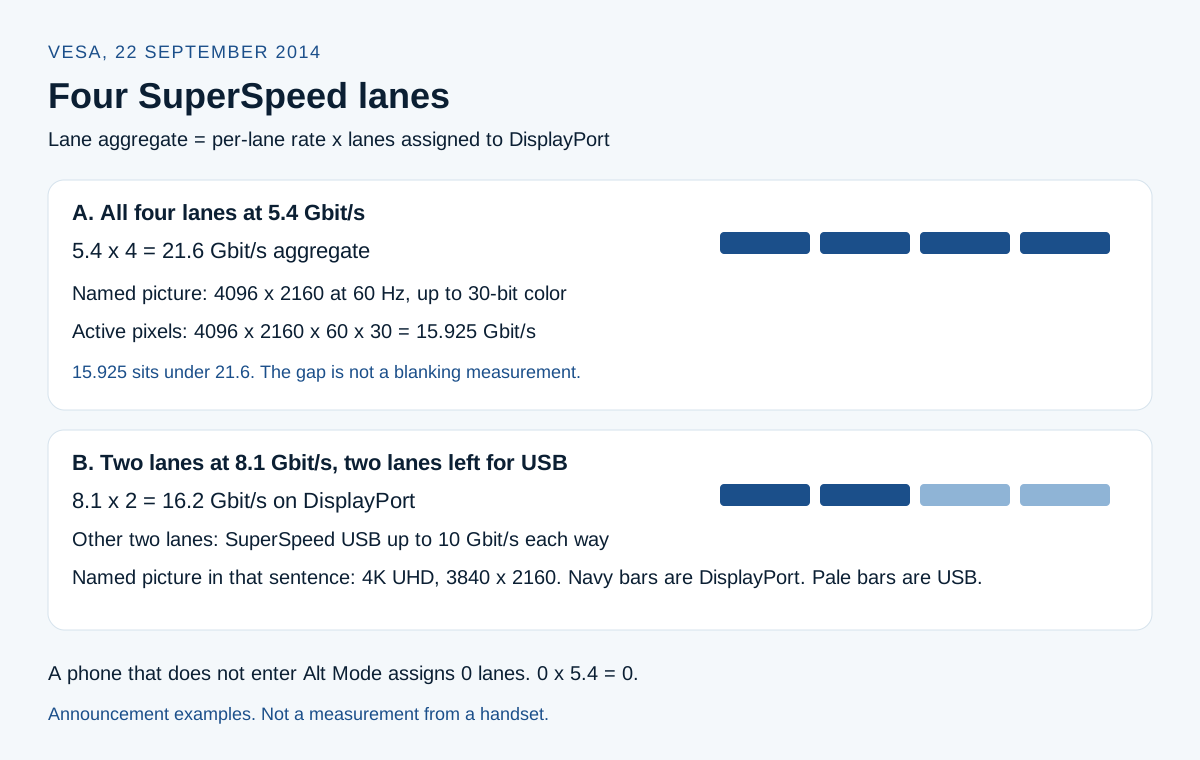
Figure 2. The two lane splits VESA published on 22 September 2014. Navy bars are DisplayPort. Pale bars are SuperSpeed USB. These are announcement examples.
Follow the phone maker’s cable steps
On Pixel 8 and later, Google’s page describes two uses of the cable. Mirror content puts the whole phone screen on the external monitor or TV. Project content is for slides, with speaker notes still on the phone. Google says that slide behavior works on Google Slides and may not work on other third-party apps. The page’s requirement is a display device that supports a DisplayPort or HDMI to USB-C cable. The sequence is short: plug the DisplayPort or HDMI cable into the display, plug the USB-C cable into the phone, select the Mirror display dialog, and follow the on-screen instructions. Google’s page does not print a resolution for that cable path. Do not borrow the 4096 × 2160 example above and call it a Pixel mode.
Samsung’s US page for starting DeX, fetched 18 October 2026, says you can also use a standard USB-C to HDMI adapter. For a DeX cable or HDMI cable it lists Galaxy S phones in the S8, S9, S10, S20, S21, S22, S23, S24, S25, and S26 series; Note8, Note9, the Note10 series, and the Note20 series; the Fold, Z Fold2, Z Fold3, Z Fold4, Z Fold5, Z Fold6, Z Fold7, Z Flip7, Z TriFold, Z Fold8, Z Fold8 Ultra, and Z Flip8; the Galaxy A90 5G; and a list of tablets. The page also prints two exclusions inside that list. The Z Flip7 FE and previous Z Flip models are not compatible with DeX using a DeX cable, HDMI cable, DeX on PC, or wireless DeX with a TV or monitor. The Galaxy Tab S10 FE series and Tab S9 FE series are not compatible with HDMI output. The setup page’s troubleshooting companion still says DeX is not available on the Galaxy Z Flip. That shorter line is broader than the setup page, which names Z Flip7 and Z Flip8 on the HDMI list. Match the exact model against the setup list, and treat the shorter line as a reason to look twice at any Flip.
The cable steps on that Samsung page put the USB-C end in the phone or tablet and the other end in the TV or monitor HDMI port. DeX restarts if you remove the HDMI cable, so save first. If the first-run popup does not appear, the page says to open Quick settings with two fingers and select DeX. Some phones start in screen mirroring. The notification, or the DeX icon, switches them to DeX. On a DeX Pad or DeX Station, the same page says to remove the case before seating the phone. That case note is attached to the Pad and Station, not to the bare cable steps.
Samsung’s external-display troubleshooting page says a picture that fails to fill the screen, or looks distorted, can be a display whose native resolution is not 1080p. The suggested changes are the display’s screen-fit options or its picture enhancements. The FAQ page says that, on One UI 8.0, resolution, position, and rotation are under Settings, Connected devices, Samsung DeX, Connected display, and that those settings are stored per display. A home monitor and an office monitor can therefore keep different settings. The FAQ page does not publish one resolution number for every Galaxy.
DeX on a PC is a different connection from the HDMI cable. Samsung says DeX for PC is no longer supported on devices released with or updated to One UI 7 or later, and names the S25 series and S26 series among the examples, with Link to Windows in its place. Those S25 and S26 phones remain on the HDMI cable list above. A PC app that will not install is not evidence that the HDMI cable path is missing.
If the screen you want is the car, stop this dock check. Wired versus wireless Android Auto is the decision for a head unit, which is a different connection from a monitor on a desk.
Keep PPS, the cable logos, and USB4 in separate boxes
USB-IF’s fast-charging announcement says certified USB fast chargers support the Programmable Power Supply (PPS) feature of the USB Power Delivery 3.0 specification. PPS is that power feature. A cable is not a PPS mode. USB4, on the USB-IF USB4 page, is the architecture that shares one high-speed link among data and display protocols, with two-lane operation on existing USB Type-C cables and up to 80 Gbit/s on 80 Gbit/s certified cables. A charger that offers PPS has not thereby become a USB4 host, and it has not assigned the phone’s SuperSpeed lanes to DisplayPort.
The 60W and 240W marks are cable logos. The USB-IF cables page says all USB-C to USB-C cable categories must be labeled with a power capability of 60W or 240W to pass its compliance program, using the power icon or logo. Its example of a combined mark is a USB 20 Gbit/s cable that supports 20 V at 3 A, which must carry the 20 Gbit/s/60W logo. The power half of that mark is still a power logo. The data half is still a data rate. Neither half is a statement that your phone implements Alt Mode. How USB PD differs from PPS is the charging page for those names. Read it when the brick, not the monitor, is the question.
The USB PD charger page, fetched the same day, says that before Revision 3.1, USB PD was limited to 100 W using 20 V on USB Type-C cables rated at 5 A. Revision 3.1, announced in 2021, enables up to 240 W over a full-featured USB Type-C cable, with fixed voltages of 28 V up to 140 W, 36 V up to 180 W, and 48 V up to 240 W. Those are charger and cable ceilings. A phone that does not negotiate them does not receive them, and none of those watt figures is a video mode.
Change one part, then write the result
Start from the connection the phone page names. Keep the power that page or the dock page requires. Take off capture cards, extension cables, and extra hubs for the first run.
- Write the phone model, software version, adapter, cable logos, and the display input you selected.
- Power the display and select that input.
- Connect the cable in the order the phone page gives.
- Unlock the phone and answer the Mirror display or DeX prompt if it appears.
- Open one ordinary screen, such as Settings, or one slide deck if you are testing Google Slides on a Pixel.
- Write what each screen shows, including the exact wording of any error.
- Add a keyboard or a second display only after that first picture is stable.
Figure 3. Example of a centered USB-C seat on a blank bottom edge. Use it to see a fully seated plug. It shows no video mode.
Change one component when the first run fails. Another documented cable, with the same display input, is one change. The same cable on a second monitor is a different change. A laptop that lights the same monitor tells you the adapter and the display input can pass a picture from that laptop. It does not tell you the phone implements Alt Mode.
On the DisplayLink path, Synaptics’ Android page adds its own parts: Android 5.0 or later, USB host mode, a DisplayLink device, and, for a dock that ends in USB Type-A, a USB OTG cable. A bus-powered DisplayLink device may need an externally powered hub because the phone might not supply enough power. Installing the app does not turn a plain Alt Mode adapter into a DisplayLink device.
Count the cost of replacing the whole desk at once
The loss in a mixed purchase is a return window and a comparison you can no longer read. A new dock does not create a support sentence the phone maker never published. Swapping the phone cable, the dock, and the monitor input in one sitting spends those parts and hides which change mattered.
The cheaper path is the one-part swap above. If the documented baseline shows a picture, stop shopping. If only the extra hub fails, the next hour goes to that hub. If the path you confirmed is DisplayLink, budget the session against the charging limit Synaptics prints: the phone is not charging while that USB connection is up, so a long meeting runs on the battery you started with.
Samsung’s DeX FAQ says a phone connected to a PC with a cable can charge, and that a PC USB port generally supplies less than a wall charger. If the apps are heavy, the battery can still fall while the cable is attached. That drain is a reason to separate a DeX-on-PC session from an HDMI-monitor session, and to read why an Android phone charges slowly before you blame the display cable. Whether a laptop USB-C wall charger is a fair power source is the power question once video is already up. The charger’s watt label does not prove the phone can send a picture.
When the picture is up and the app is wrong
A stable mirror and a failed slide presentation are different faults. On Pixel 8 and later, Google limits the speaker-notes behavior to Google Slides and says it may not work in other apps. Fixing that means checking the app, not buying a higher lane-rate cable. The 21.6 Gbit/s aggregate does not move an app that never offers an external-display view.
This lane arithmetic does not apply to a phone whose maker documents a different method, or to a car screen that expects Android Auto. It also does not apply when the port is damaged. Stop the swaps and use the maker’s repair path if the connector is bent, burned, or will not seat.
Frequently asked questions
Does a 60W or 240W logo mean the cable carries video?
No. Those are USB-IF power logos for USB-C to USB-C cables. A USB 2.0 cable can carry either logo and still be specified at up to 480 Mbps, which the logo guidelines say is not printed in the charging logo.
Will a PPS charger add wired video?
No. PPS is a feature of USB Power Delivery 3.0. It is a charging mode. It is not a cable, and it is not USB4. Video still depends on the phone’s documented path.
Can the DisplayLink Android app replace a missing Alt Mode?
Only inside the limits that page prints: one display up to 1920 × 1080, USB host mode, no DisplayLink Ethernet, and no charging while the phone is docked. It is a separate purchase from an Alt Mode adapter.
Sources and verification
- Google, Project your Pixel phone’s screen, fetched 18 October 2026. Cable steps for Pixel 8 and later, Mirror display, and the Google Slides limit on speaker notes.
- Samsung US, Use the Samsung DeX screen, fetched 18 October 2026. HDMI and DeX-cable model list, Flip and FE exclusions, adapter steps, and the case note for a Pad or Station.
- Samsung US, Samsung DeX FAQ, fetched 18 October 2026. One UI 8.0 per-display resolution settings, and PC-port charging while DeX is in use.
- Samsung US, External display troubleshooting for Samsung DeX, fetched 18 October 2026. Screen-fit advice when the display is not 1080p, and the shorter Galaxy Z Flip line.
- VESA, DisplayPort on the USB Type-C connector, announcement dated 22 September 2014, page fetched 18 October 2026. Four lanes, 5.4 Gbit/s and 8.1 Gbit/s examples, 10 Gbit/s SuperSpeed, and the 100 watt sentence.
- USB-IF, Cables and Connectors, fetched 18 October 2026. The 60W and 240W power logos, and the 20 Gbit/s/60W combined-logo example.
- USB-IF, USB Type-C Cable Logo Usage Guidelines, fetched 18 October 2026. USB 2.0 Type-C 60W and 240W cables deliver data at up to 480 Mbps, and that rate is not printed in the charging logo.
- USB-IF, Certified USB Fast Charger announcement, fetched 18 October 2026. PPS is a feature of the USB Power Delivery 3.0 specification.
- USB-IF, USB4, fetched 18 October 2026. Shared high-speed link for data and display protocols, up to 80 Gbit/s on certified cables.
- USB-IF, USB Charger (USB Power Delivery), fetched 18 October 2026. The pre-3.1 100 W / 20 V / 5 A limit and the Revision 3.1 voltage ceilings.
- Synaptics, DisplayLink for Android, fetched 18 October 2026. One display up to 1920 × 1080, host mode, and no charging while docked.
Checked 18 October 2026 against those saved pages. Figures above are the ones those pages print. They stay inside the models, lane examples, and cable classes the pages name.
Related articles
USB-C DisplayPort Alt Mode: Android Phone Support List
Samsung's DeX cable and HDMI series, Google's Pixel 8 and later wired steps, and the VESA lane rates behind a USB-C DisplayPort adapter.
Read article
Android USB OTG: What It Is and What to Check Before Buying an Adapter
Confirm the phone can source VBUS, then separate a Micro-AB ID pin, a USB-C plug with Rd, and a PPS charger before you buy an adapter.
Read article
A Five-Minute Android Accessory Compatibility Check
Match a charger, cable, case, or dock to one Android phone by the published model code, USB protocol, voltage pair, and wireless line.
Read article