
Two Phones in One Car: Android Auto Priority and Switching Checks
Find which device selects your Android Auto phone, separate call priority from projection, and check startup and switching with two phones.
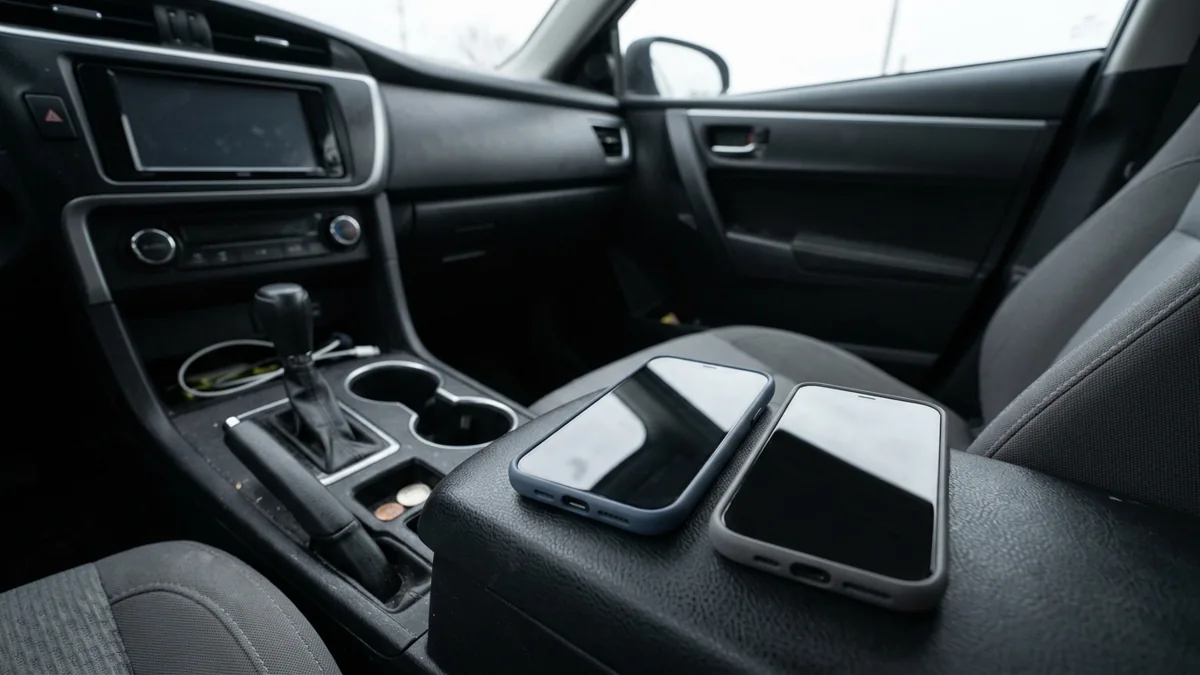
The wrong phone connecting can leave the driver with the passenger’s navigation and music. To make Android Auto prefer your phone, first check the car’s documented phone-selection controls or, if you use a wireless adapter, that adapter’s controls; a Bluetooth “primary phone” setting alone does not establish which phone will project Android Auto.
Start with the connection-owner check below, then use the blank startup and switching sheet to see what your exact setup does. The goal is a predictable departure and a handover both drivers can repeat while parked.
Find the component that chooses the phone
Follow the branch that matches your working connection. Do not change several device lists at once: you need to know which control changed the result.
Scroll horizontally to see all columns.
| Your connection | Where to look first | What to verify on your unit |
|---|---|---|
| Phone connects directly to the car by USB | Vehicle instructions for its Android Auto data port and connected devices | Which phone is cabled; whether another wireless connection is active |
| Phone connects wirelessly without an add-on adapter | Vehicle or aftermarket receiver’s Android Auto / smartphone connection instructions | Whether it offers a projection-specific preferred phone or manual selector |
| Phone connects through an adapter in the car’s USB port | Exact adapter model’s official phone-management instructions | Saved phones, documented startup rule and manual switching control |
| You have only changed a Bluetooth call preference | Vehicle’s Bluetooth / hands-free instructions, then its separate Android Auto instructions | Whether the preference applies to calls, projection, or both |
If you cannot identify the connection, use the wired-versus-wireless Android Auto guide before resetting anything. A car with native wireless projection and a car using a USB adapter need different instructions.
Google’s setup guidance directs users to the vehicle manual for vehicle-specific instructions. It describes initial wireless pairing through Bluetooth; that setup step does not provide a shared, cross-brand preferred-phone procedure. If your manual does not describe a priority control, record Unknown / verify on the unit instead of assuming one exists.
Separate pairing, priority and the current connection
Use different entries for these states in your notes:
- Paired: the device has a saved relationship with the car or adapter. Record which device list you checked.
- Preferred: a documented rule favors a particular phone when the relevant conditions apply. Copy the manual’s scope, including whether it concerns calls or projection.
- Last connected: the phone used in the preceding session. A system may document this as its startup rule; verify it for your unit.
- Selected now: the phone whose Android Auto apps are actually on the display after you connect or switch.
Pairing both phones is not an acceptance check for your desired startup behavior. Likewise, successfully selecting your phone once does not establish that it will remain the default after the other driver uses the car.
A useful example of the scope problem is Honda’s 2021 Passport EX-L Display Audio priority page. Honda describes the last connected phone taking priority in Bluetooth HandsFreeLink until another is selected. That is a documented hands-free rule for that vehicle page; it does not establish Android Auto projection priority, nor a rule for every Honda model.
Check the displayed navigation or media account to identify the projected phone, using information both owners agree to share. Record the call-device selection separately. Avoid screenshots containing private destinations or notifications.
With an adapter, check switching and startup separately
An adapter’s manual-switch feature can solve a handover problem without proving that it always starts on your preferred phone. Look for the exact model and generation, then distinguish its saved-device controls from its startup-selection rule.
For example, the official AAWireless TWO product page describes a button that can switch to the next phone and an app that configures button behavior. This is a manufacturer-described feature of TWO. Check your current button assignment before using it; this article does not prescribe a universal press length or extend that feature to every adapter.
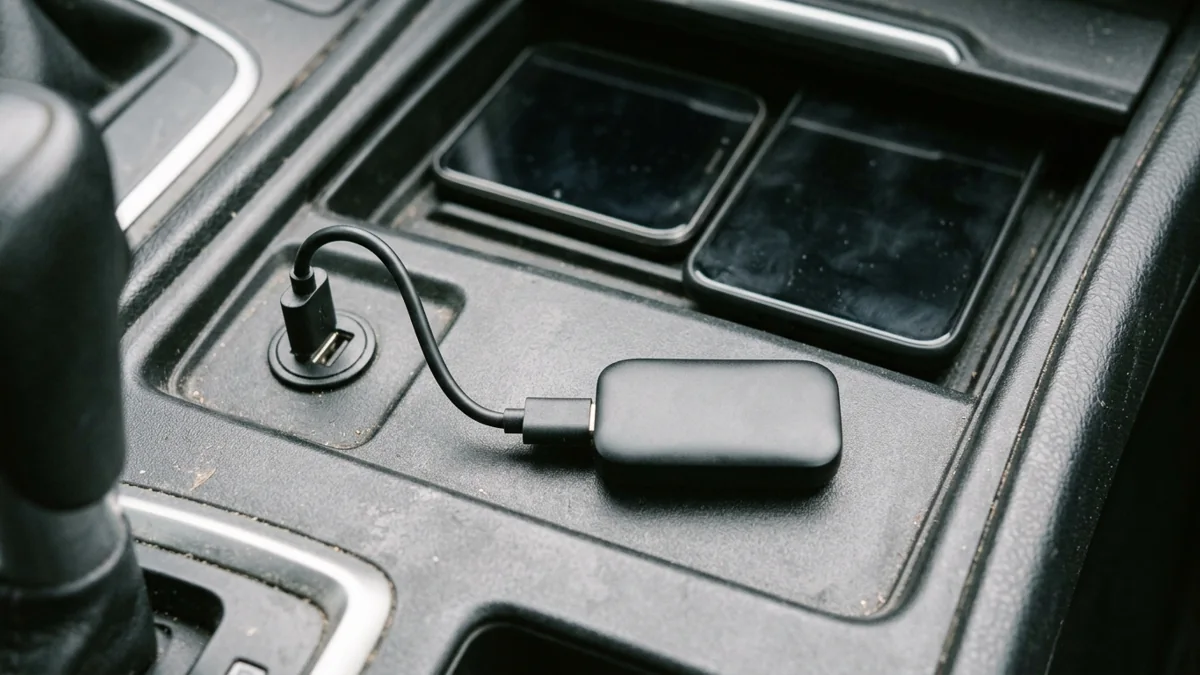
The same current AAWireless page’s compatibility FAQ excludes cars with built-in wireless Android Auto or CarPlay. Do not assume adding this product is a supported way to override a native wireless system’s phone choice. Check the exact car and product documentation first.
For an adapter you already own, write down its app and firmware versions, the documented switch action, and any explicit startup preference. If the startup rule is not documented, leave it unknown and observe it with the sheet below. A button advertised for switching is not evidence of a permanent preferred-phone setting.
The AAWireless TWO, MA1 and CarlinKit comparison covers the broader model differences. Here, keep the task narrow: can both drivers select the intended phone, and what happens on the next start?
Run the parked two-phone startup and switching check
Use a safe parked location and follow the car’s normal shutdown and restart instructions. Google says to complete Android Auto setup with the car in Park and its infotainment system on, allowing time before departure. For wireless setup it recommends keeping Bluetooth, Wi-Fi and Location Services enabled. Do not disable location as a generic priority fix.
Identify the phones in your record as A and B, with A being your intended default. First confirm each phone can connect on its own using the supported setup procedure. If one fails alone, resolve that connection fault before interpreting a two-phone result.
Then work through these observations. They are a suggested household acceptance check, not a manufacturer test standard or a result from testing by this site.
Scroll horizontally to see all columns.
| Check | Setup or action | Record after the action |
|---|---|---|
| A alone | Only A available for this session | Projected phone; prompts; success or failure |
| B alone | Only B available for this session | Projected phone; prompts; success or failure |
| Both present, after A | Use A, shut down normally, then restart with both available | Projected phone; call-device selection |
| Both present, after B | Use B, shut down normally, then restart with both available | Projected phone; whether the choice changed |
| Manual handover | Use the documented control to select the other phone while parked | Exact action; projected phone; unresolved prompt |
| Next ordinary start | Leave the saved settings as agreed by both drivers | Selected phone; any manual step required |
Download the blank two-phone check sheet (TSV) and open it in a spreadsheet or copy it into your notes. It includes hardware/version fields and blank observation rows. A blank outcome means untested, never passed.
Do not assume an ignition cycle fully restarts your infotainment system. Record the shutdown procedure you actually used, and call the result a fresh startup only if it follows the vehicle’s documented behavior. No fixed wait time is established here.
Keep the phones in comparable positions and change one setting at a time. If you temporarily make the passenger’s phone unavailable to establish the single-phone baseline, agree on that change first and restore its normal setup afterward. Repeatedly deleting the other driver’s pairing is a poor substitute for understanding the selector.
Choose a routine from the result
If a documented preference chooses A after either driver’s session: keep that setting and record how to switch to B. Recheck after a relevant phone, car or adapter update rather than assuming the menu and behavior remain identical.
If the system follows the last phone used: decide whether that meets your shared routine. If it does not, use the documented selector before departure. Ask the vehicle or adapter maker whether the exact version supports a persistent preference; do not treat an undocumented setting as confirmed.
If startup varies but manual switching works: save the shortest documented handover procedure both drivers can repeat. That is a usable manual routine, even though it has not satisfied your automatic-priority goal.
If either phone cannot connect alone, or switching fails: keep the error message and hardware details together. Continue with the Android Auto connection guide to describe the failing stage before changing more settings.
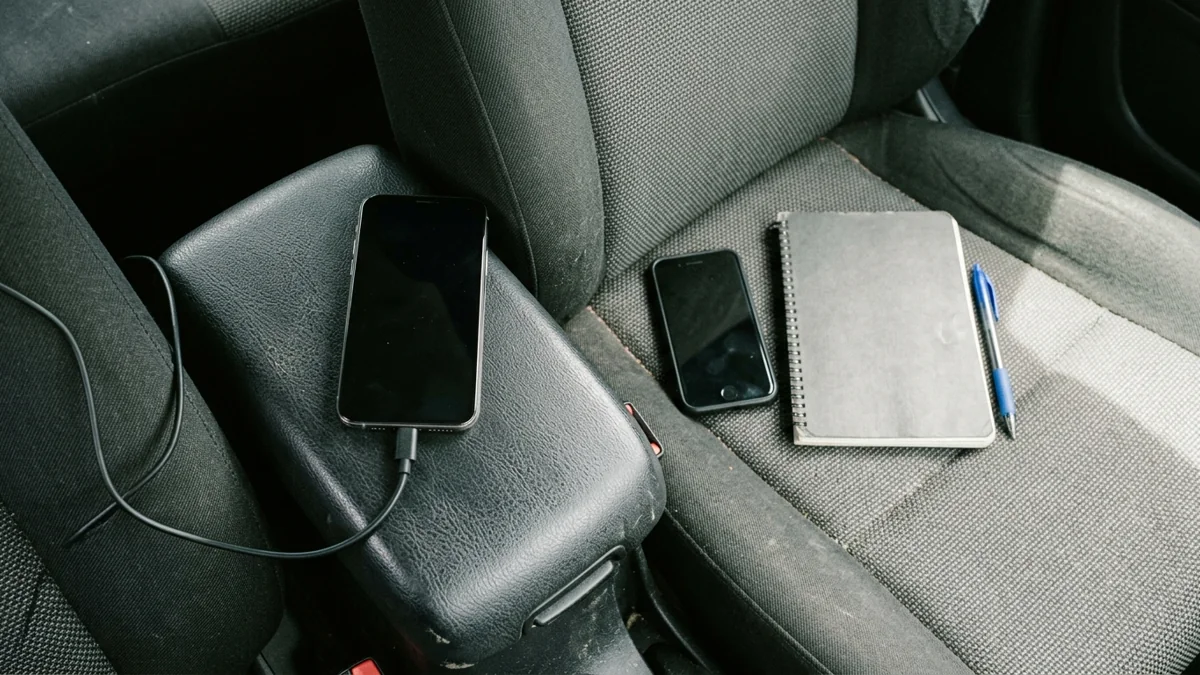
Where the vehicle supports wired Android Auto, a direct connection through its specified data port can provide a simpler comparison. Disconnect an optional adapter for that comparison and follow the vehicle’s instructions for any native wireless connection. A cable is not a promise that every head unit will override an existing wireless session.
Keep the final support note specific: vehicle model/year and region, receiver version, both phone models and Android versions, Android Auto versions, connection mode, adapter model/app/firmware if present, last selected phone, documented setting changed, and observed outcome. Leave unavailable version fields blank. This gives support a reproducible question instead of a vague report that “Bluetooth picked the wrong phone.”
Method and sources
Checked October 15, 2026. This is a documentation-based guide with a proposed reader check sheet. No vehicle tests, timed connection measurements or simultaneous-projection tests were performed.
- Google: Set up Android Auto — parked setup, initial wireless Bluetooth pairing and setup radio guidance.
- Honda Info Center: prioritize paired phones, 2021 Passport EX-L Display Audio — the stated Bluetooth HandsFreeLink rule, with the scope limitation explained above.
- AAWireless TWO: official product and compatibility information — manufacturer-described phone switching, configurable button and compatibility boundary. Check current model-specific documentation before changing settings.
Related articles
Steering Wheel Controls Fail on Wireless Android Auto
Compare the factory radio, wired Android Auto, and a wireless adapter on the same phone. Leave any button check you did not run blank.
Read articleWireless Android Auto Adapters and In-Car Connectivity Guide
Cut the cord in your car. How plug-and-play wireless Android Auto dongles connect over Bluetooth and 5GHz Wi-Fi, resolve latency, and maintain stable projection.
Read article
Android Auto Keeps Disconnecting: A Fix Order That Saves Time
Separate USB, wireless and app failures, test one change at a time, and prepare a useful support record before resetting Android Auto or buying replacements.
Read article