
Wired vs. Wireless Android Auto
Wired and wireless Android Auto follow different phone and car checks. Google's help page prints Android 11.0 for both. The android.com FAQ still prints Android 9.0 for most wired connections.
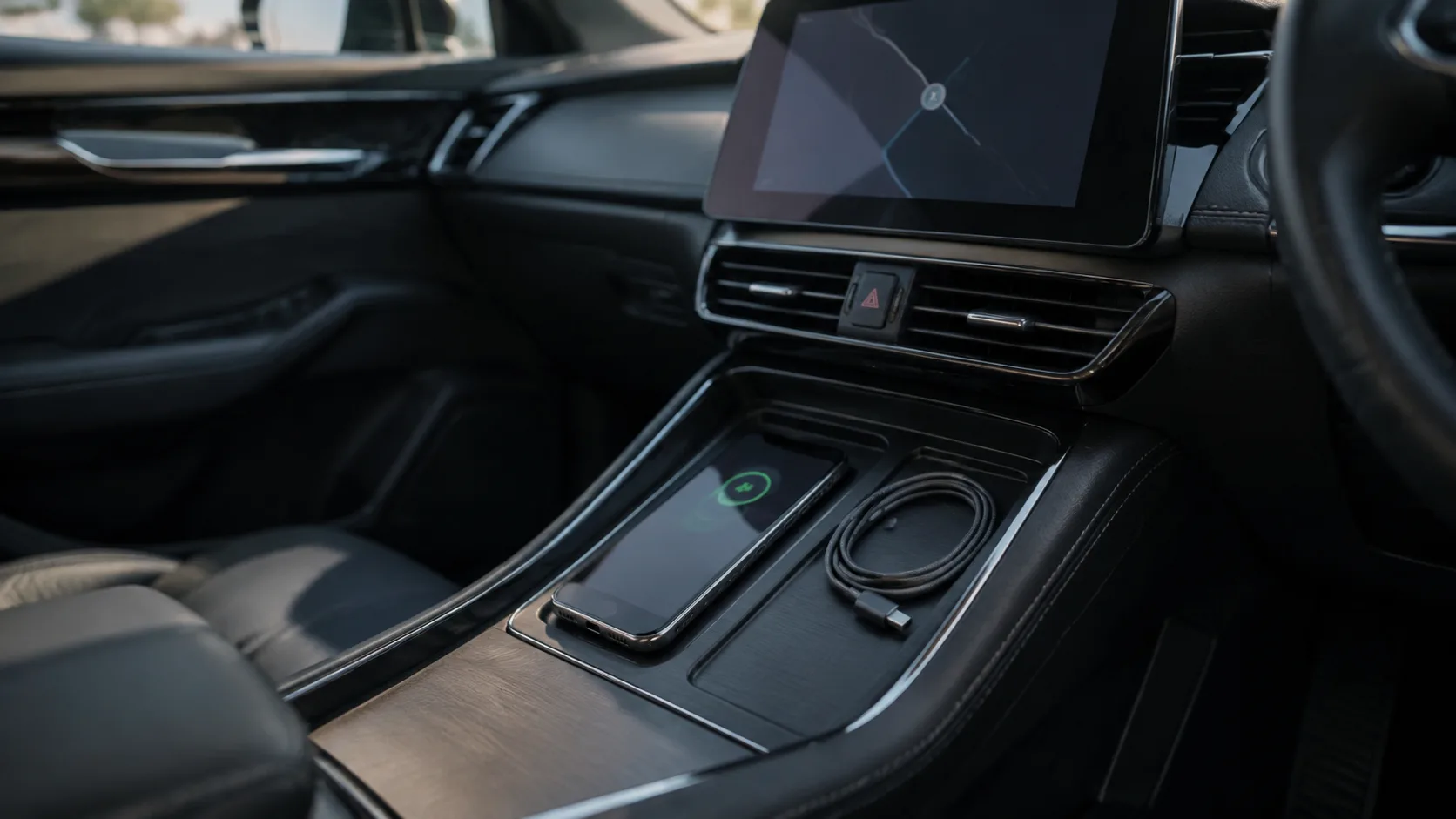
A phone in a charging tray beside a USB cable. The cable is the wired Android Auto path. The tray is only a place to record charging.
Picking wireless Android Auto on a cable-only car fails the session before the map reaches the display. Match this phone’s Android version and this car’s confirmed mode to the lines Google printed on 18 October 2026, then use the USB setup or the Bluetooth setup for that mode.
Wired Android Auto on the Get started help page needs Android 11.0 (Red Velvet Cake) or higher, an active data plan, a compatible car, and a high-quality USB cable. Wireless projection on that page needs a phone with Android 11.0, 5 GHz Wi-Fi support, an active data plan, and a compatible car or stereo. The android.com FAQ, saved the same day, still prints Android 9.0 (Pie) or higher for most wired connections, and Android 11.0 or higher for wireless connections and select newer vehicles. A brand card that says “Models from” a year is the brand-card line. Wireless Android Auto is a separate answer from the dealer or the vehicle manufacturer. Confirm that answer with the car in park before you set the cable aside. This comparison sits in the Android device guides.
Scroll horizontally to see all columns.
| Input or item | Printed on 18 October 2026 | Why it matters |
|---|---|---|
| Wired phone, help page | Android 11.0 (Red Velvet Cake) or higher, active data plan, compatible car, high-quality USB cable | Get started, USB section |
| Wireless phone, help page | Android 11.0, 5 GHz Wi-Fi support, active data plan, compatible car or stereo | Same page, wireless section |
| Android (Go edition) | Android Auto is not available | Printed under the requirements |
| Wired phone, android.com FAQ | Android 9.0 (Pie) or higher for most wired connections | FAQ on android.com/auto |
| Wireless phone, android.com FAQ | Android 11.0 or higher for wireless connections and select newer vehicles | That bullet names no vehicle |
| EU 5 GHz in the car | Extra regulatory requirements. Pixel 3 and newer Google phones comply | Help-page tip. Other brands are unnamed |
| Specific car, wireless | Contact the car manufacturer | Help-page tip, separate from the brand cards |
| Cable | Under 3 feet (1 meter). No USB hub or cable extension | Troubleshooting page |
| Charge rate | Blank. These pages print no wattage | Charging stays on the worksheet |
| Country list | Where to use. Most features will not work outside it | United States is one entry |
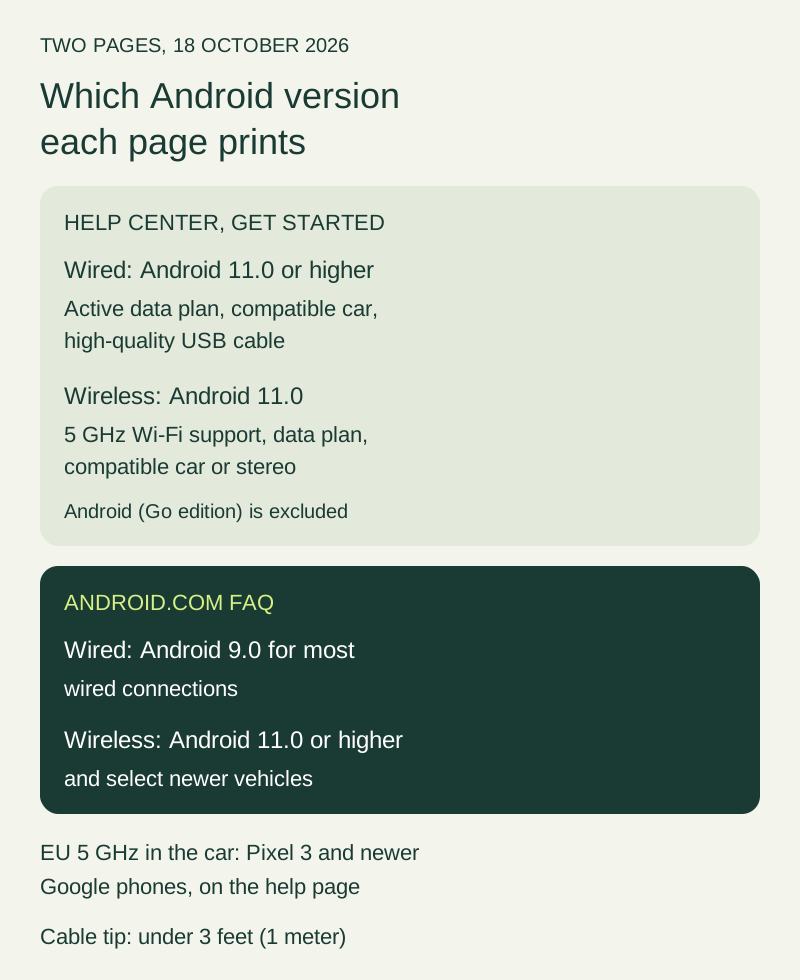
Figure 1. The version lines on the two Google pages fetched 18 October 2026. “Select newer vehicles” is the FAQ’s phrase. The FAQ bullet does not name those vehicles.
Where the two version lines split
The help page and the marketing FAQ were both saved on 18 October 2026, and they do not print the same floor for a cable connection.
On Get started with Android Auto, the USB block asks for an Android phone with Android 11.0 (Red Velvet Cake) or higher and an active data plan, a compatible car, and a high-quality USB cable. The wireless block asks for a compatible Android phone with an active data plan and 5 GHz Wi-Fi support, and it says wireless projection is compatible with any phone with Android 11.0. The same block also asks for a compatible car or stereo. Android Auto is not available on Android (Go edition). The page says Android Auto is integrated into the phone and that you do not download it.
On android.com/auto, the FAQ “What are the requirements to run Android Auto on my car display?” prints four bullets:
- Android 9.0 (Pie) or higher for most wired connections.
- Android 11.0 or higher for wireless connections and select newer vehicles.
- A car or stereo that’s compatible with Android Auto, and a high-quality USB cable.
- For wireless connection: a compatible phone, with the words “see list” linking to the Get started help page, plus a compatible car or a supported aftermarket car stereo from JVC, Kenwood, or Pioneer. The bullet says to check with the manufacturer to see if wireless is supported.
Rule of thumb. If the Android version is below 11, leave wireless projection out of the purchase. Both pages put wireless at Android 11.0 or higher. The Android 9.0 line is the FAQ’s line for most wired connections. An Android 10 phone is inside that FAQ wired line and outside every Android 11.0 line on these pages. The help page’s USB block also starts at Android 11.0, so a cable setup that you are checking against the help page starts there too.
The FAQ does not name the “select newer vehicles.” That cell stays blank. The troubleshooting page, My Android Auto app isn’t working, opens with the same Android 11.0 floor: an Android phone running Android 11.0 (Red Velvet Cake) and up, with a data plan, and it recommends the latest version of Android. It points to separate instructions for checking the version. Those steps are on the linked page, which is not copied here.
What a brand card prints
The vehicle list lives at the URL the compatibility link resolved to on 18 October 2026: android.com/auto/compatibility/vehicles. The page says Android Auto works with over 500 models, with more on the way, and it tells you to check the vehicle and stereo list and to see if the phone meets the requirements.
Each card prints a brand and one line. The Hyundai card prints “Models from 2015+.” The Dacia card prints “Coming soon.” The footer says product availability, features, and specifications vary by region, carrier, and device, and it tells you to check current availability in your area with a local retailer or carrier. The card text is the brand and that year line. Trim, head unit, and wireless Android Auto are separate answers you still collect from the manufacturer.
The wireless tips sit on the Get started help page, beside the version lines. To find out if the phone has 5 GHz Wi-Fi support, contact the phone manufacturer. To find out if that specific car model is compatible with wireless Android Auto, contact the car manufacturer. In the EU, to use 5 GHz Wi-Fi in the car, the smartphone must comply with additional regulatory requirements. On Google smartphones, Pixel 3 and newer models comply with that requirement. That EU sentence names Google smartphones.
The home page adds a footnote: wireless connection is only supported when paired between certain devices and certain vehicles. The same page’s connect step says to connect the phone wirelessly via Bluetooth or by USB cable. Its longer setup answer says that for most compatible cars or aftermarket stereos you plug the phone in with a USB cable, and that if the car display supports a wireless connection you pair the phone with the car’s Bluetooth for setup. After setup, depending on the car, the phone connects on its own or the Android Auto icon appears on the display.
Write the phone model, the car, the market, and which of these pages you are using on the Android compatibility notes. Match the country where the car is used to the Where to use list below. Use the United States line when the car is used in the United States.
The Get started page’s Where to use section prints these entries: Argentina, Australia, Austria, Belgium, Bolivia, Brazil, Canada, Chile, Colombia, Costa Rica, Denmark, Dominican Republic, Ecuador, France, Germany, Guatemala, India, Indonesia, Ireland, Italy, Japan, Mexico, Netherlands, New Zealand, Norway, Panama, Paraguay, Peru, Philippines, Poland, Portugal, Puerto Rico, Russia, Singapore, South Africa, South Korea, Spain, Sweden, Switzerland, Taiwan, Thailand, Turkey, United Kingdom, United States, Uruguay, and Venezuela. It says most features will not work if you use Android Auto outside these countries. Germany and France are on that list and are also in the EU, so a Google phone there still follows the Pixel 3 tip, and the car still needs the manufacturer check.
Set up the cable with the car in park
The Set up Android Auto page splits the cable and the wireless steps.
For the cable it says to make sure the phone meets the minimum requirements, confirm the car is compatible with Android Auto, and contact the local dealer or the vehicle manufacturer if you are not sure. The phone needs to be in range of the mobile data network, with service bars showing. The car is in park (P), the infotainment system is on, and you allow time to set up before the drive. Plug a USB cable into the vehicle’s USB port, then into the phone. Follow the on-screen instructions. The page says the phone might ask you to update Android Auto before you continue, and it points to the vehicle manual.
The troubleshooting page says Android Auto will not work on all cars equipped with a USB port. It also says to check that Android Auto is turned on in the infotainment system and to restart that system. For an aftermarket receiver, such as a Pioneer or Kenwood unit, it says to check the manufacturer’s website for a firmware update. The android.com FAQ wireless bullet names a supported aftermarket stereo from JVC, Kenwood, or Pioneer, and it says to check with the manufacturer to see if wireless is supported. JVC is in that FAQ bullet. The firmware tip names Pioneer or Kenwood.
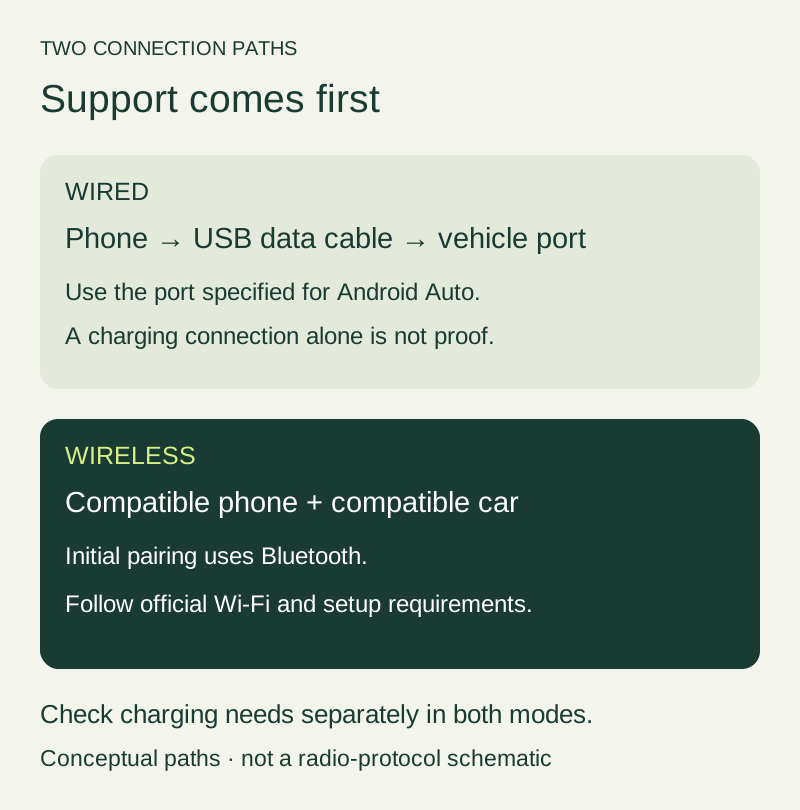
Figure 2. Wired path: phone, USB data cable, vehicle port. Wireless path: a compatible phone and car, with the first pairing on Bluetooth. Charging is a separate check on both paths.
Pair wireless once, then see if it starts
The wireless half of the setup page asks you to confirm that the car is compatible with wireless Android Auto, and to contact the dealer or manufacturer if you are not sure. The phone again needs mobile data service. The first wireless connection pairs the phone and the car via Bluetooth. For that setup, keep the phone’s Bluetooth, Wi-Fi, and Location Services turned on. The car stays in park (P) with the infotainment system on.
On the phone, open the Bluetooth menu in Settings. On the steering wheel, press and hold the voice command button to open the menu to pair a new phone. If that menu does not appear, the page says to check the car manufacturer’s instructions. Follow the on-screen Bluetooth pairing steps. Once the phone is paired, the page says Android Auto should start within a few seconds. If it does not, follow the on-screen prompts. You might need to tap Android Auto on the car display.
“Within a few seconds” is the setup page’s start line. That sentence prints no millisecond number. The 5 GHz line is the help page’s phone requirement, and the help page stops at “5 GHz Wi-Fi support.” Keeping Wi-Fi on during setup is the setup page’s instruction, next to Bluetooth and Location Services.
If the phone and the car will not connect by USB or wirelessly with Bluetooth, the setup page says to check compatibility and connection issues or contact the vehicle manufacturer.
Where each path fails
Scroll horizontally to see all columns.
| Path | Dominant failure mode | Prevention |
|---|---|---|
| Cable | A USB port is present, and the car is outside the compatible list, or the cable misses the printed tip | Confirm the car with the maker. Use a cable under 3 feet (1 meter), with no hub or extension |
| Wireless | The maker has confirmed only the cable, the phone has no 5 GHz Wi-Fi, or an EU Google phone is older than the Pixel 3 line | Ask the maker about wireless for that model. Ask the phone maker about 5 GHz. For Google phones in the EU, the help page names Pixel 3 and newer |
| Second car | The phone still holds previously connected cars | Use Forget all cars only when a second car is the problem. That control clears every saved car |
| Hot pad or a falling battery | Projection and charging are mixed into one symptom | Record the battery on the sheet. A charge rate is not printed on these Android Auto pages |
The troubleshooting page says that not all USB cables work with all cars, and that a high-quality USB cable is the thing to try. If Android Auto had worked and then stopped, the page says to replace the USB cable and that this will likely fix the issue. Its tips: use a cable under 3 feet (1 meter), and do not use USB hubs or cable extensions. Try the cable that came with the phone. The page gives two examples: the Pixel cable with a Pixel phone, and the Samsung USB cable with a Samsung Galaxy phone. Cables from independent manufacturers can be a good choice if they meet USB Implementers Forum standards. To buy one, the page says you can check whether it has been certified within the past two years on the USB-IF product list, filtered by model number or brand. No certification date from that list is copied here.
When a session that used to work now drops, follow the Android Auto disconnect order and change one thing in park. When the open question is the cable itself, use the Android Auto cable checklist and swap one cable, then one phone.
For a second car, the troubleshooting page’s order is: unplug the phone; select Menu, then Settings, then Connected devices, then Connection preferences, then Android Auto, then Previously connected cars; tap the top-right menu; tap Forget all cars; plug the phone in again. The page also says to make sure the car is compatible and that Android Auto is turned on. Forget all cars clears every saved car, so a second driver pairs again afterward.
The cable length is arithmetic on a measurement you take
Google prints one limit: under 3 feet (1 meter). The page already pairs those two units.
Formula, labeled as arithmetic on that printed limit. It uses the printed 1 meter. It leaves your own measurement blank:
cableMarginM = 1 - measuredLengthM
At the printed boundary, 1 - 1 = 0. The word on the page is “under,” so a margin of 0 misses the tip. A positive margin is a measured length under 1 meter. Leave measuredLengthM blank until you measure the cable in front of you. A blank cell stays open.
Charging stays off the mode decision
None of the saved Android Auto pages prints a wattage, a charging protocol, or a pad rating for either mode. The photo at the top shows a charging tray beside a cable so those two objects stay visually separate. If the battery percentage is the problem, use the slow-charging check order. If the phone gets hot on a wireless charger while navigation is up, use the overheating checks that separate a wireless charger from wireless Android Auto. A case on a pad stays on those charging pages.
When the manufacturer confirms the cable only
A plug-in wireless adapter is absent from the Google pages saved here. If the manufacturer confirms wired Android Auto for this car and has no wireless confirmation for it, the next page on this site is the wireless Android Auto adapter guide, which starts from a working cable connection and from the phone requirements above. Documented controls for three named models are on the AAWireless TWO, Motorola MA1, and CarlinKit 5.0 comparison.
Once Android Auto is actually on the display, record the layout controls the phone and the car expose in the split-screen layout notes.
Fill the sheet in park
Use the same phone, the same car, and one connection mode. If you change the cable or the charger as well, write that down beside the mode. The setup page wants the car in park (P) with the infotainment system on.
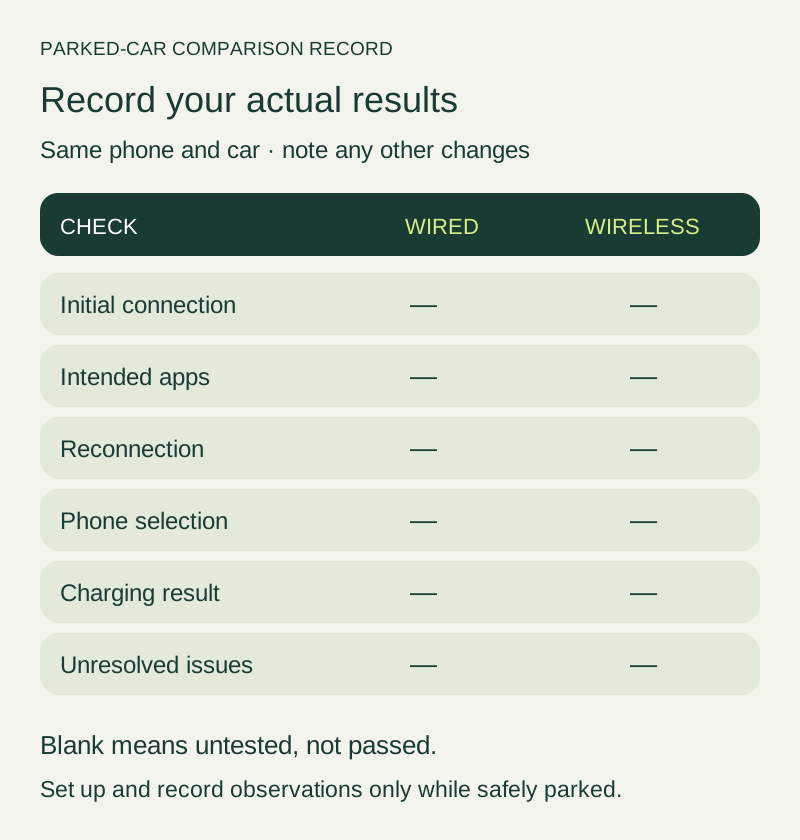
Figure 3. The image leaves connection, apps, reconnection, phone selection, charging, and unresolved issues blank. Fill the table under it for this phone and this car while parked.
Scroll horizontally to see all columns.
| Check | Wired | Wireless |
|---|---|---|
| Android version on the phone | ||
| Page you are matching (help page Android 11.0, or FAQ Android 9.0 for most wired) | ||
| 5 GHz, from the phone maker | ||
| Car maker’s answer for this mode | ||
| Country on the Where to use list | ||
| EU Google phone, if that tip applies (Pixel 3 and newer) | ||
| Cable margin, after you measure | ||
| Bluetooth pair completed, Wi-Fi and Location Services on | ||
| Android Auto visible on the display | ||
| Battery note |
Frequently asked questions
Does wireless Android Auto charge the phone?
The Android Auto pages saved on 18 October 2026 print no charge rate for wireless projection or for the USB cable. Write the battery change on the sheet, and treat a falling percentage as the slow-charging check.
Does “Models from 2015+” on the Hyundai card mean wireless Android Auto?
That card prints “Models from 2015+” as the Hyundai line on the vehicle list. Wireless Android Auto is the separate manufacturer question on the help page and on the setup page. The card does not answer it.
What should an Android 10 phone do with these pages?
Both wireless lines print Android 11.0 or higher. The help page’s USB line also prints Android 11.0 or higher. The android.com FAQ still prints Android 9.0 (Pie) or higher for most wired connections, so Android 10 sits in that FAQ wired line and outside the Android 11.0 lines.
Sources
- Get started with Android Auto, fetched 18 October 2026. Android 11.0 for the USB path and for wireless projection, 5 GHz Wi-Fi support, the EU Pixel 3 tip, the manufacturer check, Android (Go edition), and the Where to use list.
- Set up Android Auto, fetched 18 October 2026. Park (P), USB plug-in, first wireless pair over Bluetooth, Bluetooth plus Wi-Fi plus Location Services, voice-command button, and “within a few seconds.”
- My Android Auto app isn’t working, fetched 18 October 2026. Cable under 3 feet (1 meter), no hub or extension, Pixel and Samsung cable examples, Pioneer and Kenwood firmware, Forget all cars.
- Android Auto, fetched 18 October 2026. FAQ version lines, JVC, Kenwood, and Pioneer on the wireless bullet, the Bluetooth-or-USB connect step, and the footnote that wireless works only for certain devices and certain vehicles.
- Android Auto vehicle compatibility, fetched 18 October 2026 from the compatibility URL, which resolved here. “Over 500 models,” brand cards such as Hyundai “Models from 2015+” and Dacia “Coming soon,” and the region footer.
Related articles
Android Auto Cable Guide: Data Pair, Length, and the Right Port
Pick a wired Android Auto cable from Google's under-1-meter tip, the USB 2.0 data pair, and the port named in the vehicle manual.
Read article
Wireless Android Auto Adapter: 5 GHz Wi-Fi and Boot Speed
Separate adapter cold boot from ignition power and phone reconnection, and learn why Android Auto's 5 GHz Wi-Fi requirement promises no startup time.
Read articleAndroid Auto Developer Mode: Enable, Exit and Understand Its Limits
Find Android Auto's version panel, unlock and exit its developer menu, and check the limits of Unknown sources, resolution and wireless settings.
Read article