
Docking Station vs USB Hub: Power & Ports
A desktop docking station uses external power for multi-display and 60W to 100W host charging, while a USB hub shares one host bus across compact ports.
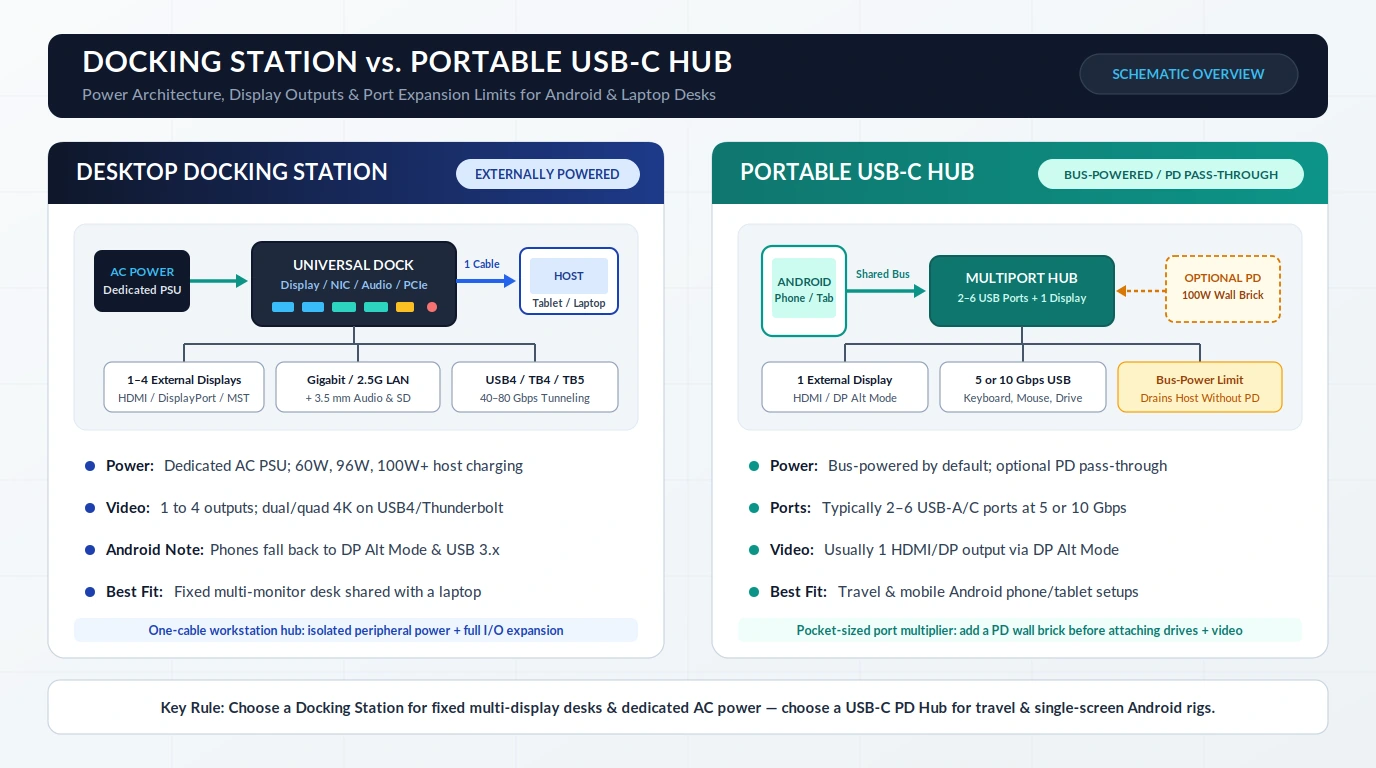
Architectural overview comparing an externally powered desktop docking station against a compact portable USB-C hub; schematic illustration, not a lab benchmark.
When deciding between a docking station vs USB hub, the practical difference is power architecture and total I/O expansion. A docking station uses an external power supply to run multiple monitors, wired Ethernet, audio, peripherals, and 60W to 100W+ host charging over one cable, whereas a USB hub is a compact, often bus-powered port multiplier sharing one host bus.
On an Android phone or tablet desk, that distinction decides whether storage drives and displays stay stable or repeatedly drop out. For portable multiport pass-through sizing and exFAT drive setup, see our USB-C hub for Android PD pass-through and exFAT storage guide, and browse the full Android accessories collection before matching cables and adapters to a specific handset.
Is a USB hub the same as a docking station?
No—a USB hub is not the same as a docking station, even though both can plug into a single USB-C port. A USB hub splits one USB port into several shared downstream ports, while a universal docking station is a self-powered desktop expansion box housing internal display, network, audio, and bridge converters.
Why compact USB-C hubs and docks overlap visually
Both accessories often share a single reversible USB-C plug, which is why marketing copy blurs the two categories. Club 3D notes that hubs and docks may look similar at first glance and use the same USB-C or Thunderbolt connector while differing sharply in power, purpose, and expansion ceiling.
Wikipedia’s USB hub specification notes that a self-powered hub certified for USB Power Delivery can charge a host battery and connect peripherals over one connection, causing some buyers to treat it as a simple docking station. Structurally, however, port replicators and travel hubs remain small, often bus-powered devices that duplicate basic host interfaces for SD cards, keyboards, audio jacks, and typically one external display. Universal third-party docking stations are externally powered boxes built around USB-C or Thunderbolt that create additional ports inside the dock through dedicated converters—including display adapters, audio chipsets, wired network controllers, storage interfaces, card readers, and PCI Express or internal USB bridges.
Scroll horizontally to see all columns.
| Hardware attribute | Portable USB / USB-C hub | Desktop docking station | Practical desk impact |
|---|---|---|---|
| Primary power source | Usually bus-powered from host; optional USB-C PD pass-through | Externally powered via dedicated AC power supply or USB-C charger | Docks isolate peripheral draw and avoid draining an Android phone or laptop battery |
| Host charging capability | None on bus-powered hubs; lower charging headroom on PD pass-through hubs | Typically 60W, 96W, 100W, or higher host charging while running peripherals | One cable charges a laptop or tablet at a fixed desk without carrying a separate brick |
| Typical USB port count and speed | Usually 2 to 6 USB-A and USB-C ports at 5 or 10 Gbps | Multiple USB-A and USB-C ports at 10 Gbps or higher plus upstream USB4/Thunderbolt | Every device on a hub shares one upstream bus; docks add higher-bandwidth backbones |
| Video outputs | Typically 1 HDMI or DisplayPort output via DP Alt Mode | 1 to 4 HDMI and/or DisplayPort outputs; dual or quad 4K on USB4/Thunderbolt | Hubs suit single-monitor travel; docks drive permanent multi-monitor workstations |
| Wired Ethernet and audio | Occasional on larger hubs; often omitted on compact models | Commonly integrates Gigabit Ethernet (sometimes 2.5G), 3.5 mm audio, and SD/microSD | Eliminates extra dongles on shared office or fixed home desks |
| Form factor and role | Pocket-sized, travel-first port expander | Stationary single-cable workstation hub | Choose hubs for mobility and docks for permanent desk docking |
What does a docking station do that a portable hub does not?
A desktop docking station connects a computer or compatible tablet to a full workstation over a single cable carrying video, data, wired networking, and high-wattage charging simultaneously. Portable hubs focus on two to six shared USB ports and at most one native DisplayPort Alt Mode monitor, lacking the power supply and high-bandwidth tunneling required for multi-display workstations.
Multi-display outputs and USB4 / Thunderbolt tunneling
Club 3D documents that desktop docking stations typically expose one to four HDMI or DisplayPort outputs, with Thunderbolt and USB4 docks supporting dual or quad 4K displays—and even 5K, 6K, or 8K setups when the host GPU and link bandwidth allow. By contrast, a compact USB-C hub typically offers a single HDMI or DisplayPort socket driven through USB-C DisplayPort Alt Mode, requiring DisplayLink software for extra displays where supported by the operating system.
The difference comes down to how signals traverse the 24-pin USB-C cable. A USB-C receptacle includes four power pins, four ground pins, two legacy differential pairs for USB 1 (1.5 and 12 Mbit/s) and USB 2 (480 Mbit/s), four shielded high-speed differential pairs rated at 5, 10, 20, or 40 Gbit/s each, two SBU pins, and two CC pins. Under DisplayPort Alternate Mode, a hub assigns one, two, or all four SuperSpeed pairs directly to video:
- 2-lane DisplayPort Alt Mode (halved mode): Dedicates two high-speed pairs to video while keeping the remaining two pairs active for 5 or 10 Gbit/s USB 3.x storage and peripherals alongside USB 2.0.
- 4-lane DisplayPort Alt Mode: Assigns all four high-speed pairs to video—reaching 21.60 Gbit/s raw bandwidth (17.28 Gbit/s data rate, or 2.16 GB/s) on HBR2 and 32.40 Gbit/s raw bandwidth (25.92 Gbit/s data rate, or 3.24 GB/s) on HBR3, with DisplayPort 1.4 adding Display Stream Compression 1.2 (DSC)—but drops downstream USB ports to legacy USB 2.0 (480 Mbit/s).
USB-IF’s USB4 specification goes further by enabling two-lane operation on existing USB Type-C cables and up to 80 Gbps on 80 Gbps certified cables, dynamically sharing aggregate bandwidth across simultaneous data and display streams. Within that ecosystem, Thunderbolt 4 (built around USB 40Gbps) mandates Thunderbolt 3 backward compatibility, at least 32 Gbps PCIe tunneling, and two DisplayPort tunnels at 4K60 each (HBR3+DSC). Thunderbolt 5 (80 Gbps class) raises mandatory minimums to 64 Gbps PCIe tunneling, two 6K60 DisplayPort tunnels, and asymmetric 120/40 Gbit/s host-to-dock connections.
Scroll horizontally to see all columns.
| Interface protocol | High-speed link capacity | Display tunneling / lane model | Peripheral USB & PCIe capability |
|---|---|---|---|
| USB-C DP Alt Mode (2-lane) | Half of 4 high-speed pairs to video; half to USB | 2 DisplayPort lanes (HBR2 or HBR3) | Simultaneous 5 or 10 Gbit/s USB 3.x plus 480 Mbit/s USB 2.0 |
| USB-C DP Alt Mode (4-lane) | HBR2: 21.60 Gbit/s (17.28 Gbit/s payload); HBR3: 32.40 Gbit/s (25.92 Gbit/s payload) | All 4 SuperSpeed pairs to DisplayPort (DSC 1.2 in DP 1.4) | Legacy USB 2.0 (480 Mbit/s) only; no SuperSpeed USB |
| USB4 (certified cables) | Two-lane operation up to 80 Gbps over 80 Gbps certified cables | Dynamic shared display and data tunneling | Concurrent high-speed USB and display allocation |
| Thunderbolt 4 | 40 Gbps class around USB4 | Mandatory 2 DisplayPort tunnels (4K60 each, HBR3+DSC) | Mandatory Thunderbolt 3 compatibility and 32 Gbps minimum PCIe |
| Thunderbolt 5 | 80 Gbps symmetric; 120/40 Gbit/s asymmetric host-to-dock | Mandatory 2 DisplayPort tunnels (6K60 each) | Mandatory 64 Gbps minimum PCIe tunneling |
Docking station vs powered USB hub: how does power delivery differ?
A standard powered USB hub uses an external wall adapter solely to feed downstream peripherals, whereas a USB-C PD hub or externally powered docking station uses USB Power Delivery Dual-Role Swap to power downstream accessories and charge the host upstream over the same cable. Bus-powered hubs do neither, pulling every milliamp directly from the host’s battery.
Bus-powered limits vs self-powered hubs and dynamic unplug resets
Electrical power equals voltage times current, so a standard 5 V USB port drawing 500 mA (0.5 A) consumes 2.5 W. Under standard USB current allocation (100 mA units up to 500 mA per port), a compliant bus-powered hub can expose at most four downstream ports sharing four 100 mA units in total because the hub consumes one 100 mA unit for its own controller. While USB-C optionally expands 5 V bus power to 1.5 A or 3.0 A, any bus-powered hub still pulls that energy from the connected phone, tablet, or laptop.
A self-powered (active) USB hub adds an external power supply unit so downstream ports can draw full current (up to 500 mA per USB 2.0 port) without draining the host. However, buyers should check the included brick’s amperage: Wikipedia’s USB hub documentation notes that many seven-port self-powered hubs ship with a 1 A power adapter even though seven ports at 0.5 A each can draw 3.5 A plus hub overhead. Furthermore, dynamic-powered hubs that automatically switch between external power and bus power can reset connected USB devices when wall power is removed if attached peripherals previously requested more current than bus-powered mode allows.
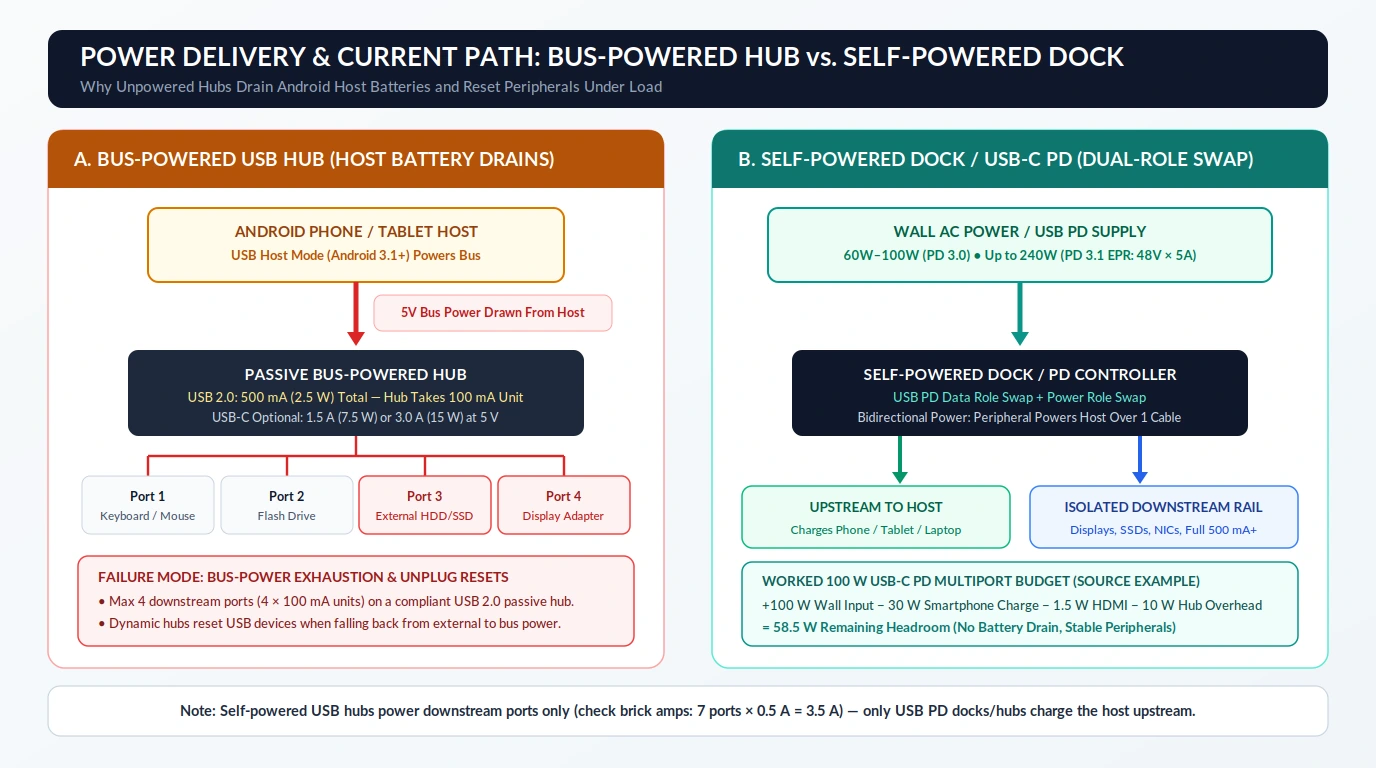
USB Power Delivery, Dual-Role Swap, and worked 100 W wattage math
Under USB-IF’s USB Power Delivery architecture, power direction is no longer fixed—either the host or an externally powered peripheral can supply power. Dual-Role USB-C devices implementing USB PD use Data Role Swap and Power Role Swap independently, allowing a smartphone, tablet, or laptop to act as the USB data host controlling attached accessories while receiving charging power from a docking station, PD hub, or wall-powered monitor through one cable.
Cable and charger ceilings scale across three standard tiers:
- Baseline USB-C PD (60 W): Every compliant USB-C cable must carry at least 3 A at up to 20 V (60 W).
- Standard Power Range (100 W): Legacy 5 A cables at 20 V supported up to 100 W; any USB-C cable exceeding basic USB 2.0 and 60 W (20 V × 3 A) must include an eMarker chip reporting its speed, voltage, current, and Alternate Mode capabilities over the CC line.
- USB PD Revision 3.1 Extended Power Range (240 W): Announced in 2021, USB PD 3.1 defines fixed voltage rails at 28 V (up to 140 W), 36 V (up to 180 W), and 48 V (up to 240 W at 5 A) over full-featured USB-C cables.
A 100 W USB-C PD wall charger is typically sufficient to power a multiport USB-C adapter and charge a connected mobile device simultaneously. In the worked wattage budget documented on Wikipedia’s USB hub reference:
- Input: +100 W from a 100 W wall charger over a 100 W USB-C cable into the multiport adapter’s PD input.
- Smartphone charging draw: −30 W delivered upstream to the phone.
- External video load: −1.5 W for an attached 8k HDMI cable driving an external display.
- Remaining available wattage: 58.5 W left after smartphone charging, HDMI draw, and the adapter’s internal power allocation.
When pairing a laptop brick with a portable PD hub or dock for an Android handset, verify charger contracts and cable eMarker ratings using our laptop USB-C charger for Android checklist.
Docking station vs USB-C hub: which fits a mobile Android setup?
For a mobile Android phone or tablet setup, a compact USB-C PD pass-through hub is usually the smarter choice over a heavy Thunderbolt desktop dock. Most smartphones do not implement Thunderbolt 3 tunneling, so an expensive Thunderbolt dock falls back to standard DisplayPort Alt Mode and USB 3.x—delivering the same single-screen bandwidth a well-built USB-C PD hub already provides.
Why Android host mode and fallback rules limit desktop docks
Android Developers explains that when an Android phone or tablet enters USB host mode (supported in Android 3.1 and higher), the Android device acts as the USB host, powers the bus, and enumerates attached USB peripherals. Plugging an unpowered hub loaded with a keyboard, storage drive, and video adapter forces the handset’s battery to power everything on the bus—leading to rapid battery drain or peripheral disconnects. For baseline OTG peripheral checks before buying an adapter, read our Android USB OTG guide.
Even when you step up to a wall-powered Thunderbolt 4 or USB4 docking station, three platform constraints still apply to Android devices:
- Connector shape does not guarantee video or USB4: A physical USB Type-C port does not mandate USB Power Delivery, high-speed USB data, or Alternate Modes, and basic USB 2.0 charging cables omit the high-speed wires needed for video—use a full-featured USB-C cable instead.
- Thunderbolt 3 / USB4 fallback on smartphones: USB Promoter Group CEO Brad Saunders anticipated that while most USB4 PCs will support Thunderbolt 3, smartphone makers are far less likely to implement Thunderbolt 3 support. When the connected host does not support USB4, the dock falls back to DisplayPort Alt Mode or standard USB 3 connections.
- Model-specific wired display support: Wired video works only on Android handsets and tablets whose hardware implements DisplayPort Alt Mode—such as Google Pixel 8 and later (which Google Pixel Phone Help specifies need a DisplayPort or HDMI to USB-C cable), Samsung Galaxy S8 and newer, Galaxy Tab S4, OnePlus 7 and newer, ROG Phone, and Sony Xperia 1 and 5. Verify your exact model first in our Android USB-C video output guide.
DisplayLink docking station limits on Android
If your Android phone lacks DisplayPort Alt Mode and you try a DisplayLink universal docking station with the Synaptics DisplayLink for Android app, Synaptics documents strict operational ceilings:
- Single 1920 × 1080 display ceiling: Supports only one DisplayLink monitor up to 1920 × 1080 (with audio), regardless of how many HDMI or DisplayPort sockets sit on the dock chassis.
- No wired Ethernet: Synaptics states that DisplayLink’s wired Ethernet connection is not supported on Android.
- No charging while docked: Synaptics notes that Android devices cannot enable USB and charge simultaneously on a DisplayLink docking station, and a bus-powered DisplayLink device may need an externally powered USB hub because the Android host may not supply enough power.
Scroll horizontally to see all columns.
| Desk scenario | Recommended hardware | Why it fits | Watch-out before buying |
|---|---|---|---|
| Travel with an Android phone or tablet (1 monitor + keyboard + drive) | Compact USB-C PD pass-through hub + 100 W PD charger | Pocketable; Dual-Role Power Swap keeps the handset charged while running 1 DP Alt Mode display and 5–10 Gbps USB | Skip USB 2.0 charging cables and avoid running high-draw drives without wall PD input |
| Fixed home desk shared between a work laptop and an Android phone/tablet | Self-powered USB-C or USB4 desktop docking station | Laptop uses full multi-display, Ethernet, and 60W, 96W, or 100W+ charging; Android device plugs into the same cable in DP Alt Mode fallback | Confirm the dock falls back cleanly to DP Alt Mode and USB 3.x for non-Thunderbolt phones |
| Multi-monitor office workstation (laptop primary) | Thunderbolt 4 or Thunderbolt 5 docking station | Guarantees two 4K60 (Thunderbolt 4) or two 6K60 (Thunderbolt 5) tunnels, Gigabit/2.5G LAN, and high-speed PCIe/USB | Overkill if used exclusively with an Android smartphone |
| Android phone without DP Alt Mode needing an occasional monitor | DisplayLink adapter + externally powered hub (short sessions only) | Adds one 1920 × 1080 external screen via USB host mode | Cannot charge the Android phone while docked and disables DisplayLink wired Ethernet |
Can you add a USB hub to a docking station?
Yes—you can plug an additional USB hub into a docking station’s downstream USB port as long as you stay inside the USB specification’s seven-tier cascading topology limit and never chain a passive bus-powered hub behind another bus-powered hub. Every device downstream of that dock port also shares the port’s upstream bandwidth.
The 7-tier topology rule, address limits, and passive-chain ban
Under USB architecture, a single USB bus supports up to seven cascading tiers of ports: the host’s root hub occupies tier 1 and end peripheral devices sit at tier 7, leaving at most five tiers of intermediate hubs between them. A USB network supports up to 127 total addresses, and every hub consumes one address—reducing the maximum number of end user devices by the number of attached hubs (for example, attaching 50 hubs leaves 127 − 50 = 77 user devices). Because some desktop docking stations already use one or two internal hub controllers across their front and rear ports, plugging an external hub into a dock places that external hub at tier 3 or tier 4, which still leaves plenty of headroom for end peripherals.
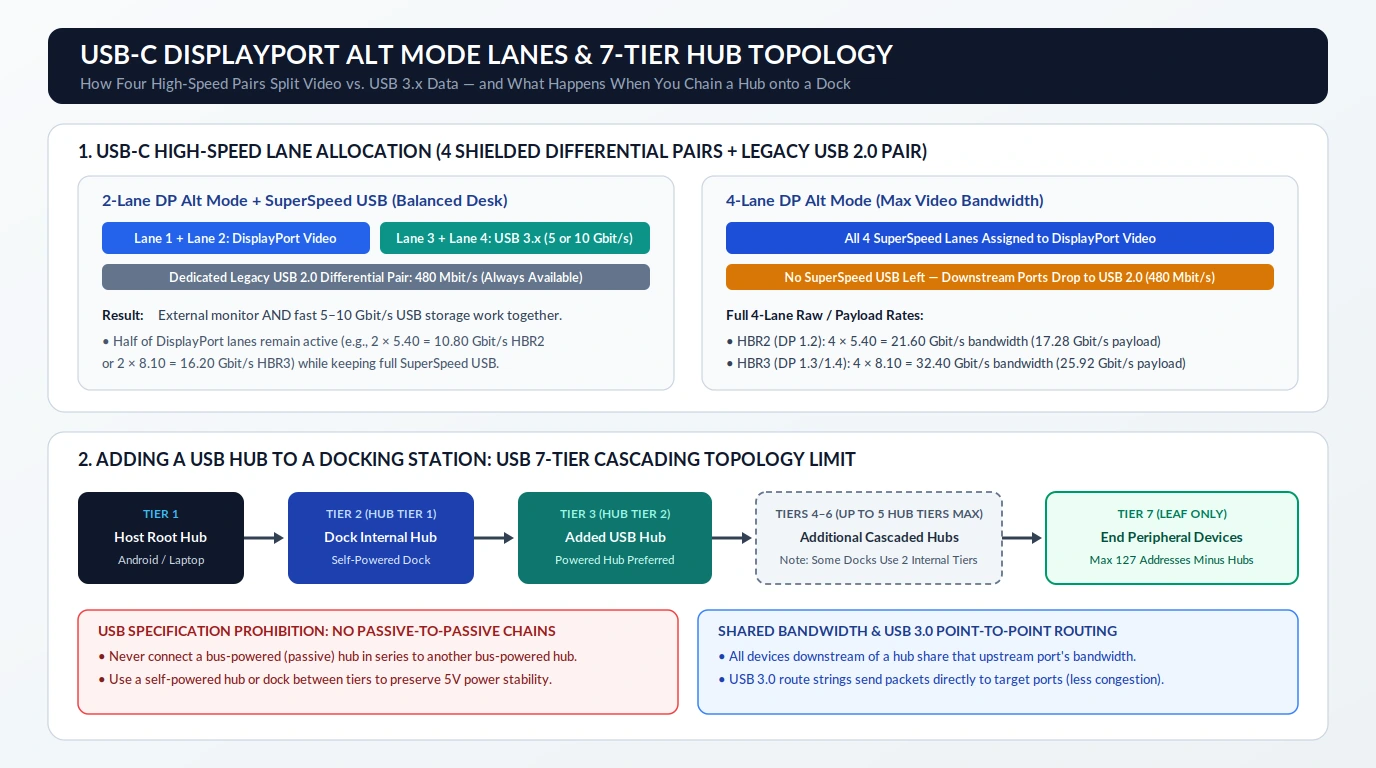
Follow three engineering rules when adding a hub to a docking station:
- Never chain two passive bus-powered hubs in series: The USB specification explicitly prohibits connecting bus-powered hubs in series behind other bus-powered hubs. Plugging a passive hub into an externally powered desktop dock is valid because the dock itself is self-powered, whereas plugging a second passive hub into the first passive hub violates the spec and causes brownouts.
- Use a self-powered hub for high-draw accessories: If you are adding multiple drives, audio interfaces, or charging dongles off a single dock port, connect a self-powered hub whose wall adapter actually matches the combined port amperage.
- Separate high-bandwidth drives from shared low-speed peripherals: Although USB 3.0 replaced USB 2.0 downstream broadcast with point-to-point route-string packets to cut congestion and power draw, all devices hanging off one dock port still share that port’s upstream link bandwidth. Keep fast external SSDs plugged directly into the dock’s dedicated 10 Gbps or USB4 ports, and move keyboards, mice, and webcams onto the added external hub.
What is a hub monitor and can it replace a desktop dock?
A USB-C hub monitor is an external display with an integrated wall-powered USB Power Delivery supply and built-in downstream USB ports, allowing one USB-C cable to display video, connect desk peripherals, and charge a connected laptop or Android device simultaneously. It cleanly replaces a separate docking station for single-monitor setups—and for dual-monitor Windows desks when the monitor supports DisplayPort daisy-chaining.
How a USB-C hub monitor handles power, data, and daisy-chaining
USB-IF’s Power Delivery overview specifically highlights that a monitor powered from the wall can power or charge a connected laptop while still displaying video. Combined with USB-C Dual-Role Data and Power Role Swap, a single full-featured USB-C cable carries DisplayPort Alt Mode video to the panel, routes downstream USB traffic to a keyboard, mouse, or drive plugged into the monitor’s built-in ports, and sends charging wattage upstream to your phone, tablet, or laptop.
Before replacing a dedicated docking station with a hub monitor, check three hardware boundaries:
- Lane trade-off inside the monitor’s USB hub: Over standard USB-C DisplayPort Alt Mode without USB4 tunneling, driving a high-resolution monitor across all four SuperSpeed lanes drops the monitor’s built-in USB ports to USB 2.0 (480 Mbit/s). Keeping 5 or 10 Gbit/s USB 3.x speed on the monitor’s rear ports requires 2-lane DisplayPort Alt Mode (halved mode).
- Dual-monitor daisy-chaining requires MST and a DP-out port: Expanding from one hub monitor to a second screen without a separate dock relies on DisplayPort Multi-Stream Transport (MST, introduced in DisplayPort 1.2 and supported over USB-C DP Alt Mode). MST daisy-chaining requires a dedicated DisplayPort output port on the primary monitor—standard DisplayPort input ports cannot pass video onward—and operating-system MST support. Microsoft Windows provides full MST support for hubs and daisy-chains, whereas macOS does not support MST hubs or DisplayPort daisy-chaining.
- Port variety and front-desk reach: Dedicated docking stations still win when you need three or four monitors, Thunderbolt 4 or Thunderbolt 5 PCIe expansion, front-facing SD card readers, or easy desk-level plugging without reaching behind a display panel.
Frequently asked questions
Is a USB-C hub good enough for an Android phone connected to a monitor?
Yes, provided your Android phone documents DisplayPort Alt Mode (such as Pixel 8 and later, Galaxy S8 and newer, or OnePlus 7 and newer) and you choose a USB-C hub with Power Delivery pass-through plus a full-featured cable. Without wall PD power attached, running a monitor and external storage drains the phone’s battery and risks bus-power disconnects.
Does a powered USB hub charge my laptop or Android phone?
A traditional self-powered USB-A or non-PD USB hub only powers downstream peripherals plugged into the hub—it does not charge the host computer or phone upstream. Upstream host charging requires USB Power Delivery with Dual-Role Power Swap, found on USB-C PD pass-through hubs, USB-C hub monitors, and externally powered docking stations.
Why did my external drive disconnect when I unplugged power from my hub?
Dynamic-powered hubs switch automatically between self-powered and bus-powered modes. When external power is removed, the hub can reset downstream USB connections if attached devices requested more power than bus-powered mode can supply—unmounting storage mid-transfer.
Can I plug a Thunderbolt 4 or Thunderbolt 5 docking station into an Android phone?
In many cases the cable fits physically, and if the dock supports USB4/USB-C fallback it will step down to standard DisplayPort Alt Mode and USB 3.x. However, smartphone makers rarely implement Thunderbolt 3, Thunderbolt 4, or Thunderbolt 5 tunneling, so an Android phone will not unlock two 4K60 or two 6K60 Thunderbolt DisplayPort tunnels or 32 Gbps to 64 Gbps PCIe features.
How many USB hubs can I chain behind a docking station?
The USB standard allows up to seven cascading tiers total—tier 1 is the host’s root hub and tier 7 holds end devices, permitting at most five hub tiers in between (up to 127 total addresses minus the number of hubs). Never connect a bus-powered passive hub behind another bus-powered hub, and remember that a dock’s own internal hub chips already consume one or more tiers.
Sources
- USB-IF — USB Charger (USB Power Delivery): USB PD Revision 3.1 (2021) up to 240 W across 28 V (140 W), 36 V (180 W), and 48 V (240 W), bidirectional power direction, and wall-powered monitor charging while displaying.
- USB-IF — USB4 Specification: Two-lane operation over existing USB Type-C cables and up to 80 Gbps over 80 Gbps certified cables with dynamic protocol sharing.
- Android Developers — USB Host Overview: Android 3.1+ USB host mode bus powering and peripheral enumeration.
- Google Pixel Phone Help — Project your Pixel phone’s screen: Wired display support on Pixel 8 and later requiring a DisplayPort or HDMI to USB-C cable.
- Synaptics — DisplayLink for Android: Single 1920 × 1080 display ceiling, unsupported wired Ethernet, inability to charge while docked, and external hub power note for bus-powered adapters.
- Wikipedia — USB hub: Bus-powered vs self-powered 100 mA / 500 mA (2.5 W) limits, 7-port 1 A power-brick caveat, dynamic-powered unplug resets, worked 100 W multiport PD wattage budget, USB 3.0 point-to-point routing, 7-tier cascading limit, 127-address rule, and passive-hub chaining prohibition.
- Wikipedia — Docking station, USB-C, USB4, and DisplayPort specification summaries: Port replicator vs universal dock converters; 24-pin USB-C layout, 1.5 A and 3.0 A at 5 V bus power, 60 W / 100 W / 240 W EPR cables, eMarker and Dual-Role Swap; DisplayPort Alt Mode one-, two-, or four-lane allocation, HBR2 (21.60 Gbit/s / 17.28 Gbit/s), HBR3 (32.40 Gbit/s / 25.92 Gbit/s), DP 1.4 DSC 1.2, and MST daisy-chain requirements; Thunderbolt 4 (32 Gbps PCIe, 2 × 4K60) and Thunderbolt 5 (80 Gbps, 64 Gbps PCIe, 2 × 6K60, 120/40 Gbit/s asymmetric) mandates and Android device examples.
- Club 3D — Docking Station vs Hub: Single-cable workstation connectivity (video, data, network, 60W, 96W, and 100W+ power, one to four displays, Gigabit or 2.5G Ethernet, 3.5 mm audio) compared with portable two to six port USB hubs (5 or 10 Gbps, typically one DP Alt Mode display).
Related articles
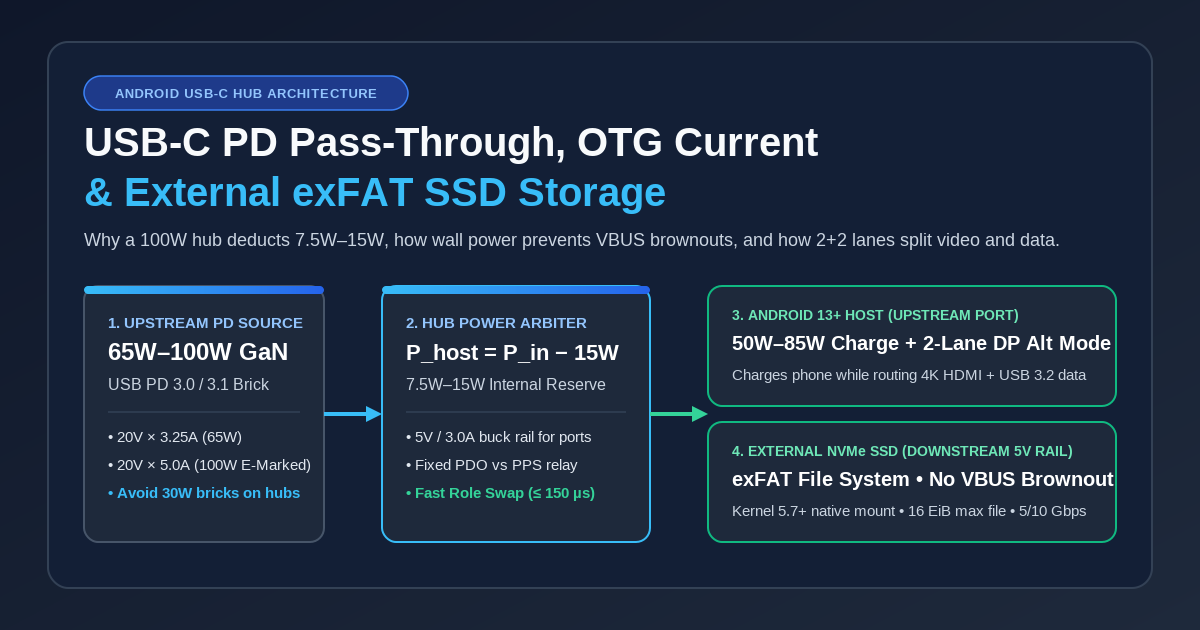
USB-C Hub for Android: PD Pass-Through Math, OTG SSD Power, and exFAT Storage
Size a 100W USB-C PD pass-through hub for Android by subtracting the 7.5W–15W hub reserve, preventing NVMe SSD VBUS brownouts, and formatting drives as exFAT.
Read article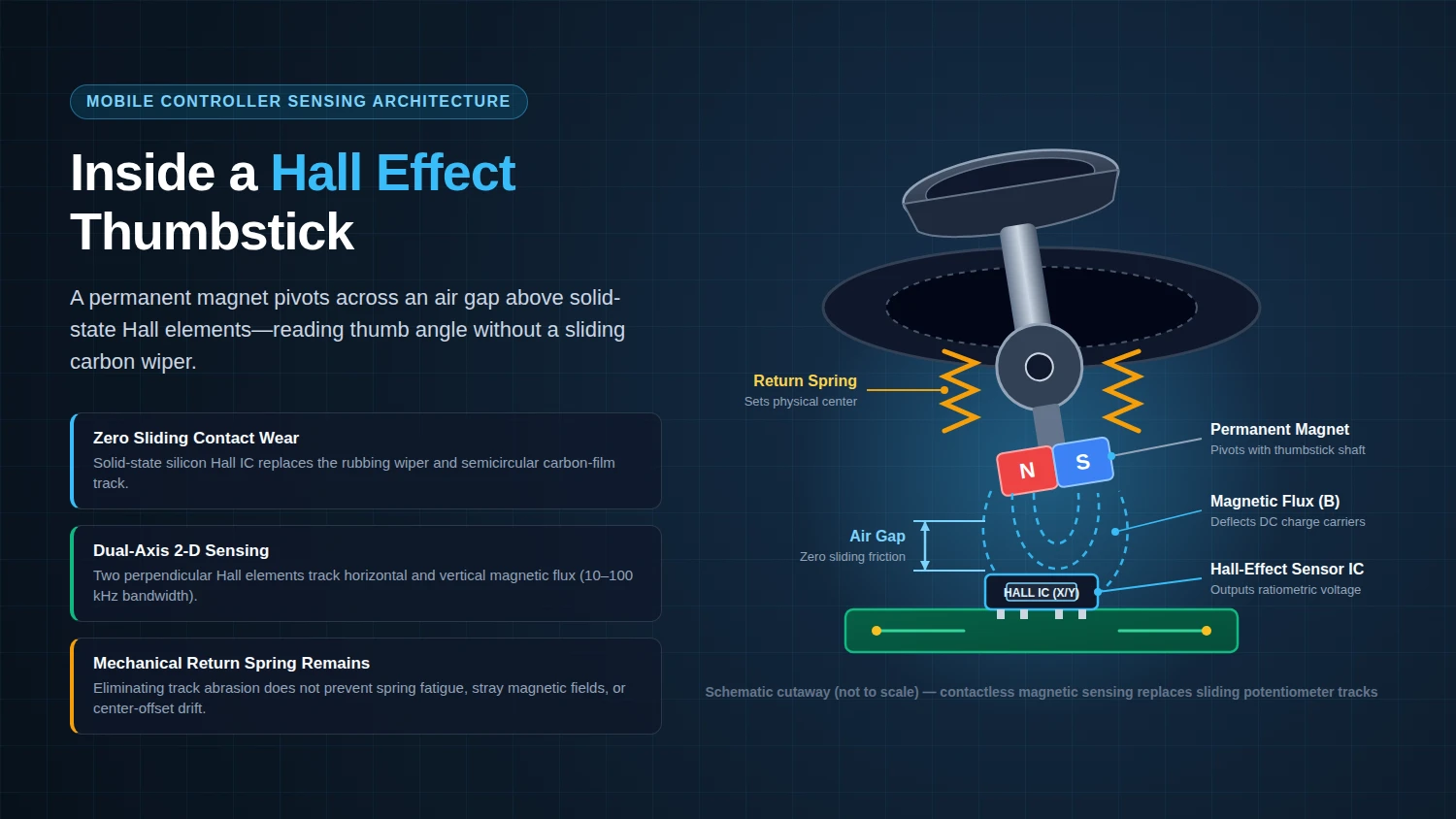
What Is a Hall Effect Joystick? TMR Guide
A Hall effect joystick uses a magnet and contactless sensor to track thumbstick angle without carbon-track wear—here is how it compares with ALPS and TMR sticks.
Read article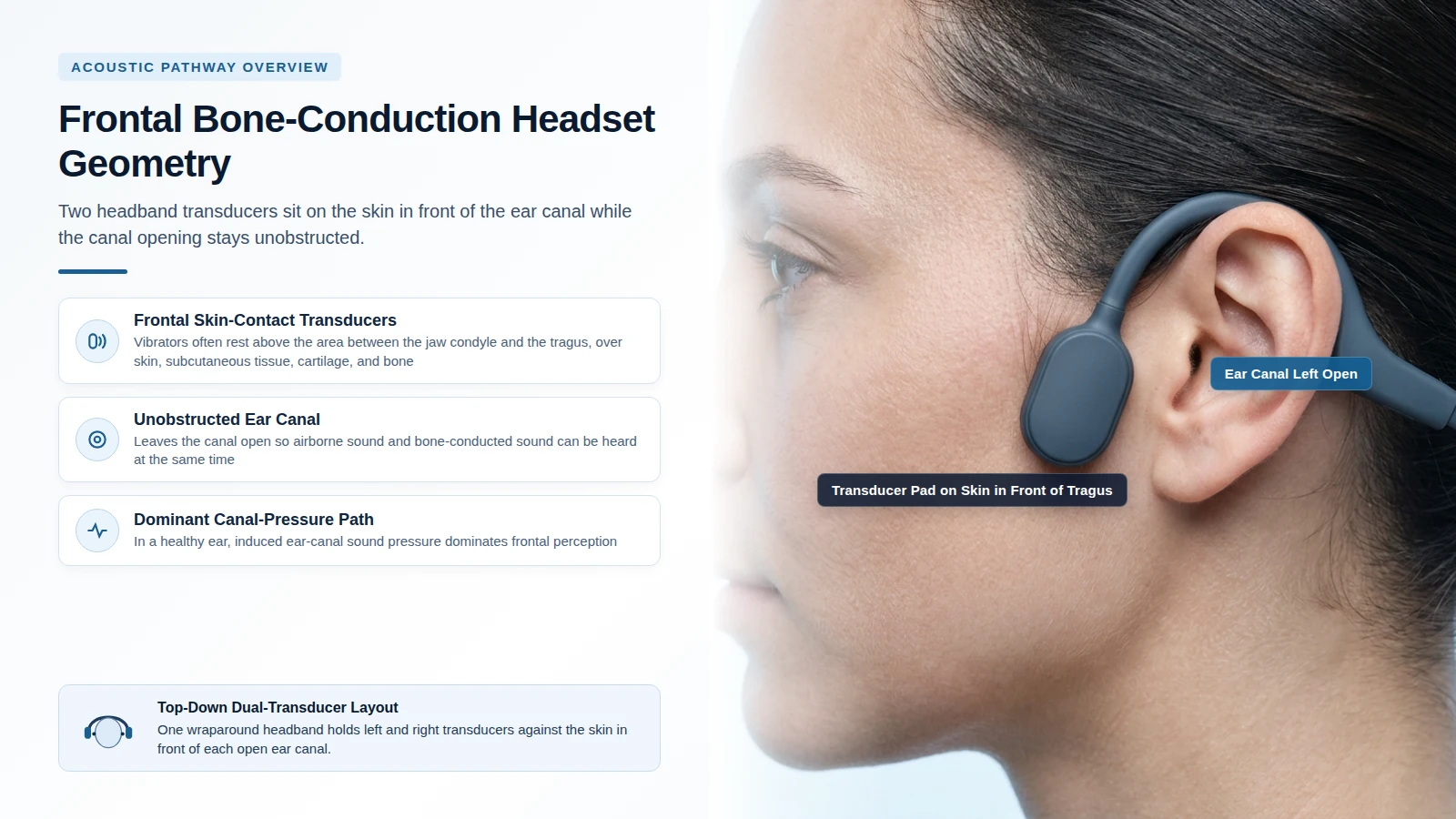
How Do Bone Conduction Headphones Work?
Bone conduction headphones vibrate skin and cartilage ahead of your open ear canal, letting headset audio and ambient sound reach the inner ear together.
Read article