
Wireless Android Auto Audio Stutter: A Fix Order
Separate music gaps from sound delay, check documented adapter controls, and compare dashcam or hotspot Wi-Fi changes with a reversible record.
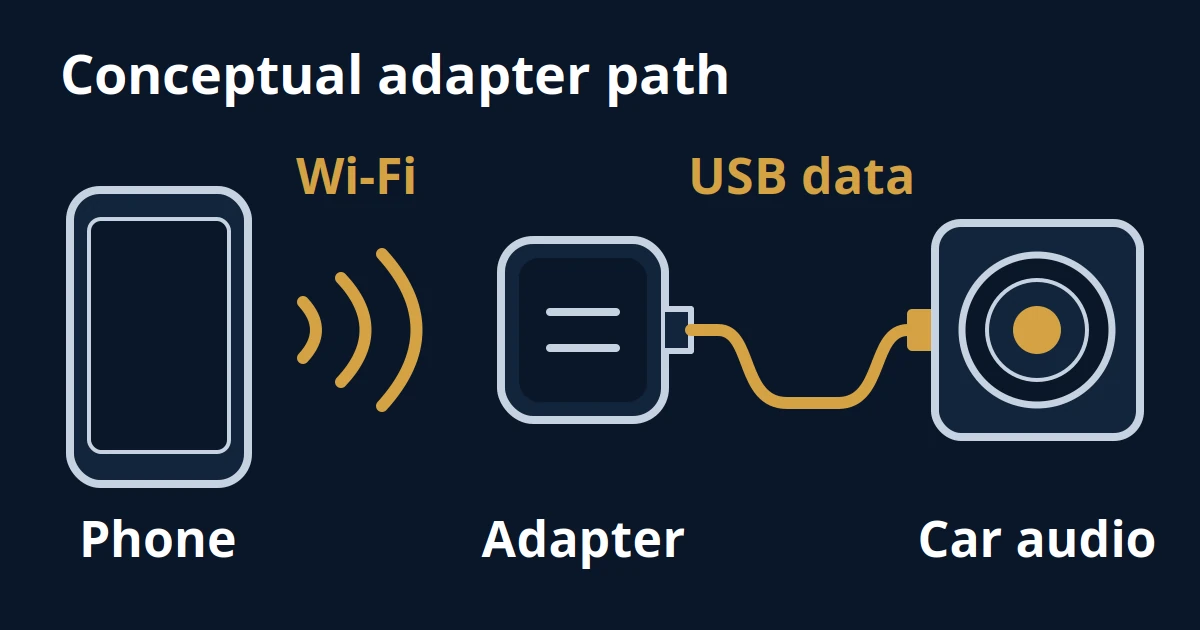
Editorial illustration of an adapter connection, not a product photograph or measured signal trace.
Changing several settings at once wastes troubleshooting time and can leave your music stutter unexplained. Compare the media source and a direct wired session first, then try a documented audio or Wi-Fi control on your exact adapter, recording each result.
This guide covers music that cuts in and out, or responds late, while wireless Android Auto is connected. It supplies an editorial check order and a record you can reuse; it does not diagnose packet loss from listening alone. Start with the wireless adapter connectivity guide if you have not established which connection you use.
Quick checks
- Describe gaps, delay after a control, and an ended projection session separately.
- Use existing playable offline media and a supported USB connection as comparisons.
- Try only settings documented for your product; keep the original value so you can reverse a change.
Perform settings changes and playback checks while safely parked. For an issue noticed during normal driving, record it after parking or ask a passenger to note it without distracting the driver.
Identify the sound fault
Choose a branch from what you observe, rather than naming a cause immediately. A pause in the song, a late response to Pause, and Android Auto disappearing from the display lead to different next checks.
Scroll horizontally to see all columns.
| Observation | Record this detail | Next useful comparison |
|---|---|---|
| Music has gaps but projection stays visible | Track, application, and whether other controls still respond | Same playable content with a different connection |
| Music is continuous but responds late | Which control you used and whether the delay repeats | Establish a response-delay baseline with the media and USB comparisons |
| Only one application or track fails | Exact application operation or error | Another playable track or supported media app |
| Android Auto ends or the adapter restarts | Car display message and adapter behavior | The broader connection troubleshooting path |
Google’s audio latency definition describes output latency as the interval between generating an audio sample and playing it. The time between tapping Pause and hearing silence includes more of the system, so describe it as an observed response delay rather than a measured audio-buffer duration.
For a vanished projection screen, follow the Android Auto disconnection checks. If projection remains visible, keep that fact in the report; it helps distinguish the music symptom from a full disconnect.
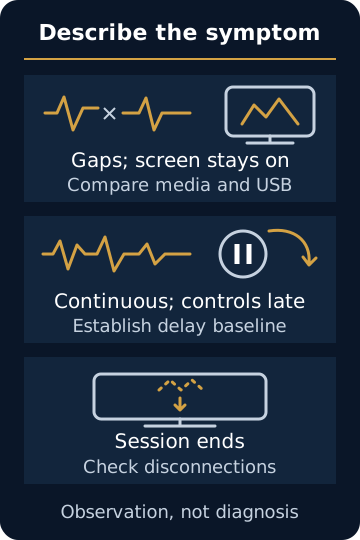
Takeaway: Give the symptom a precise name before choosing a setting to change.
Compare playable content and direct USB
Keep the same phone, car, track and application when comparing connection modes. First check whether the problem follows online playback, then compare wireless projection with the car’s supported direct USB arrangement.
If your application can play content already stored on the phone, verify that it actually plays without downloading more data. Keep the phone’s Wi-Fi and Bluetooth enabled for wireless projection. The aim is to remove the need to fetch the track, not to disable the connection under examination. Google’s media help provides the supported-app starting point.
For the online/offline comparison, use the same track and app where possible, retaining the playback-quality setting. If only different offline content is available, record that additional difference and treat the result as preliminary. Use the application’s own instructions for offline playback rather than assuming every app has the same control.
An editorial comparison record can look like this:
Scroll horizontally to see all columns.
| Comparison | If the symptom changes | What remains unresolved |
|---|---|---|
| Same track online versus an existing playable offline copy | Investigate the content source, app or data context next | Which particular component caused the interruption; note any additional content or quality difference |
| Wireless versus direct wired Android Auto | Investigate the difference between arrangements | Whether the adapter, radio conditions or another setting is responsible |
| Same content in another supported app | Investigate the application-specific pattern | Whether the first app has a defect |
| Repeated comparison shows no change | Return to the starting arrangement | The original fault is still unexplained |
For the wired comparison, remove the wireless adapter and use the documented vehicle data port. Consult the Android Auto cable checklist for a suitable connection, following Google’s official cable and receiver advice. Keep charging accessories and phone position consistent where practical. Our wired versus wireless guide explains why these are separate arrangements.
If the same interruption occurs without projection, record that too. It is a reason to investigate the media path before spending time on adapter settings. An unavailable comparison belongs in the record as “not tested,” not as an assumed pass.
Takeaway: A changed result narrows the next question; it does not certify the component that appears to work.
What buffering can change
A buffer holds audio data until it is used. An underrun occurs when playback needs data that is not available in time. Buffering can trade some responsiveness for greater tolerance of uneven delivery or processing, which is why reducing gaps and reducing delay are different goals.
Android’s AAudio documentation explains the general relationship between buffer size, underruns and latency. It also describes timing jitter in audio processing. That is background for the tradeoff, not evidence that a particular Android Auto adapter uses AAudio or exposes its internal buffer through the same controls.
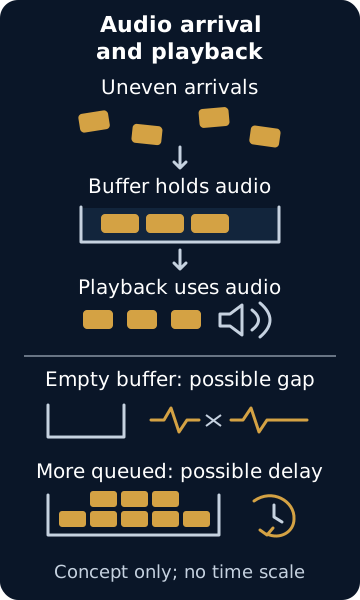
Use this distinction when assessing a change: did the gaps become less frequent, and did control response become less acceptable? Keep both answers. A result that improves one while worsening the other is a tradeoff to report, not a complete fix.
Sample rate, buffer capacity and a manufacturer’s named “stutter fix” mode are different things. The sources reviewed here do not provide a conversion from that mode to samples, frames or milliseconds. This guide therefore offers no universal buffer value and no hidden developer-setting recipe.
Common mistake: Calling every audible gap “packet loss.” Listening does not reveal whether data was lost, late, unavailable from the source, or delayed elsewhere in processing.
Takeaway: Evaluate gaps and response delay separately; a larger-buffer concept is not a universal adapter instruction.
Use only your adapter’s documented control
Check the product’s official instructions and the controls visible for your model and firmware. A setting documented by one adapter maker is not a menu that every wireless Android Auto user has.
AAWireless’s current troubleshooting answer directs users to Device Settings → Advanced Settings → Audio Stutter Fix in its companion app. It lists Low, High and Unlimited as modes to try. The same answer suggests trying Wi-Fi channel changes if the audio control does not help. These are manufacturer suggestions, not matched test results for your car.
Scroll horizontally to see all columns.
| Arrangement | What to check | If the control is missing |
|---|---|---|
| AAWireless with the documented menu available | Exact mode label and original selection | Ask support whether the instruction applies to your device |
| Motorola MA1 | Its product-specific guide and support route | The reviewed MA1 manual does not document this audio-control procedure |
| Another adapter or native wireless car system | That product’s own audio and connection instructions | Do not substitute a different brand’s menu or firmware |
The adapter controls comparison is useful for identifying the product’s documented maintenance route. It is not a reliability ranking.
The reviewed stutter-control instructions do not establish a remedy for delay alone. If continuous audio responds late, establish that response-delay baseline with the media and USB comparisons before considering any applicable setting; keep possible improvement in gaps separate from a change in delay.
For an applicable audio control, use this editorial sequence:
- Save the original selection and record the adapter, app and firmware versions.
- Change only that audio mode using the product’s instructions.
- Repeat the same playable content under comparable conditions. Note gaps and response delay separately.
- Return to the original mode to check whether the difference repeats. Keep a useful setting only after considering both observations.
Do not update firmware, change the Wi-Fi channel and alter the audio mode together. If there is no useful improvement, restore the baseline before moving to the next comparison. For a native wireless system, ask the vehicle maker for the equivalent supported path rather than searching for the AAWireless control.
Takeaway: A documented, reversible change is more useful than a borrowed setting whose meaning is unknown.
Check dashcam and hotspot Wi-Fi separately
Treat other in-car Wi-Fi functions as variables to compare, not as proven culprits. Identify whether the phone is connected to a dashcam network, using a vehicle hotspot, or only projecting Android Auto before altering anything.
Google’s wireless requirements include phone support for 5 GHz Wi-Fi. A dashcam advertised as 2.4 GHz does not, by that label alone, establish a same-channel conflict with a 5 GHz projection link. NETGEAR’s frequency explanation distinguishes the bands and describes shared radio space as a source of interference. Neither source measures your car or establishes the actual band being used by your adapter.
Start with the accessory compatibility record to identify the exact dashcam, hotspot and adapter. Then, while parked:
- Record the present network arrangement and keep the phone’s projection radios enabled.
- If the dashcam manual provides a suitable Wi-Fi action while preserving recording, use that documented option. Record exactly what it changes and confirm recording remains active.
- Repeat the same audio check. Restore the previous arrangement and compare again.
- Check a nonessential hotspot or its automatic connection separately, only if you understand how to restore it and which functions depend on it.
If you cannot separate camera recording from its Wi-Fi function, skip that comparison. Do not disconnect safety equipment or disable a vehicle service merely to complete the checklist.
Distinguish disconnecting the phone, disabling automatic association, and turning off the camera’s Wi-Fi radio. Record which action you took and whether the transmitter is known to be off according to the manual. A phone-only disconnection does not establish that radio emissions stopped; unchanged audio after that action does not rule out interference.
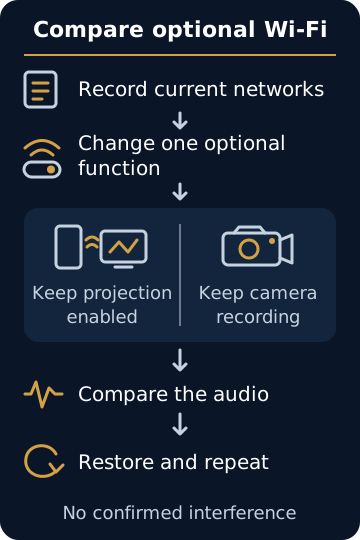
For adapters with an applicable channel control, AAWireless’s answer mentions channels 36 and 149. Those are channel identifiers, not buffer sizes. Use only choices offered for your product and region; there is no universal best channel established here. Keep the audio mode unchanged during that comparison.
Common mistake: Turning off the phone’s Wi-Fi to test a wireless projection fault. Change the optional connection or function under investigation, preserving the Android Auto setup described in Google’s wireless setup instructions.
Takeaway: Compare one optional wireless function at a time, keeping projection and essential vehicle functions intact.
Keep a reversible troubleshooting record
Use observations that another person could repeat. A support report saying “music gaps persisted with offline content, but not with direct USB” gives a clearer starting point than “the adapter loses packets.”
Scroll horizontally to see all columns.
| Record field | What to enter |
|---|---|
| Equipment and software | Phone, Android version, vehicle/head unit, adapter model, firmware and app versions |
| Symptom | Gaps, delayed controls, app error or ended session; what remained responsive |
| Playback comparison | App, track, online/offline status, wireless/wired arrangement |
| Starting setting | Exact mode, channel or optional network function before the change |
| Single change | Exact new selection; record other conditions that differed |
| Observation period | Actual duration and parked location; write “not tested” where appropriate |
| Result and rollback | Gaps and response delay separately; result after restoring the baseline |
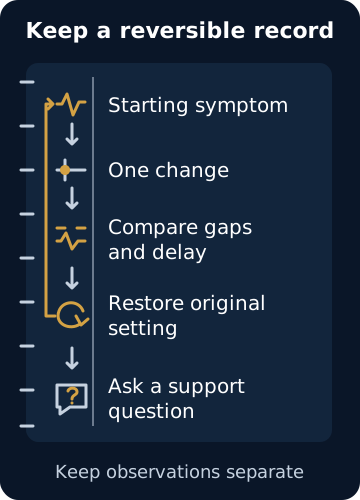
Send the record through the affected product’s official support route. Keep private identifiers and notifications out of public screenshots. If support requests diagnostic logs, follow its product-specific instructions; do not infer packet counts from an audio recording.
Before buying a replacement, use the device compatibility guide to confirm the proposed arrangement. Replacing an adapter without a defined comparison can simply replace one unexplained setup with another.
Takeaway: Finish with a reproducible observation and a specific support question, keeping suspected causes separate.
When this does not apply
This sequence assumes Android Auto already launches. If pairing never completes or the car lacks the relevant supported connection, establish compatibility first through the device guides. The audio-control steps also require an exact product with the documented feature available.
This is not a CarPlay, Android AI-box, Bluetooth-only music, speaker-repair or video synchronization guide. It does not supply vehicle firmware files, resets or regional radio overrides. A fault that also affects the car’s own audio sources belongs in a vehicle-specific support request.
Stop the comparison if it interferes with recording or other essential functions, the correct restoration procedure is unclear, or the equipment needs service. A brief parked improvement is an initial observation; assess later normal use without operating settings while driving.
Takeaway: Use the sequence for an established wireless Android Auto session, within the documented controls of the actual equipment.
FAQ
Why is my audio choppy when using wireless Android Auto?
Check whether the same track is choppy without projection or when connected by USB. If only wireless differs, report that difference alongside the adapter and firmware. If you cannot reproduce it while parked, retain the actual occurrence conditions rather than claiming the fault is fixed.
Why is Android Auto stuttering?
Specify whether “stuttering” means music gaps or a slow display. If both change together, include both observations and what operation was occurring. An audio-mode adjustment is not evidence that the display has been repaired.
How can I fix Bluetooth audio stuttering on my Android device?
First identify whether you mean Bluetooth-only playback or wireless Android Auto. They are different troubleshooting tasks. Do not assume changing a Bluetooth codec will alter the adapter’s projection audio; use the product’s documented path for the connection you actually have.
How to fix Android Auto audio quality?
Distinguish intermittent gaps from continuous distortion or an unwanted tonal balance. Check the same content through the car’s own supported audio source before attributing it to a wireless setting. The comparisons here address continuity and response, not fidelity measurements or equalizer optimization.
Why is my Android Auto so glitchy?
Name the affected operation and record whether the symptom started after a specific software or equipment change. Follow official version and update guidance for that product. An update preceding the issue is useful context, but does not establish causation or guarantee that another update will resolve it.
Is wired or wireless Android Auto better for sound quality?
No matched fidelity comparison is provided here. A stable wired result can help isolate your wireless symptom, but continuity in one arrangement does not prove a universal sound-quality winner. Make the decision using your supported equipment and repeatable observations.
Takeaway: Ask about the specific failing operation, not an assumed transport or universal sound-quality ranking.
Method and sources
This documentation-led guide combines the official help linked at the relevant claims with editorial comparison suggestions. No adapter, vehicle or radio environment was tested for this article. Illustrations explain concepts and proposed checks; they are not packet captures or equipment photographs. See our research methodology for the distinction between source research and testing.
Sources checked October 8, 2026: AAWireless troubleshooting; Google’s Android Auto requirements, setup, troubleshooting and media help; Android Developers’ audio latency and AAudio guides; the Motorola MA1 user guide; and NETGEAR’s frequency explanation. Manufacturer help establishes its published instructions, not measured results in another product. Unpublished mode durations and sample counts are deliberately omitted.
Revision: added an audio-specific symptom matrix, documented control boundaries, conceptual timing illustration, optional Wi-Fi comparisons and a reversible observation record.
Takeaway: The sources support instructions and concepts; a product-specific diagnosis still needs observations from the actual setup.
Related reading
- Wireless Android Auto adapter guide — identify the adapter connection and its prerequisites.
- Android Auto keeps disconnecting — follow the broader path when projection itself ends.
- Android Auto cable checklist — prepare a suitable direct USB comparison.
Takeaway: Use the guide matching the observed failure before changing equipment.
Related articles
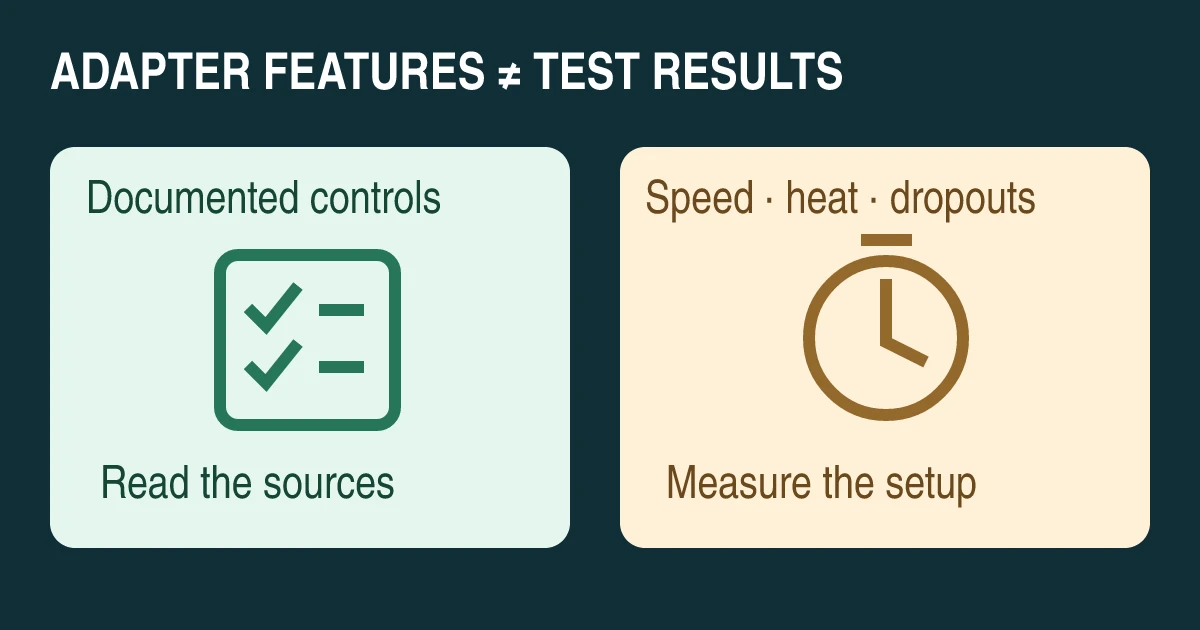
AAWireless TWO vs MA1 vs CarlinKit 5.0: Features
Compare documented Android Auto compatibility, app controls and update paths, with a repeatable method for checking connection speed, heat and dropouts.
Read articleWireless Android Auto Adapters and In-Car Connectivity Guide
Cut the cord in your car. How plug-and-play wireless Android Auto dongles connect over Bluetooth and 5GHz Wi-Fi, resolve latency, and maintain stable projection.
Read article
Android Auto Keeps Disconnecting: A Fix Order That Saves Time
Separate USB, wireless and app failures, test one change at a time, and prepare a useful support record before resetting Android Auto or buying replacements.
Read article