
Android Auto GPS Wrong Location: Phone and Projection Checks
Diagnose an Android Auto Google Maps location issue by separating wrong blue-dot position, spinning compass beams, and unloaded routes while parked.
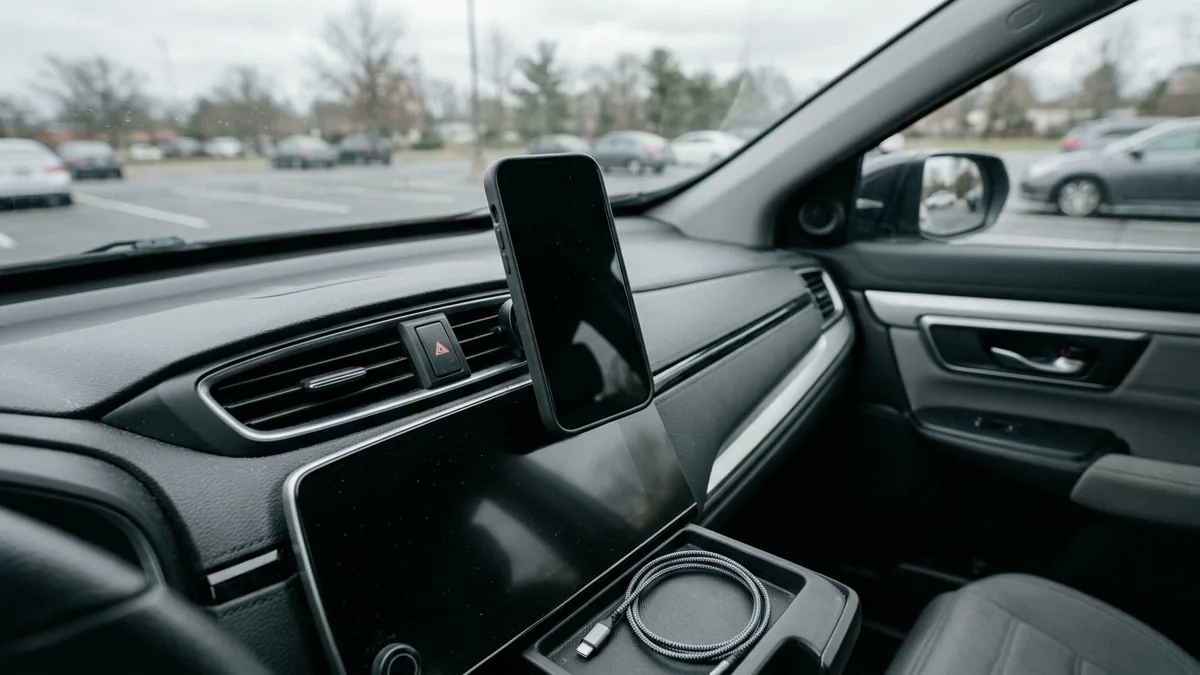
When Google Maps on Android Auto places your vehicle on the wrong street, lags several blocks behind an intersection, spins the directional arrow at a stoplight, or drops an active route seconds after departure, changing random phone permissions or adapter settings mid-trip rarely isolates the cause. Drivers often describe all of these behaviors as an Android Auto Google Maps location issue, yet they come from different layers of the navigation stack: satellite and network location estimation on the phone, compass heading calibration, competing navigation apps, or how a specific head unit or wireless adapter handles location data during projection.
Perform every check below while the vehicle is safely parked in an open outdoor area—never while driving. Start by identifying which visual symptom actually appears on the car screen, then compare Google Maps on the unplugged phone alone against direct wired USB and wireless projection before altering permissions, relocating mounts, or contacting receiver or adapter support. If you want a printable log before sitting in the car, download the blank Android Auto GPS and location check sheet (TSV).
Separate Five Symptoms That Get Lumped Together as “Android Auto GPS Loss”
A drifting coordinate fix, an uncalibrated magnetometer, and a canceled turn-by-turn route look similar at a glance on a dashboard display, but each points to a different check. Google’s official Google Maps Android location accuracy guide defines how the app displays position confidence:
- Blue dot: Marks where Google Maps estimates you are on the map.
- Light blue circle around the blue dot: Shows location uncertainty. You could be anywhere inside that light blue circle; the smaller the circle, the more certain Maps is about your position.
- Gray or missing blue dot: Indicates that Google Maps cannot determine your current location and is instead showing the last location visited.
Google Maps estimates that position from three signal sources: GPS satellites (which know your current location up to around 20 meters, though accuracy drops inside buildings, underground, or inside parking garages and between tall buildings), nearby Wi-Fi networks, and cell towers (where a mobile data connection is accurate up to a few thousand meters). When high-precision satellite or Wi-Fi fixes are blocked or restricted by phone settings, the map falls back to coarser estimates and the light blue circle widens.
At the same time, user reports in the r/AndroidAuto Maps issues discussion show that two non-GPS behaviors are routinely misdiagnosed as satellite drift: a route that unloads 10 to 15 seconds after starting while the map continues to track the car, and a map that tracks position accurately while spoken voice guidance stays silent. Use the classifier below while parked to separate these cases before changing settings.
Scroll horizontally to see all columns.
| Symptom on car or phone display | What the blue dot, circle, or route actually does | Primary layer involved | First parked check |
|---|---|---|---|
Wrong or jumping blue dot (android auto gps drifting wrong location) |
Blue dot sits on an adjacent street, jumps across blocks, or is surrounded by a wide light-blue uncertainty circle. | Satellite/Wi-Fi sightline, Android Battery saver mode, Approximate location (~3 sq km), or head-unit/adapter location handoff. |
Turn off Battery saver mode, confirm Use precise location is on for Maps, and run the 4-mode parked comparison below. |
Gray or missing blue dot, or red ? location button |
Blue dot disappears or turns gray at the last visited spot; or the location button shows a red circle with a question mark (?). |
Android master Location services turned off, Airplane mode active, or complete sky/network obstruction inside an underground garage. | Turn on Use location in Android Settings, confirm Airplane mode is off, and move to an open outdoor parking lot. |
Spinning arrow or misoriented heading cone (google maps arrow spinning in car) |
Blue dot stays near the vehicle’s actual street position, but the directional beam is wide or points the wrong way when stopped. | Phone compass (magnetometer) calibration or magnetic interference from a mount or nearby metal trim. | Perform a figure-8 compass calibration or outdoor Lens calibration, and test the phone off any magnetic mount. |
| Route unloads or cancels while tracking continues | Active turn-by-turn route disappears (for example, 10–15 seconds after departure), but the blue dot keeps moving accurately along the road. | Navigation focus conflict—often triggered when a second app (such as Waze or built-in vehicle navigation) starts or resumes a route. | Close competing navigation apps on both the phone and the vehicle’s native infotainment system. |
| Silent voice guidance or full display freeze | Either the blue dot follows the route normally with no spoken prompts, or the entire Android Auto interface freezes and drops back to the car menu. | Audio guidance mute/channel routing, or a physical USB/wireless projection disconnect rather than a GPS fix error. | Check Google Maps guidance mute state on the car screen; for full screen freezes or dropouts, follow our Android Auto keeps disconnecting diagnostic guide. |
Car GPS Antenna vs. Phone GPS on Android Auto: What Is Documented and What Remains Unknown
Drivers troubleshooting car gps antenna vs phone gps android auto or searching how to disable car gps pass-through wireless adapter often run into two contradictory claims online. Some aftermarket blogs state flatly that Android Auto uses only the smartphone’s internal GPS receiver and never reads vehicle sensors. Other forum threads claim that every car head unit overrides the phone with a faulty roof antenna—or that every wireless dongle includes a universal hidden switch to block vehicle GPS pass-through.
Neither blanket statement holds across all hardware:
- What Android’s platform architecture defines: In the official Android for Cars developer documentation,
CarHardwareLocation(androidx.car.app.hardware.info.CarHardwareLocation) provides an interface (getLocation()) for reading current vehicle location from car hardware sensors when the host system supplies it. Meanwhile, on the handset side, Google’s Android Location Accuracy documentation explains that Google Location Services combines GPS, Wi-Fi access points, cellular network towers, and phone sensors (accelerometer, barometer, gyroscope) when available. - What consumer documentation leaves unspecified (
Unknown / verify on the unit): Google’s public consumer support pages do not publish a compatibility table stating which OEM vehicle trims, aftermarket receivers, or third-party wireless Android Auto adapters send vehicle GNSS coordinates to Google Maps, how a given head unit arbitrates between car sensors and phone sensors, or whether a specific wireless adapter firmware exposes a GPS pass-through toggle. Likewise, owning a smartphone with dual-frequency GNSS hardware does not guarantee immunity to wrong-street placement if the phone is buried in a shielded console cubby, restricted to approximate location permissions, or receiving coarse coordinates over a projection session.
Because receiver and adapter location-source behavior is Unknown / verify on the unit unless documented in your vehicle or adapter manual, do not guess which antenna is active. Instead, isolate the variables directly in the car by comparing how Google Maps behaves with the phone completely disconnected versus wired and wireless projection.
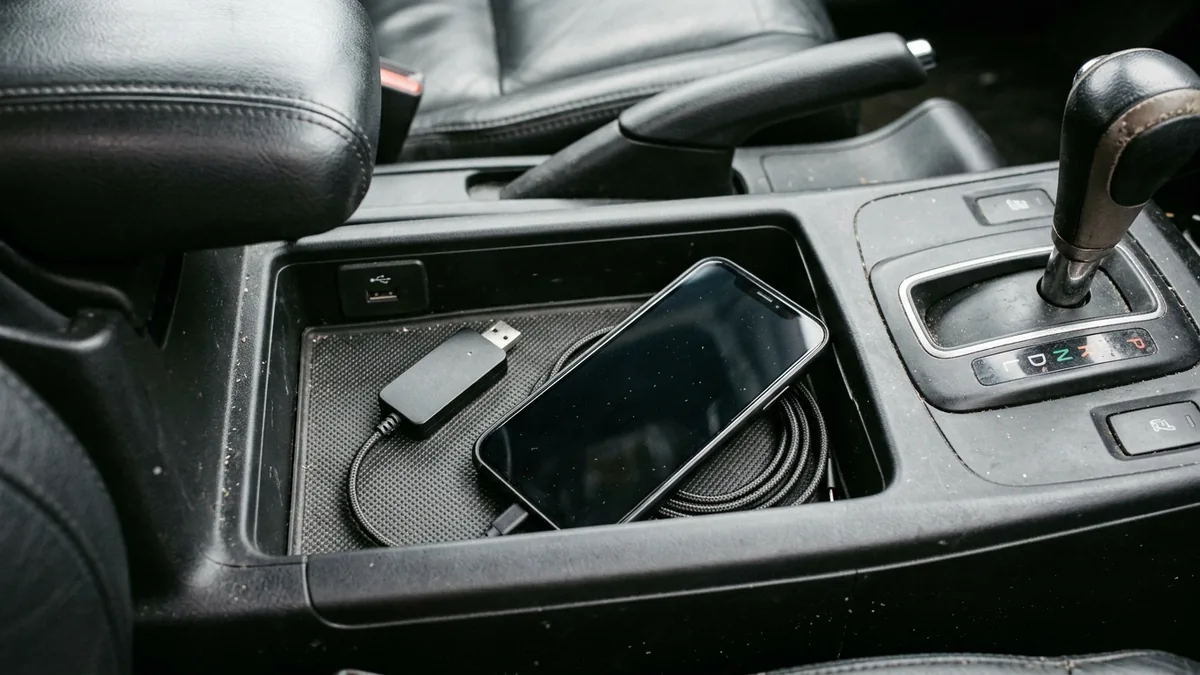
Parked Four-Mode Comparison: Phone-Only vs. Wired vs. Wireless Projection
Park the vehicle outdoors with an unobstructed view of the sky—away from underground garages, covered parking decks, or dense high-rise canyons where Google Maps Help notes satellite and cell-tower sightlines can be blocked. Keep the car stationary in Park and observe the blue dot, the width of the light blue uncertainty circle, and the compass beam across four distinct states.
Scroll horizontally to see all columns.
| Test mode (parked outdoors) | Connection state | Phone placement | What to record on the check sheet | What a change between modes tells you |
|---|---|---|---|---|
| Mode 1: Phone-only baseline | USB cable unplugged; wireless Android Auto disconnected (turn off Bluetooth/Wi-Fi link to car or unplug adapter). | Upper dashboard or windshield mount with a clear view of the sky. | Does the blue dot lock within ~20 meters with a tight light-blue circle, or does it still jump and show a wide circle? | If Mode 1 is already wrong or jumping, the car head unit and wireless adapter are not the cause. Focus on phone permissions, Battery saver mode, or sky obstructions. |
| Mode 2: Phone-only in normal driving spot | Still unplugged and disconnected from the car. | Inside the closed console cubby, lower pocket, bag, or wireless charging pad where you normally keep the phone. | Does moving the phone from the upper dash into the cubby cause the light-blue uncertainty circle to expand or the blue dot to drift? | If Mode 1 is accurate on the dash but Mode 2 drifts inside the cubby or pocket, cabin metal/trim is attenuating satellite signals before Android Auto even starts. |
| Mode 3: Direct wired USB projection | Wireless adapter completely unplugged; phone connected directly to the vehicle’s USB data port with a known-good cable. | Upper dashboard (same clear sky view as Mode 1). | Compare the car display’s Google Maps position against Mode 1. Does the blue dot shift onto another street only after USB projection starts? | If Mode 1 is tight on the dash but Mode 3 jumps immediately upon connecting USB, the head unit’s projection session (or a vehicle sensor feed) is affecting location. |
| Mode 4: Wireless projection (native or adapter) | Phone connected wirelessly to the receiver or through your wireless USB adapter. | First on the upper dashboard, then in your normal driving spot. | Compare Mode 4 against Mode 3. Does the position drift or lag only when the wireless adapter is inline or when Wi-Fi connects to the dongle? | If Mode 3 (direct wired) tracks accurately on the dash but Mode 4 (wireless adapter) drifts in the same spot, inspect the adapter’s companion app/firmware or how the phone handles Wi-Fi data while linked to the adapter. |
For a broader look at how cabled and cordless sessions handle power, Wi-Fi, and head-unit handshakes across accessories in our Android accessories hub, see our comparison of wired vs. wireless Android Auto and our wireless Android Auto adapters and connectivity guide.
How to Interpret What You Observe
- Drifts in Mode 1 (unplugged on the open dashboard): The issue resides on the phone itself or the surrounding environment. Proceed immediately to the Android permission, Precise location, Location Accuracy, and Battery saver checks in the next section.
- Accurate in Mode 1 (open dashboard), but drifts in Mode 2 (console cubby or pocket): Your phone is losing direct satellite reception inside the lower cabin and falling back to coarser Wi-Fi or cell-tower estimates (which Google notes can span up to a few thousand meters). Keep the phone in a mount with a clearer windshield sightline during navigation.
- Accurate in Mode 1 & Mode 2 (unplugged), but jumps in Mode 3 (direct wired USB): Because the phone holds a clean fix until the head unit session begins, check the vehicle owner’s manual or dealer service bulletins for head-unit software updates or native navigation antenna faults. Do not assume a third-party wireless adapter will solve a fault that already appears on direct wired USB.
- Accurate in Mode 3 (direct wired USB), but drifts or stalls only in Mode 4 (wireless adapter): First confirm that the phone still has working mobile data while connected to the adapter’s local Wi-Fi link. Next, check the adapter manufacturer’s official companion app or support documentation to see whether your specific hardware revision and firmware document a location or GPS pass-through setting (
Unknown / verify on the unit). Only change an adapter setting if the vendor’s documentation for your exact model describes it, and re-test Mode 4 while parked so you can reverse the change if it does not help.
Android Location Permissions, Precise Location, and Google Maps Accuracy Checks
When the parked comparison points to the smartphone (or when position updates stall whenever the phone screen turns off during projection), verify the exact Android settings documented in Google’s Android app location permissions help (steps below apply to Android 11 and up) and Google Maps accuracy help.
1. Confirm Use precise location Is Turned On for Google Maps
On Android 11 and up, open Settings → Location → App location permissions, select Maps (or touch and hold the Google Maps app icon and tap App info → Permissions → Location), and check the Use precise location switch:
- When
Use precise locationis OFF (Approximate location): Google’s permission documentation states that the app can only tell that your phone is in an area about 3 square kilometers. On a car display, a 3-square-kilometer uncertainty zone makes the blue dot sit several blocks away or jump erratically between major roads. - When
Use precise locationis ON (Precise location): The app receives the exact location fix available from your phone’s sensors.
If your head unit or workflow also launches Android Auto companion services, check the Android Auto app entry under App location permissions as well and verify whether Use precise location is enabled.
2. Understand Allow only while using the app vs. Allow all the time
In the same Location permission screen for Google Maps, Android lists four access levels:
- Allow all the time: The app can use your location at any time, even when the app isn’t open on the phone screen.
- Allow only while using the app: The app can use your location only while you are actively using the app.
- Ask every time (or allow when you share): The app must ask each time you open it.
- Don’t allow: The app cannot access location at all.
Why do many troubleshooting guides mention Allow all the time? As Autoevolution reported in March 2023, a February 2023 regression around Google Maps v11.66 caused some Android Auto sessions to lose GPS updates when the phone screen locked unless Maps was set to Allow all the time. If your parked or driveway check shows that Google Maps tracks accurately while the phone screen is unlocked on the dashboard but freezes as soon as the phone screen turns off, switching Google Maps from Allow only while using the app to Allow all the time is a straightforward check to test and record.
However, do not treat Allow all the time as a universal cure. As documented in the r/AndroidAuto Maps issues thread, drivers with Allow all the time and Use precise location already enabled still experience unloaded routes when a second navigation app interferes, or wide uncertainty circles when the phone is shielded from satellite signals.
3. Enable Android Location Accuracy and Wi-Fi Scanning
Open Settings → Location → Location services (menu labels vary slightly by phone manufacturer) and inspect Location Accuracy (also called Google Location Services) and Wi-Fi scanning:
- According to Google’s Location Accuracy service guide, Location Accuracy combines wireless signals (GPS, Wi-Fi access points, cellular network towers) with device sensors (accelerometer, barometer, gyroscope) when available to estimate position faster and more accurately—especially where tall buildings or covered structures partially block GPS satellites.
- When Location Accuracy is turned off, your phone relies only on GPS and device sensors, which can lengthen the time required to acquire or recover a location fix in urban streets or covered parking areas.
4. Turn Off Battery Saver Mode and Verify Mobile Data / Wi-Fi State
Google Maps Help specifically connects three system states to inaccurate or jumping map positions:
- Battery saver mode: Listed directly under “Location jumps around on the map — Turn off Battery saver mode.” Power-saving modes can throttle background GNSS polling and sensor updates while the phone screen is off in the console.
- Airplane mode and Mobile data / Wi-Fi: Listed under “Location is out of date” and “Location accuracy is low.” Confirm that Airplane mode is off and that Mobile data and Wi-Fi (
Settings → Network & internet → Internet → Wi-Fi) are turned on so the phone can use assisted network signals alongside GPS. - Thermal throttling during long drives: Wireless Android Auto combined with simultaneous fast charging or an enclosed console tray can push phone temperatures high enough to throttle system performance. If location lag only begins 20 to 30 minutes into a warm drive, review our guide on preventing smartphone overheating during car navigation.
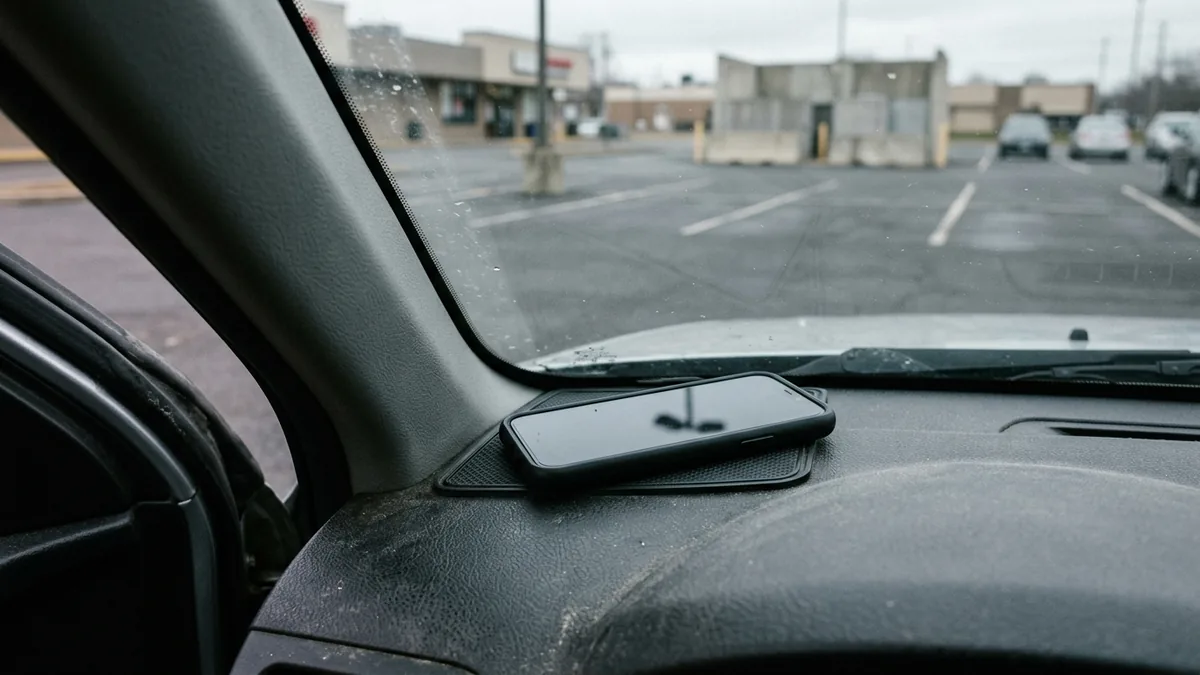
Compass Calibration, Competing Apps, and Support Handoff Records
If your parked check shows that the blue dot sits on the right street with a small uncertainty circle, yet the directional cone is wide or points sideways (google maps arrow spinning in car), satellite reception is already working. The problem is compass heading orientation:
- Calibrate the compass with a figure-8 motion: In Google Maps on your phone, if the blue dot’s beam is wide or points in the wrong direction, move and tilt your phone in a figure 8 a few times until the beam narrows and points in the right direction.
- Calibrate outdoors with Lens in Maps (where Street View is available): While standing outside on foot (never while operating a vehicle), tap the blue dot on the phone screen and select Calibrate. Point the camera at buildings and signs across the street rather than trees or people so Lens can align your heading against Street View imagery.
- Check for magnetic mount interference: Place the phone on a non-magnetic surface on the upper dashboard and observe the blue dot’s beam. If the beam stays narrow on the dashboard mat but spins or widens the moment you attach the phone to a magnetic vent or dash mount, the magnet is disturbing the phone’s internal magnetometer.
Similarly, if your route cancels or unloads shortly after you start driving while the map continues to track your street position, check whether a second navigation app—such as Waze on the phone or the vehicle’s built-in factory navigation—is running an active route at the same time. Only one navigation route can hold active turn-by-turn focus on the projection interface; starting a second route can silently unload the first. Avoid toggling experimental settings inside Android Auto’s developer menu in an attempt to fix GPS drift—those options are for app development and diagnostics, and if you previously modified them, you can review our guide on enabling and resetting Developer Options in the Android Auto app to restore stock behavior.
What to Record Before Contacting Dealer, Receiver, or Adapter Support
If your parked four-mode comparison proves that location jumps only when connected to a specific vehicle head unit (Mode 3) or only when a specific wireless adapter is inline (Mode 4), capture the exact observations in the downloadable Android Auto GPS location check sheet (TSV) before opening a support ticket:
- Smartphone details: Exact phone model, regional variant, Android version, Google Maps version, and Android Auto version.
- Confirmed phone settings: Verified state of Use location, Google Maps location permission (Allow all the time vs Allow only while using the app), Use precise location (
ON), Location Accuracy / Google Location Services (ON), and Battery saver mode (OFF). - Vehicle or aftermarket receiver details: Vehicle year, make, model, trim, and head-unit software/firmware version.
- Wireless adapter details (if used): Adapter brand, model, firmware version, companion app version, and whether the vendor’s manual documents any GPS pass-through setting (
Unknown / verify on the unit). - Four-mode parked comparison results: Side-by-side notes showing how the blue dot and light-blue uncertainty circle behaved in Mode 1 (phone-only on dash), Mode 2 (phone-only in cubby/pocket), Mode 3 (direct wired USB), and Mode 4 (wireless projection) in the same open outdoor parking lot.
Related articles
Mobile Gaming Controller: USB-C vs Bluetooth for Android
Compare USB-C and Bluetooth Android controllers by input path, game support and cooler clearance, with clear limits on latency and Hall-effect claims.
Read article
Wireless Android Auto: 2.4 vs 5 GHz and Wi-Fi Channels
Wireless Android Auto needs 5 GHz Wi-Fi on the phone. Compare the US DFS lists with the TWO and TWO+ bands, then test channels 36 and 149 only if that app shows them.
Read article
Wireless Android Auto Audio Stutter: A Fix Order
Name the gap or the late control, compare the same media on direct USB, then change one printed adapter control and leave the packet-loss cell blank.
Read article