
Wireless Android Auto: 2.4 vs 5 GHz and Wi-Fi Channels
Understand the 5 GHz requirement, compare supported channels 36 and 149, and check US DFS and regional limits before changing a wireless car link.
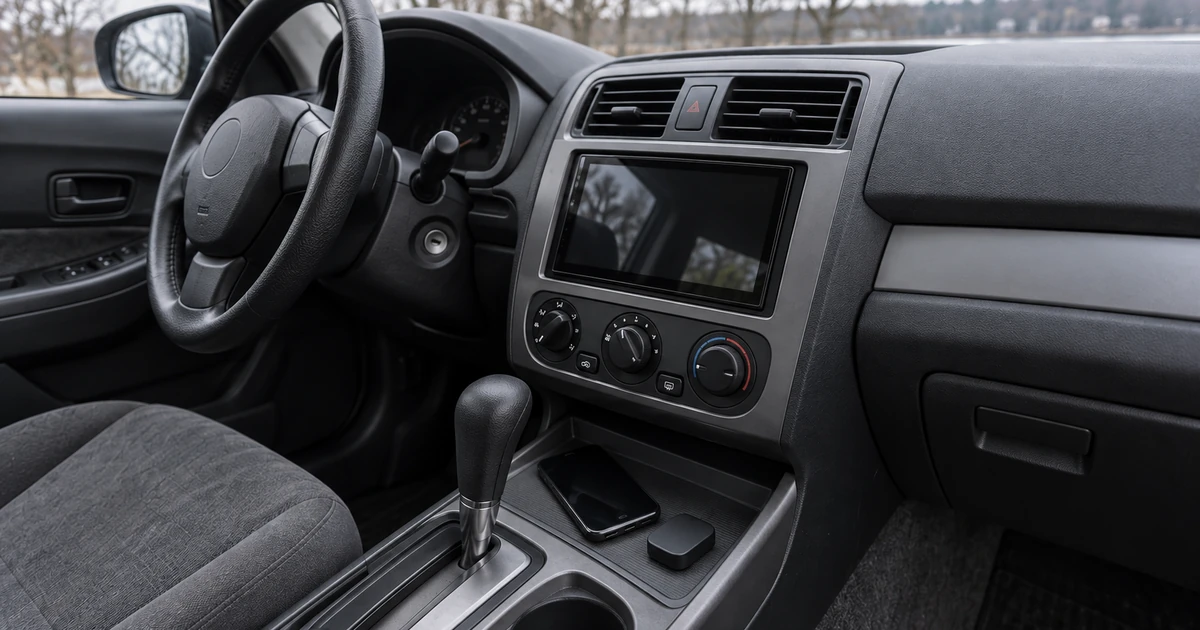
Example of a parked wireless-link check; no particular adapter, receiver or tested installation is depicted.
Changing an unsupported Wi-Fi setting can cost you a working wireless Android Auto connection. Google requires a compatible phone with 5 GHz Wi-Fi support; compare channels such as 36 and 149 only through controls documented for your actual equipment and region. This guide helps you identify those controls and record a reversible comparison.
To adjust a wireless Android Auto Wi-Fi link, first check the adapter or head unit’s published instructions: the reviewed Google help does not provide a universal “force 5 GHz” switch. Google’s wireless requirements establish phone capability, while AAWireless support offers a product-specific channel comparison. Neither makes one channel the best choice for every car. The US channel map below explains where DFS can matter; your next action is to verify an offered setting, save the original selection, and compare one change.
Quick Specs — requirements and decisions, not measured car performance
Scroll horizontally to see all columns.
| Input or item | Typical value or source | Why it matters |
|---|---|---|
| Wireless phone capability | 5 GHz Wi-Fi support in Google’s requirements, checked October 10, 2026 | Capability comes before channel tuning |
| Connection arrangement | Native wireless system or a USB wireless adapter | Determines whose settings apply |
| Low-band US examples | Channels 36, 40, 44, 48 | A possible supported comparison group |
| High-band US examples | Channels 149, 153, 157, 161, 165 | Availability depends on equipment and region |
| DFS operation | US frequency conditions in 47 CFR §15.407(h)(2) | Radar detection can require vacating a channel |
| Adjustable control | Actual maker’s app/manual; AAWireless example below | A borrowed menu may affect a different link |
Channel examples use the public Cisco documentation and FCC text linked in the US map below, checked October 10, 2026. Start with the wireless Android Auto adapter connectivity guide to identify your arrangement before changing it. Perform settings changes and comparisons while safely parked.
What does the 5 GHz requirement mean?
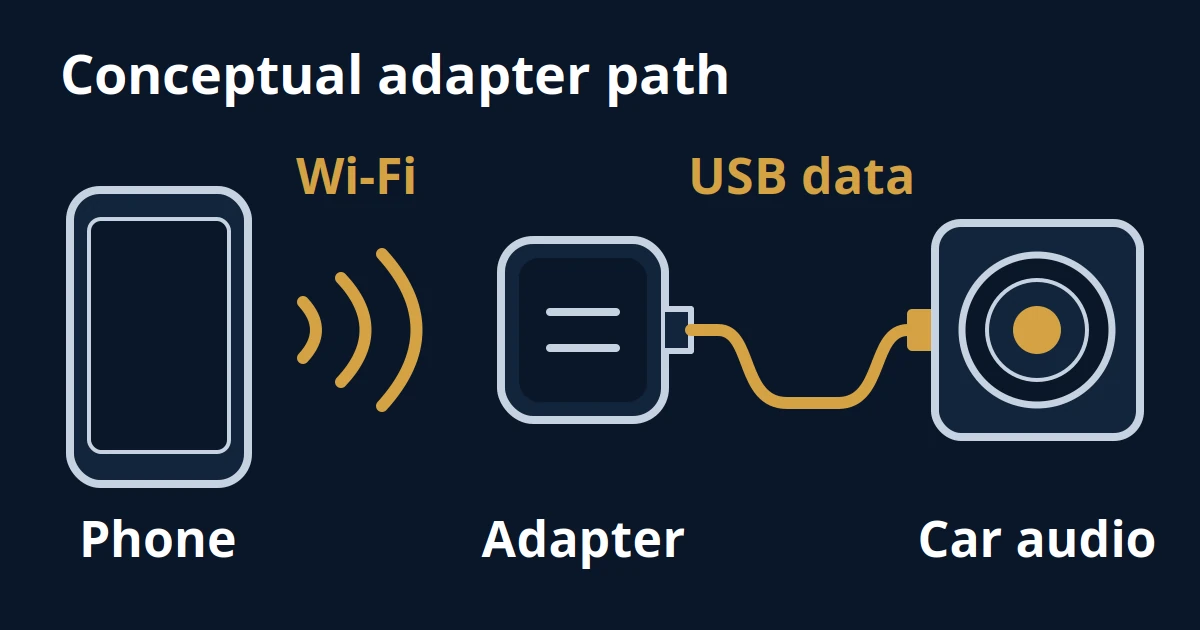
The requirement concerns a compatible phone’s Wi-Fi support, alongside a compatible wireless car system. It does not identify the active channel or tell you where to change it. Separate phone capability, the connection currently in use, and the controls exposed by the car or adapter before looking for a setting.
Those are three different questions:
- Capability: Does this exact phone support the required Wi-Fi operation in its market?
- Connection: Are you using native wireless Android Auto, or an adapter attached to a wired Android Auto port?
- Control: Does that product document a band or channel choice for your app and firmware?
Use the Android device compatibility checklist to record the exact phone, vehicle or receiver, adapter and software versions. If the connection arrangement remains unclear, the Android device guides point to the relevant setup paths.
A phone hotspot’s band is a setting for that hotspot. Changing it does not, by itself, establish that you have changed the projection connection. Similarly, a “5G” cellular indicator does not identify a 5 GHz Wi-Fi channel. Record the menu’s exact label and the feature it controls.
Google’s wireless setup instructions begin with Bluetooth pairing and say to keep Wi-Fi, Bluetooth and Location Services enabled during setup. Preserve that setup rather than turning the phone’s Wi-Fi off to investigate a wireless link.
Common mistake: Using a hotspot-band tutorial as an Android Auto channel-control instruction. First establish which network the menu changes.
Takeaway: Find the actual projection system and its supported controls before attempting to force a band.
How do 2.4 GHz and 5 GHz differ in a car?
The general tradeoff is coverage versus data-rate and channel capacity, but it does not predict which setting will work best in your car. Intel’s frequency explanation describes those broad differences. An adapter’s supported hardware bands and the manufacturer’s supported projection settings still need to be checked separately for the exact product.
Scroll horizontally to see all columns.
| Band | General background | Useful conclusion for this task |
|---|---|---|
| 2.4 GHz | Generally greater reach, lower data rates and shared radio space | Do not infer a supported Android Auto fallback from a home-router recommendation |
| 5 GHz | More channel capacity, with coverage and congestion still relevant | Satisfy the wireless requirements and examine supported channel choices |
These are qualitative statements from Intel’s Wi-Fi band explanation, checked October 10, 2026. They are not measured throughput, latency or stability results for a phone inside a vehicle.
The AAWireless TWO/TWO+ manual, English technical specifications, lists dual-band Wi-Fi. A hardware specification does not establish a current band-toggle menu or authorize the same procedure on a native wireless receiver.
Keep the connection method fixed when evaluating a channel change. The wired versus wireless Android Auto guide helps you plan a separate connection-method comparison; changing method and channel together makes the result harder to interpret.
Takeaway: Treat band descriptions as context; use product documentation and observations to make the car-specific decision.
Which US channels are DFS?
Common US low-band and high-band channel examples sit outside the two frequency ranges named in the FCC’s DFS requirement. The intervening DFS channel groups are separate, rather than one continuous list. Device authorization, region and occupied signal bandwidth still determine what the equipment can use; this table is a reference map.
Scroll horizontally to see all columns.
| US channel family | Channel examples | DFS context for this reference |
|---|---|---|
| U-NII-1 | 36, 40, 44, 48 | Ordinary low-band non-DFS examples |
| U-NII-2A | 52, 56, 60, 64 | DFS frequency group |
| U-NII-2C / extended group | Supported channels 100–144 in steps of four | Separate DFS frequency group; support varies |
| U-NII-3 | 149, 153, 157, 161, 165 | Ordinary US high-band non-DFS examples |
The grouping combines Cisco’s US band overview, its DFS channel identification and channel documentation, and 47 CFR §15.407, especially paragraphs (a) and (h)(2). Sources checked October 10, 2026; archived eCFR text has a latest-issued date of October 7, 2026.
Under that US rule, DFS applies if any part of the 26 dB emission bandwidth falls within 5.25–5.35 GHz or 5.47–5.725 GHz. That is a rule about occupied bandwidth, not merely the displayed primary-channel number. A channel number and a channel-width selection are different inputs.
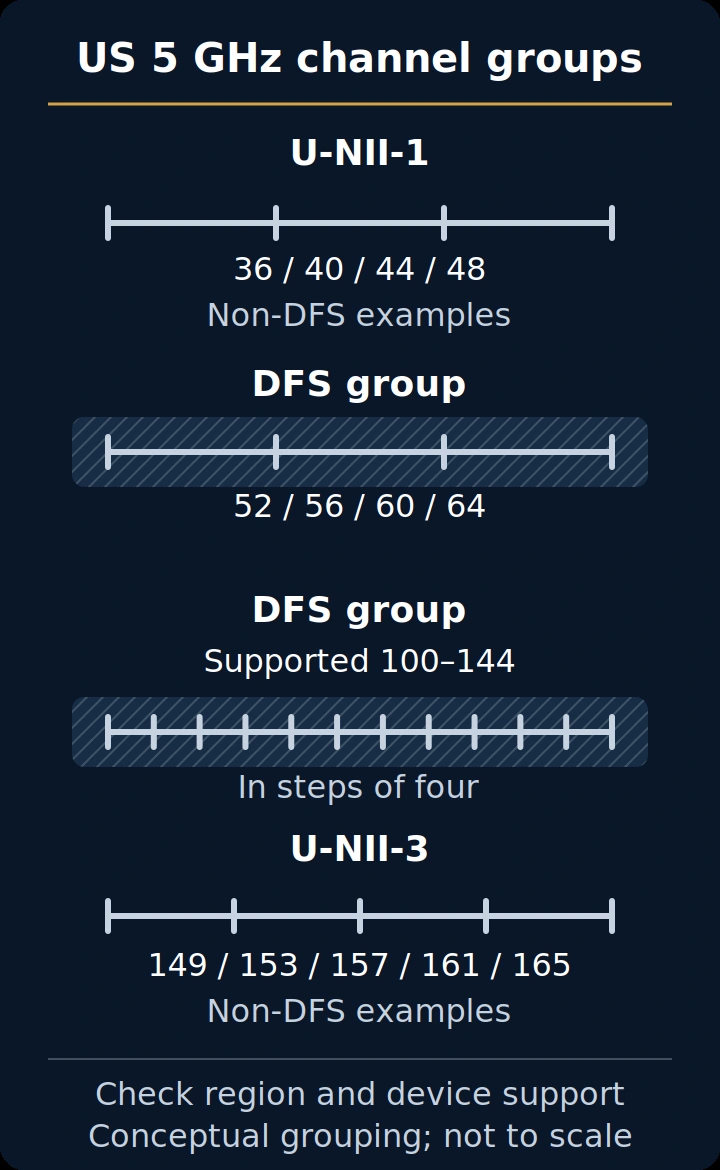
“Non-DFS” removes that particular radar-vacating requirement under the stated conditions; it does not mean interference-free. Nor does this US table establish worldwide permissions. Channel 165 being listed here is not a recommendation or proof it offers the same bandwidth choices as channel 149.
Takeaway: Match an offered channel to the correct regional rules and supported radio configuration, rather than treating every 5 GHz channel alike.
Can DFS cause a dropped session?
DFS can require a radio to leave its operating channel after detecting radar. If a wireless projection link actually uses that affected channel, interruption is possible while the equipment changes operation. A dropout at a repeatable road location is useful evidence to record, but it does not establish radar detection or DFS use.
The following values are US regulatory requirements, not Android Auto recovery measurements. They come from the October 7, 2026 text of §15.407(h)(2)(i)–(iv), retrieved October 10, 2026.
Scroll horizontally to see all columns.
| Rule event | Requirement | What it describes |
|---|---|---|
| Applicable master-mode channel availability check | 60 seconds | Checking a DFS channel for radar before initiating use |
| Radar detection on an operating channel | Transmissions cease on that channel within 10 seconds | Vacating the affected channel |
| Channel flagged as containing radar | At least 30 minutes of non-occupancy | Restriction on that channel, not a whole-adapter outage timer |
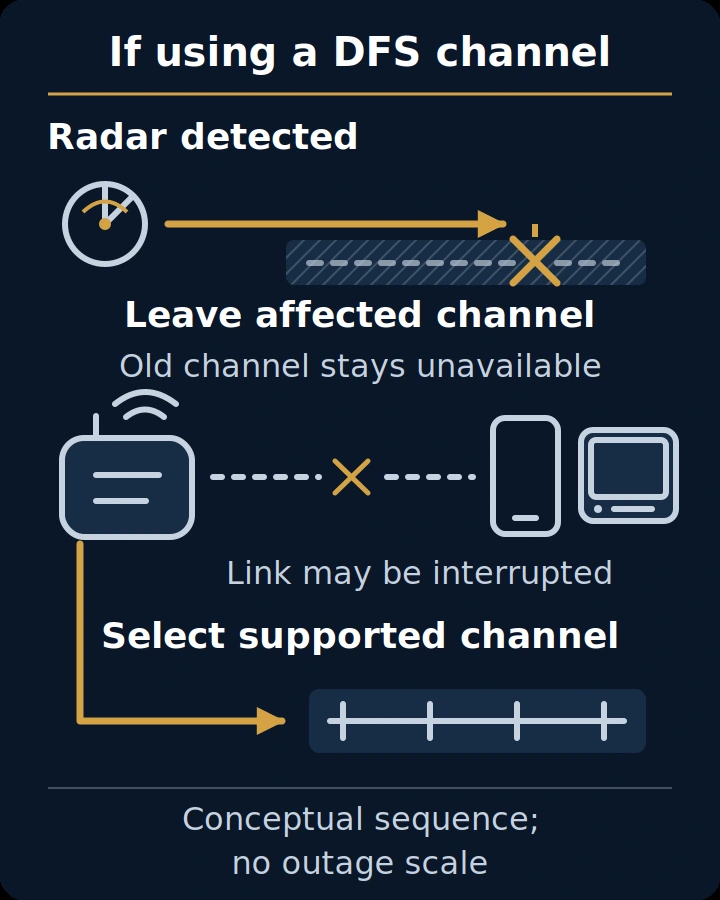
Before assigning this cause, establish the product’s operating frequency/channel and obtain relevant diagnostic information through its support route. The reviewed TWO/TWO+ manual lists operating ranges that do not include the US DFS frequency bands above. Comparing those published ranges does not constitute a radio capture, but it is a reason to avoid assuming every AAWireless interruption is DFS.
Common mistake: Calling a toll-road dropout a radar fault without evidence of the operating channel or detection event. Record the location and symptom as observations, keeping the proposed cause separate.
If the channel or cause remains unknown, use the broader Android Auto disconnection checks. They cover failures that a channel-family explanation cannot resolve.
Takeaway: DFS is a conditional explanation to investigate, not a diagnosis made from the location of a dropout.
Should you compare channel 36 or 149?
Compare both only when your actual equipment offers them for the physical region and the phone can connect. AAWireless suggests trying these two choices, rather than naming a universal winner. Start with availability and compatibility, then compare the same operation with one channel change and the other settings held steady.
Scroll horizontally to see all columns.
| What you find | Useful action | What the result tells you |
|---|---|---|
| Both choices are offered and connect | Compare 36 and 149 reversibly | Which observation repeats in this arrangement |
| Only one is offered or supported | Use the supported choice; ask about the missing option | A constraint, not proof of inferior performance |
| Neither appears in a documented control | Use the actual maker’s support path | This example is not an applicable menu instruction |
Country code or regulatory domain helps determine a radio’s channel, band and power options. Cisco’s country-code explanation supports that concept; its controller menus are not car-adapter instructions.
Rules can also differ outside the US. For example, Cisco documents high-band DFS support in Great Britain for particular industrial access points and firmware. That bounded example is enough to show why a US non-DFS label should not be carried into every country’s car setup.
Common mistake: Selecting a foreign country code to unlock a channel. Verify the configuration for the actual location with the manufacturer; do not use regional identity as a stability workaround.
The US device-security provisions in §15.407(i) require protection against unauthorized RF settings and operator disabling of DFS. Choose supported options through the approved product controls.
Use the adapter controls comparison to identify the documented maintenance route for your product before assuming the AAWireless example applies.
Takeaway: Channel availability comes first; a repeatable comparison comes second, with no universal 36-versus-149 ranking.
What can you change on your actual equipment?
Use only settings documented for the product you have. The concrete example here is an AAWireless companion-app channel control described in its troubleshooting answer. A native wireless car or another adapter needs its own instructions; a similar-looking Wi-Fi menu may control a hotspot rather than the projection link you are investigating.
In the AAWireless audio-stutter support answer, the published path is:
AAWireless companion app → Device Settings → Advanced Settings → Wi-Fi settings
The answer suggests comparing channels 36 and 149 if its audio-control suggestion does not help. Use this path when it exists for your version and the channel choices are offered. Keep the audio mode unchanged while comparing channels so the observation remains interpretable.
For music gaps with projection still running, the audio-stutter and packet-loss guide supplies the audio-specific checks. This channel guide does not prescribe buffer modes or diagnose packet loss by listening.
If the menu is missing, record the model, market variant, app and firmware versions, then ask the maker whether a supported channel control is available. The reviewed support page does not establish a current universal band-toggle or country-code editing path.
Keep firmware maintenance separate from this comparison. If the manufacturer specifically requires a receiver update, use the head-unit firmware preparation guide to identify the correct update before restarting the channel comparison with a new baseline.
Takeaway: A manufacturer-backed channel example is actionable only on the equipment and software that actually provide it.
How do you compare a channel change reversibly?
Save the starting arrangement, make one offered channel change, compare the same operation, then restore the original setting and compare again. That sequence preserves a usable baseline and separates observation from diagnosis. The five steps below are an editorial procedure for recording a comparison, not a manufacturer-tested guarantee of improved stability.
- Record the baseline. Note phone, Android version, vehicle/head unit, adapter, app/firmware and physical country. Save the original channel and any visible band/width labels. Write “unknown” for information you cannot obtain.
- Check applicability and recovery. Confirm the exact maker’s instructions, the offered channel and how to restore the previous selection. If recovery is unclear, resolve that before changing it.
- Change one channel. Use the supported control while parked. Keep firmware, audio settings, phone position and other optional network functions unchanged as far as practical.
- Repeat, then restore. Compare the same operation under comparable conditions; note actual duration, location, music gaps and ended sessions. Restore the original setting and check whether the difference repeats.
- Keep the result and next question. Retain a useful supported choice only after considering the comparisons. If a change prevents connection, follow the product’s documented recovery/support route instead of borrowing a reset recipe.
Scroll horizontally to see all columns.
| Record field | What to enter |
|---|---|
| Equipment and location | Exact models, market variants and physical country |
| Software | Android, app, receiver and adapter versions as applicable |
| Starting configuration | Exact visible band/channel/width labels, or unknown |
| Symptom | Music gaps, ended projection, error or inability to reconnect |
| One change | Old and new channel; any conditions that also changed |
| Comparison | Actual duration/location and operation repeated |
| Restoration | Original setting restored; what happened afterward |
| Support question | Whether the control/channel is supported and what evidence is needed next |
A parked result is a starting observation. For a problem seen only during normal travel, note subsequent occurrences after parking; do not operate settings while driving. A changed outcome supports a configuration choice for that setup, not a claim that radar or interference has been proved.
If a direct USB comparison would help establish the boundary of the symptom, prepare it separately using the Android Auto cable checklist. Copy the record above before changing equipment, so the next comparison has a defined starting point.
Takeaway: Finish with an original setting, one recorded change, a restoration result and a specific next question.
When this does not apply
This channel comparison needs a supported wireless Android Auto arrangement and an applicable documented control. It is not the next step when the system never supported wireless projection, the same fault occurs over direct USB, or a native receiver exposes no relevant setting. Resolve that boundary before trying to tune a radio channel.
Use the Android compatibility collection when support for the intended connection is uncertain. Keep Bluetooth-only music, CarPlay, Android AI boxes and home-router optimization outside this procedure; their settings and connection paths need their own documentation.
The DFS explanation also does not identify a cause when there is no evidence that the actual link uses the relevant frequencies. If a region or model mismatch limits the offered channels, ask the manufacturer about that combination rather than overriding the country identity or installing foreign firmware.
Takeaway: Redirect unsupported arrangements and broader symptoms before attempting a channel change.
FAQ
These answers address additional model, missing-setting and recovery questions seen in related searches, PAA and indexed community questions. They apply the same documentation limits as the main guide. A forum report can identify a question to investigate; it cannot supply a verified menu or a stability result for a different car.
Does this advice apply to every Samsung phone?
No; identify the exact Samsung model, market variant and Android version. Generic 5 GHz capability does not establish every channel’s availability. Ask the phone and projection-equipment makers about the combination rather than using the brand name as a compatibility guarantee.
What if a 5 GHz setting change does not help?
Restore the baseline and record the unchanged symptom. Confirm that the menu affected projection rather than a separate hotspot. An unsuccessful change is useful information for the next diagnosis; it does not justify changing several unrelated settings together.
Why might someone report better AAWireless stability on 2.4 GHz?
The cited report does not establish why 2.4 GHz appeared more stable in that setup. It does not override Google’s published wireless support requirements or predict another setup. Check the exact adapter’s supported options, then preserve the equipment and conditions needed to make any comparison interpretable.
How do I switch from 5 GHz to 2.4 GHz if no band option is shown?
Ask the actual manufacturer whether your model and software offer a supported band control. A channel menu is not automatically a band selector. The public instructions reviewed here establish a channel comparison, so they cannot supply a missing universal band-toggle recipe.
What if the adapter stops connecting after a channel change?
Use its documented recovery method to restore the original setting, or contact product support if that control is inaccessible. Include the old/new channel and versions. Avoid a reset sequence from another adapter: its pairing and configuration consequences may differ.
Could dashcam Wi-Fi explain the problem?
It is a variable to investigate separately, not a confirmed cause. A 2.4 GHz dashcam label alone does not prove same-channel conflict with a 5 GHz projection link. Follow the camera’s instructions and preserve recording when assessing any optional Wi-Fi function.
Why can a phone support 5 GHz but miss higher channels?
Band support does not establish support for every channel in every regional arrangement. Verify the phone’s market variant and the adapter’s supported configuration with the makers. Record which offered channel fails to connect; do not change country identity merely to expose it.
Should I choose 40 MHz or 80 MHz for Android Auto?
There is no car-specific width recommendation in the reviewed instructions. Those values describe channel width, whereas 36 and 149 are channel identifiers. Leave undocumented width settings alone; if a width is visible, record it so product support can assess the complete configuration.
Takeaway: Keep model-specific questions and observations distinct from universal channel advice.
Related reading
Choose the next guide by the decision still unresolved: connection prerequisites, music continuity or equipment compatibility. The links below continue those tasks without turning a channel comparison into a full fault diagnosis. Keep the same equipment and observations in your notes so the next check builds on what you already established.
- Wireless Android Auto adapter guide — establish the connection arrangement and prerequisites.
- Wireless Android Auto audio-stutter guide — compare music gaps and delayed controls separately.
- Android compatibility checklist — retain the exact equipment details for a support or replacement decision.
Takeaway: Select the next check from the remaining symptom or missing input.
Method and sources
This guide combines public requirements, manufacturer instructions and a region-qualified reading of US DFS provisions. The comparison procedure is editorial guidance, and no car, adapter or radio environment was tested for this article. Our research establishes what the reviewed documents say; observations from the actual equipment remain necessary for a specific diagnosis.
Primary material checked October 10, 2026: Google’s wireless requirements and setup help; AAWireless troubleshooting and TWO/TWO+ manual; Intel’s qualitative band explanation; Cisco’s channel, country-code and bounded GB-domain documentation; and the October 7, 2026 latest-issued eCFR XML for §15.407. Each is linked beside the claim it supports.
The US map is a synthesis, not a complete worldwide channel-permission table. KDB 905462 was not retrieved and is not used for certification or test-procedure claims. Community questions informed the FAQ topics; replies and historical news are not technical evidence for current controls. See our research methodology for the distinction between documentation research and testing.
Recent update: October 10, 2026 — initial requirements, US channel map, conditional DFS explanation and reversible comparison record.
Takeaway: Public sources support the decision boundaries; a setup-specific result requires a documented observation.
Related articles
Wireless Android Auto Audio Stutter: A Fix Order
Separate music gaps from sound delay, check documented adapter controls, and compare dashcam or hotspot Wi-Fi changes with a reversible record.
Read article
AAWireless TWO vs MA1 vs CarlinKit 5.0: Features
Compare documented Android Auto compatibility, app controls and update paths, with a repeatable method for checking connection speed, heat and dropouts.
Read article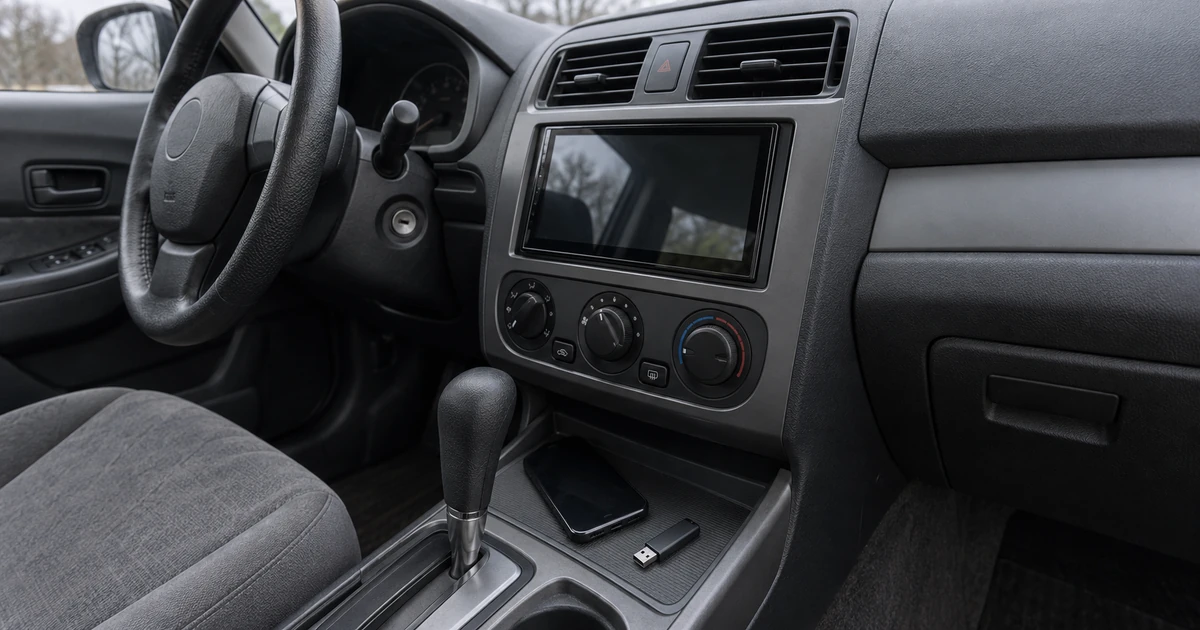
Update Head Unit Firmware for Android Auto
Identify the right receiver update, prepare its USB files, check MCU package limits, and verify the version before retesting Android Auto.
Read article